
How to Fix Google Merchant Center Feed Errors: The Complete Guide (2026)
Every minute your products sit disapproved in Google Merchant Center, you're losing sales. Feed errors are the single most common reason Google Shopping campaigns underperform, yet most guides give you a generic list of error types and leave you to figure out the rest.
This guide is different. We cover not just what each error is and how to fix it but also the questions every other resource skips: which errors to fix first, how long re-approval actually takes, what to do when you have thousands of disapproved SKUs, and what happens to your campaigns after your products get reinstated.
Whether you're on Shopify, WooCommerce, or a custom platform, this is the only Google Merchant Center troubleshooting guide you'll need in 2026.
What Are Google Merchant Center Feed Errors?
Google Merchant Center (GMC) is the platform where you upload your product catalog so it can appear in Google Shopping, Search, Performance Max campaigns, and free listings. Your products live in a product feed, a structured file or API connection containing titles, prices, images, availability, GTINs, and dozens of other attributes.
When that data is incomplete, inaccurate, or conflicts with Google's policies, errors appear. At that point, your product either gets the following:
Disapproved: completely removed from Shopping results
Limited: shown less frequently than it should be
Warned: still showing, but at risk of disapproval if not fixed
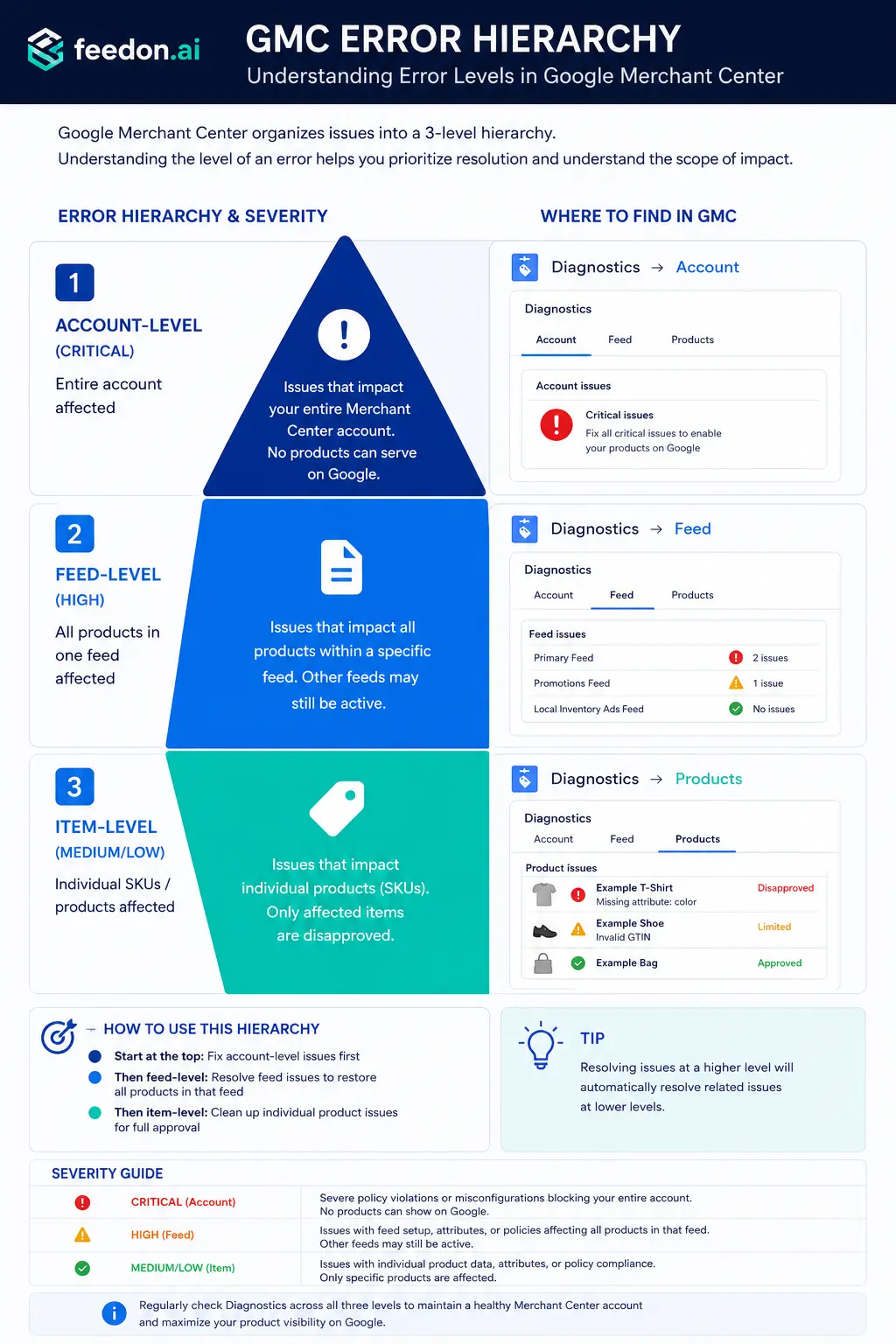
Errors are grouped into three levels in your GMC dashboard:
Level               What it affects                       Where to find it
Account-level       Your entire account / all products    Diagnostics → Account tab
Feed-level          All products in one feed              Diagnostics → Feed tab
Item-level          Individual SKUs                       Products → Needs Attention
The Error Triage Matrix: Which Errors to Fix First
When you log into GMC and see 200 disapproved products across six different error types, where do you start?
Most merchants freeze, pick errors at random, or waste hours fixing things that barely affect revenue. The right approach is to triage by two dimensions: revenue impact and fix effort.
Error type                        Revenue impact   Fix effort    Fix first?
Price / availability mismatch     Critical         Low           Yes - fix immediately
Account suspension (policy)       Critical         High          Yes - nothing else matters
GTIN / identifier missing         High             Medium        High priority
Missing required attribute        High             Low–Medium    High priority
Image quality / broken image      High             Medium        High priority
Invalid product URL               Medium           Low           Fix next
Shipping / tax configuration      Medium           Medium        Fix next
Invalid value / format            Medium           Medium        Fix next
Wrong Google product category     Medium           Low           Fix after above
Duplicate product IDs             Low              Medium        Fix when able
Optional attribute warnings       Low              Low–High      Fix last
The rule of thumb: fix anything that blocks your entire account first, then focus on errors affecting your highest-revenue products. Download the diagnostics CSV, add a column for each product's monthly revenue, and sort by revenue descending – now you have a prioritised fix queue.

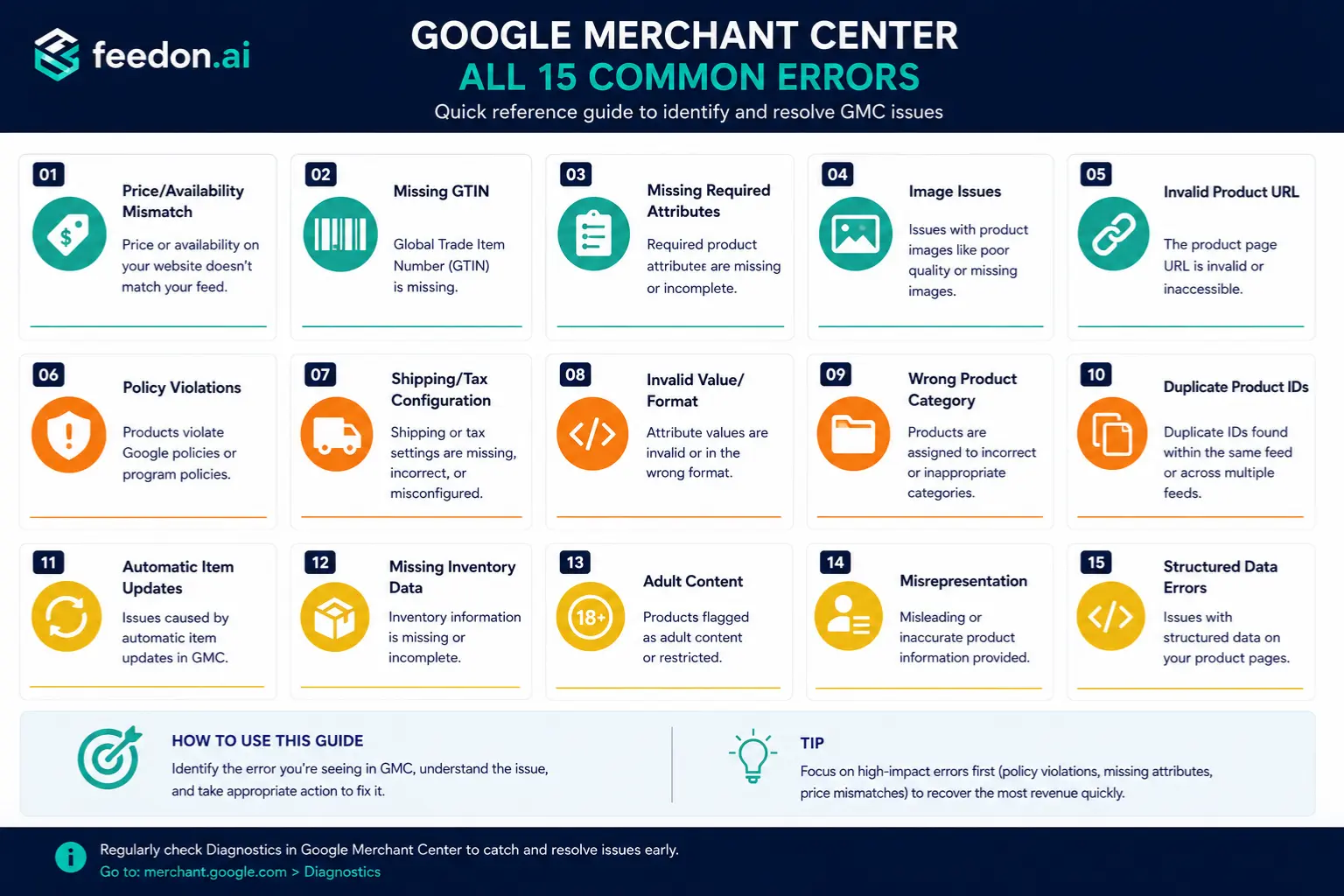
The 15 Most Common Feed Errors and How to Fix Them
1. Price or Availability Mismatch
Error message: "Price on product page doesn't match feed" or "Availability mismatch"
Why it happens: Your feed says a product costs $1,499, but your website shows $1,299 due to a sale. Or your feed says "in stock", but your site shows "sold out". Google crawls your landing pages and compares them – any discrepancy triggers a disapproval.
How to fix it:
Add price and availability schema markup (JSON-LD) to your product pages so Google can read the correct data directly
Increase your feed refresh frequency to every 4–6 hours, or enable Automatic Item Updates in GMC → Settings → Automatic improvements
After any sitewide sale or promotion ends, manually trigger a feed resubmit
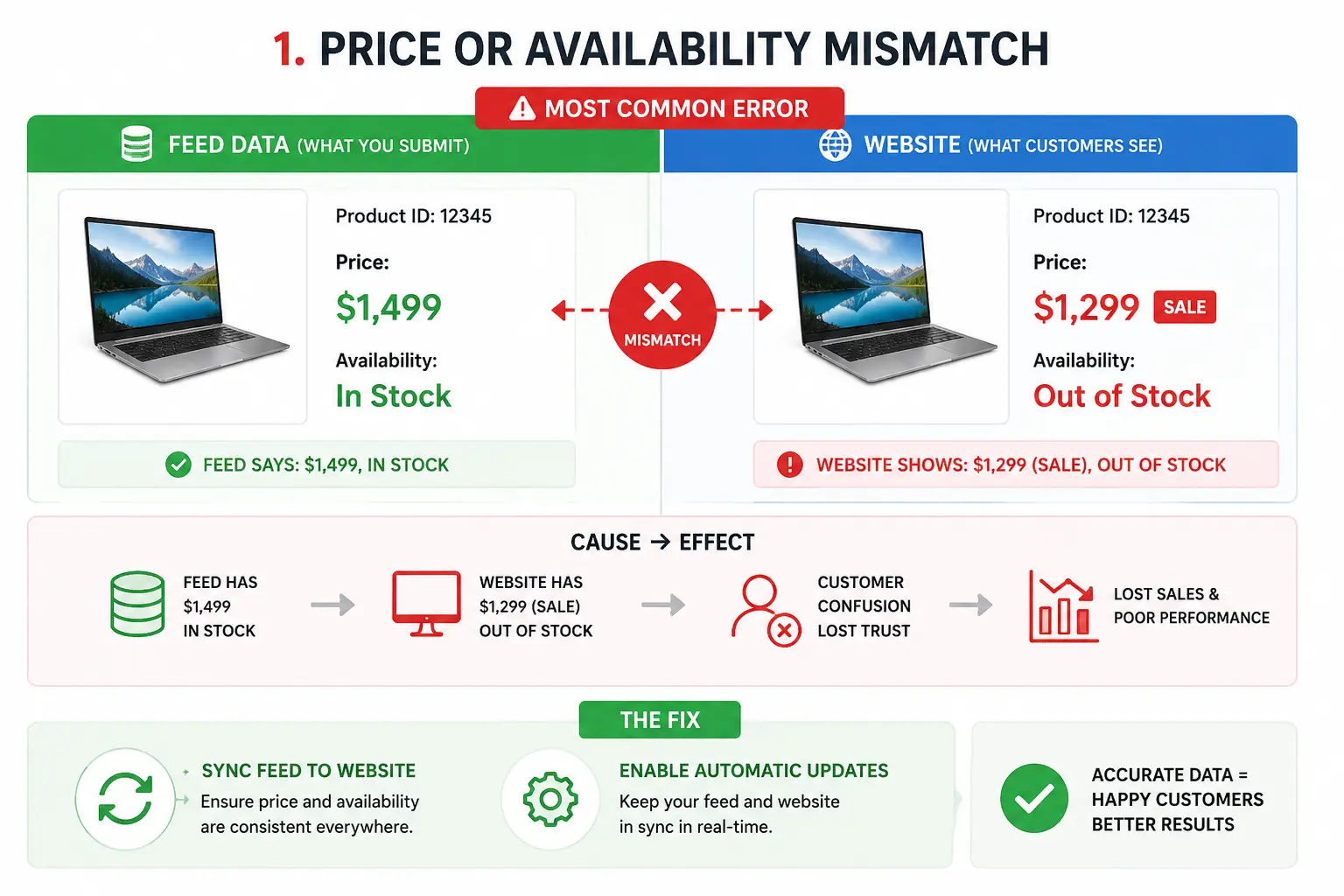
This is the most common error and the most preventable. FeedOn's AI feed management automatically syncs your feed data to match your live website on a scheduled basis, eliminating this error class entirely.
2. Missing or Incorrect GTIN / MPN / Brand
Error message: "Missing required attribute [gtin]" or "Invalid GTIN"
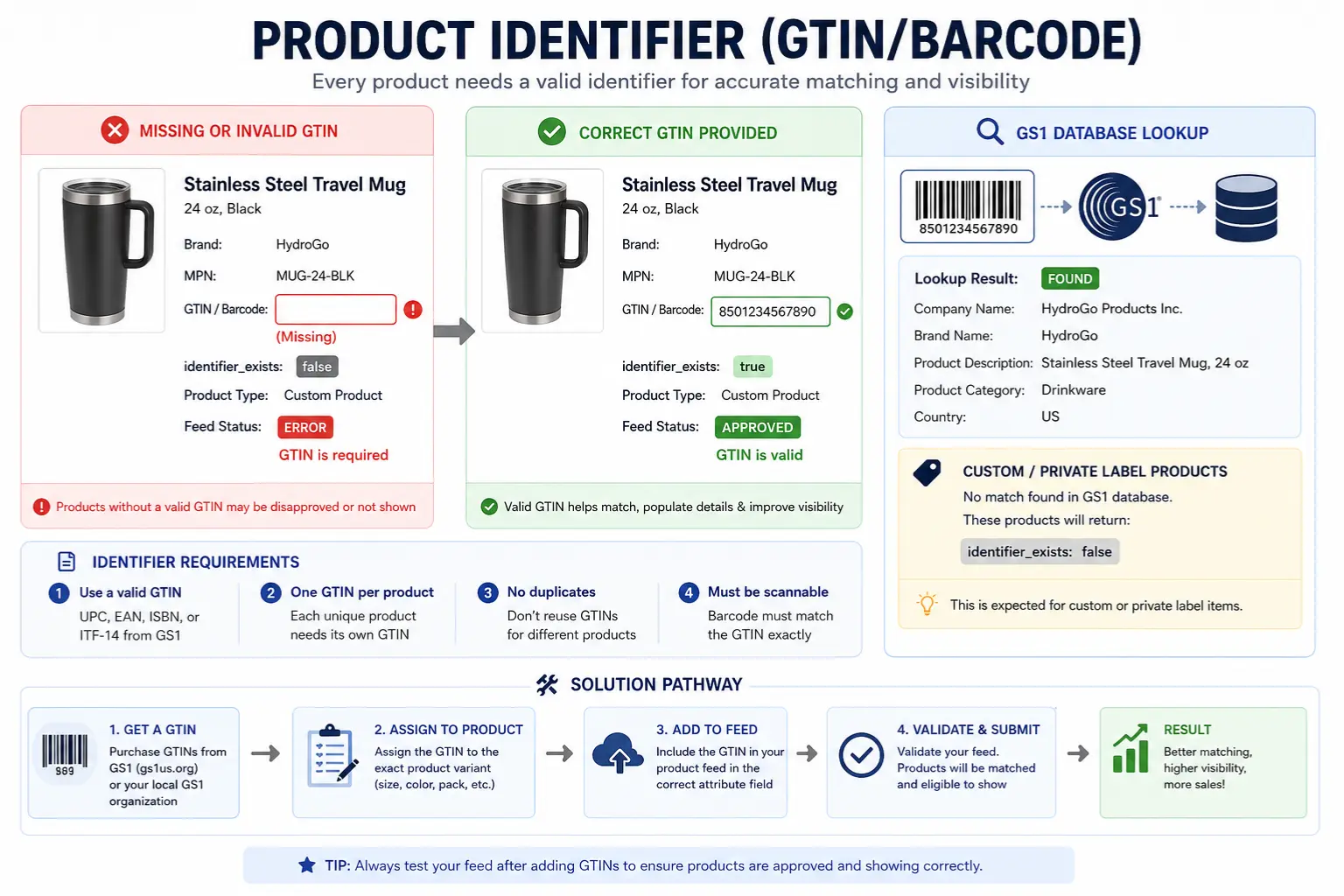
Why it happens: Google requires product identifiers – Global Trade Item Numbers (GTINs, i.e., barcodes), Manufacturer Part Numbers (MPNs), or brand names – to match products with existing Google product listings. Wrong or missing identifiers mean Google can't verify your product data.
How to fix it:
Look up the correct GTIN on the manufacturer's website or GS1 database
If you sell custom, handmade, or unbranded products that genuinely have no GTIN, set identifier_exists to false; don't leave it blank
GTINs must be formatted as 8, 12, 13, or 14 digits. Remove hyphens and spaces
For product variants (different sizes/colors), each variant needs its own unique GTIN
See our full breakdown of Google Shopping required attributes for a complete list of identifier rules by product category.
3. Missing Required Attributes
Error message: "Missing required attribute [attribute_name]"
Common missing attributes: title, description, link, image link, price, availability, condition, and brand.
How to fix it:
Download the Diagnostics CSV and filter by this error to see which products and which specific attributes are missing
Check your feed generation settings in your CMS or feed tool the field may exist in your database but not be mapped to the correct feed attribute
For apparel products, additional attributes become required: color, size, gender, age_group
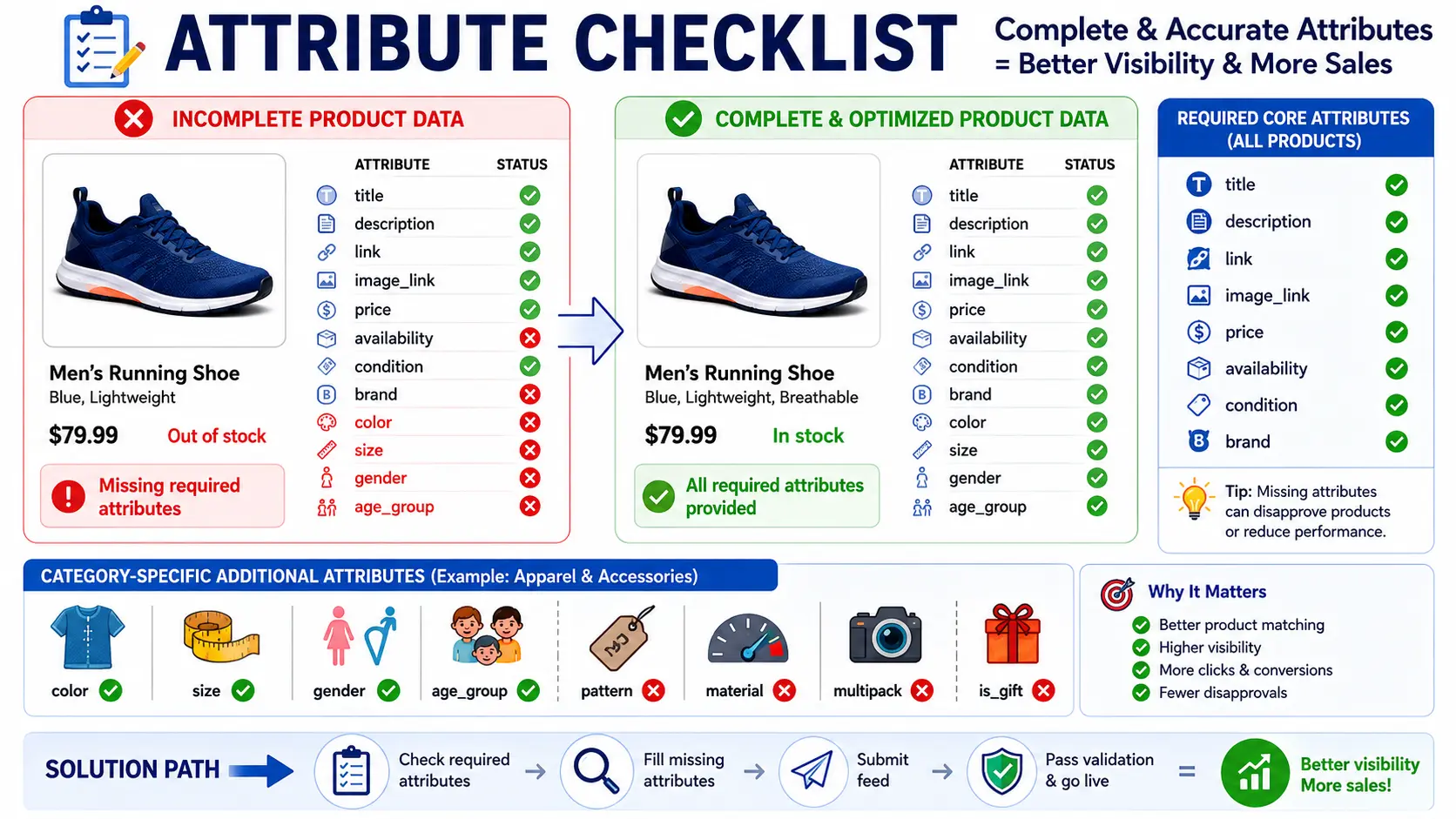
FeedOn's AI can extract missing attributes automatically including from product images using Vision AI which is especially useful for legacy catalogs where attribute data is sparse.
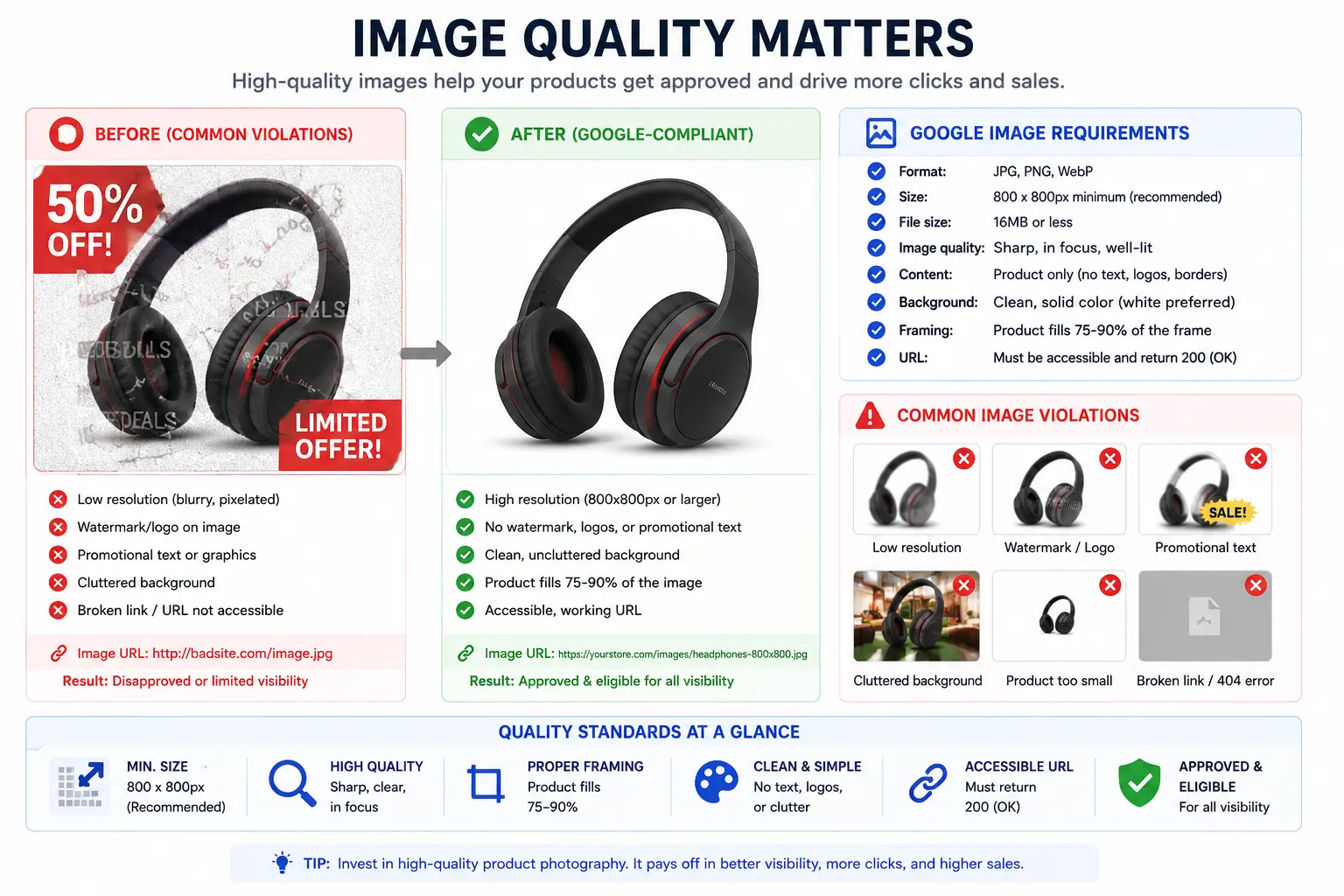
4. Image Issues (Broken Links, Low Resolution, Watermarks)
Error message: "Image not accessible," "Image too small," or "Promotional overlay detected"
Why it happens: Google has strict image requirements. Common violations include images hosted on CDNs that block Googlebot, images under 100×100px (250×250px for apparel), watermarks, text overlays, or promotional banners on the product image.
How to fix it:
Ensure image URLs are publicly accessible test by opening them in a private browser window
Minimum size: 100×100px for non-apparel; 250×250px for apparel. Recommended: 800×800px or larger
Remove all watermarks, logos, badges ("Sale!", "New"), and promotional text from the main image_link
You can put promotional images in additional_image_link (up to 10 additional images allowed)
If your image CDN is blocking crawls, whitelist Googlebot's user agent
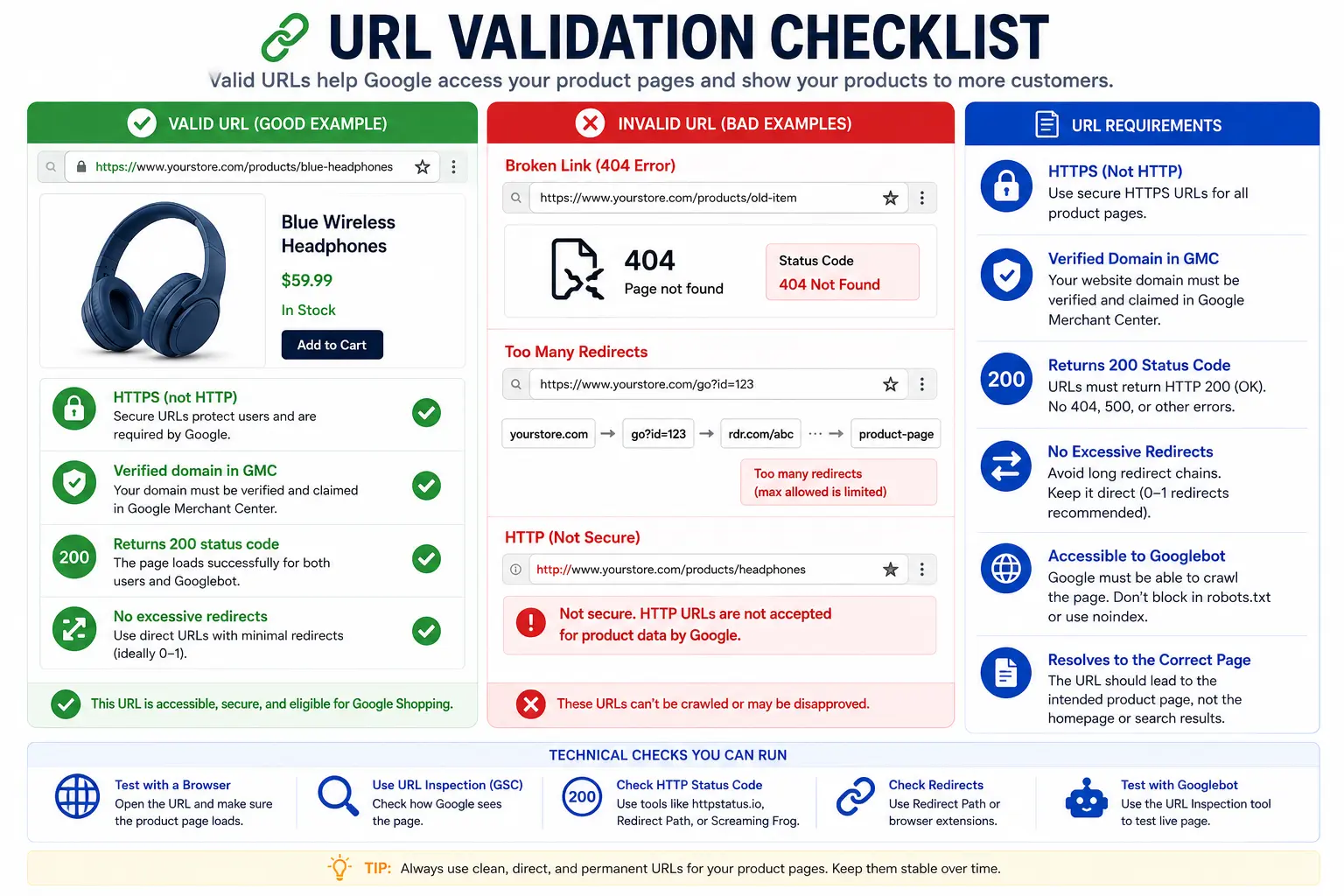
5. Invalid Product URL / Broken Landing Page
Error message: "Invalid product URL" or "Landing page not working"
How to fix it:
All product URLs must use HTTPS - HTTP URLs are rejected
The URL must point to a verified domain claimed in your GMC account
Test every flagged URL: does it return a 200 status code? Redirects (301/302) are usually fine, but redirect chains slow crawling
Avoid UTM parameters or tracking codes in your link attribute, use ads_redirect for tracking instead
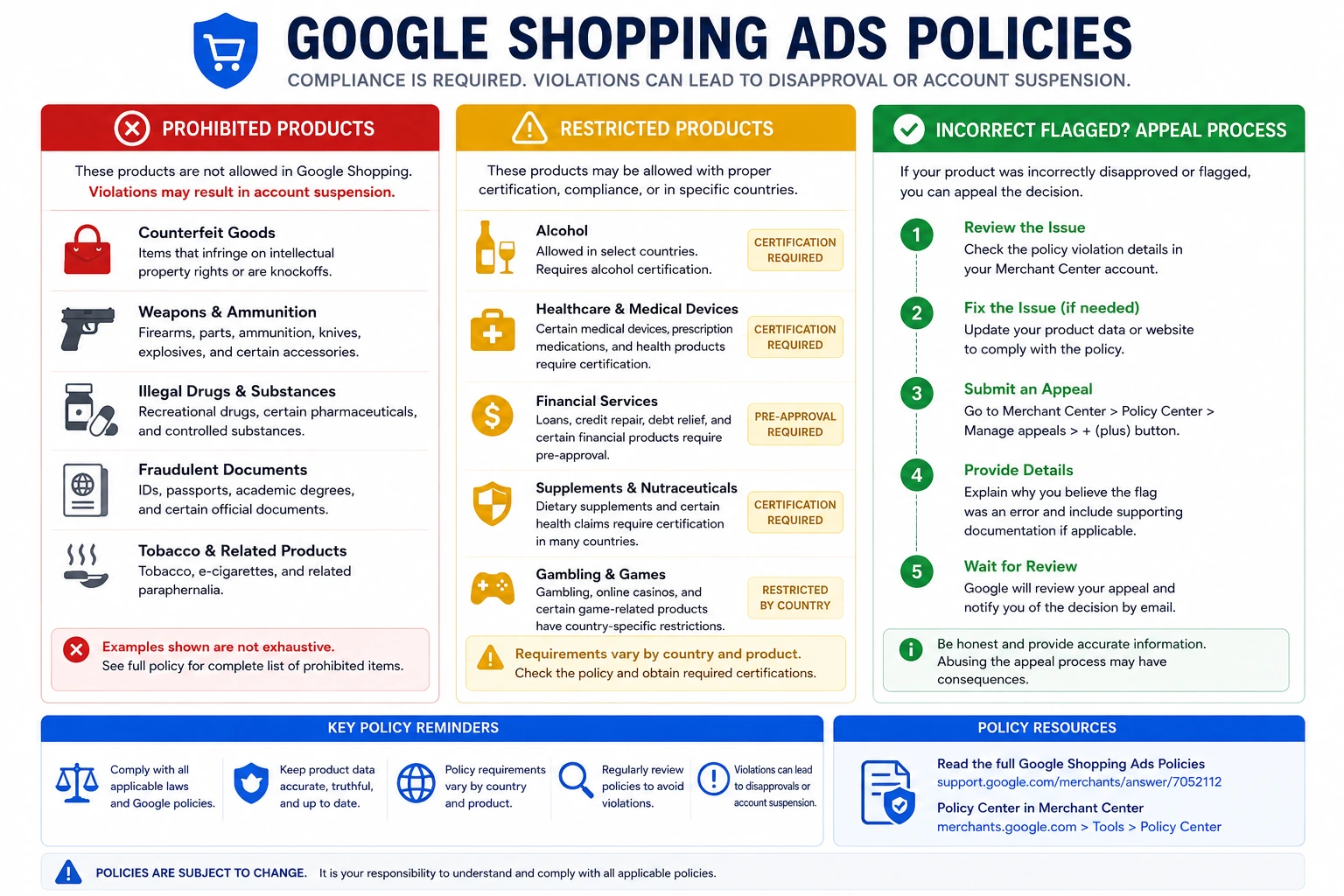
6. Policy Violations (Prohibited or Restricted Products)
Error message: "Product disapproved due to policy violation"
Google prohibits certain product types entirely (counterfeit goods, weapons) and restricts others (alcohol, healthcare, gambling-related items) requiring additional verification.
How to fix it:
Read Google's Shopping Ads Policies for your product category
Remove any prohibited products from your feed they can't be fixed, only removed
For restricted categories, apply for the relevant certification in GMC → Growth → Manage programs
If you believe a product was incorrectly flagged (common with health supplements), submit an appeal see the appeals section below
7. Shipping and Tax Configuration Errors
Error message: "Missing shipping information" or "Incorrect tax settings"
How to fix it:
Set up account-level shipping rates in GMC → Settings → Shipping and returns. This covers all products unless overridden
If your rates vary by product weight or price band, add the shipping attribute directly to your feed as a product-level override
For US sellers, configure sales tax settings by state this is required for Shopping ads in the US
If you offer free shipping, explicitly set the shipping cost to 0 rather than leaving it blank
8. Invalid Value or Invalid Format
Error message: "Invalid value [attribute]" or "Invalid format"
Why it happens: Attribute values that don't match Google's accepted enumerations. For example, condition must be exactly new, refurbished, or used not "brand new" or "like new."
How to fix it:
Date attributes must use ISO 8601 format: YYYY-MM-DD or YYYY-MM-DDThh:mmZ
Price must include currency: 1499.00 INR not just 1499
Availability must be exactly: in_stock, out_of_stock, or preorder
Boolean fields like identifier_exists must be true or false, not "yes" or "no"
Use Feed Rules (covered below) to correct formatting errors automatically without editing your source data
9. Incorrect Google Product Category
Error message: "Product assigned to wrong category" or unexpected category mismatch
How to fix it:
Use Google's product taxonomy and select the most specific matching category
The google_product_category attribute accepts either the full string path or the numeric category ID
Overly broad categories (e.g., "Apparel & Accessories" instead of "Apparel & Accessories > Clothing > Tops & Tees > T-Shirts") reduce match quality and visibility
Use Feed Rules to auto-map your internal product categories to Google's taxonomy at scale
10. Duplicate Product IDs
Error message: "Duplicate product IDs detected"
How to fix it:
Each product in your feed must have a unique id value. Variants (size S, M, L of the same shirt) must each have their own distinct ID
If you're generating IDs dynamically, check for collisions in your export logic
Product IDs are case-sensitive PROD-123 and prod-123 are treated as different items
11. Automatic Item Updates Warning
What it means: This isn't a disapproval it's Google telling you it corrected your price or availability data automatically because it found a mismatch between your feed and your website. This is a warning that your feed update frequency is too low.
How to fix it:
Enable Automatic Item Updates: GMC → Settings → Automatic improvements
More importantly, increase your feed refresh schedule to match how frequently your prices and stock change
12. Missing Inventory Data
Error message: "Missing product availability" or "Missing [availability] attribute"
How to fix it:
Add availability to every product in your feed: in_stock, out_of_stock, or preorder
If your feed uses a custom availability field, map it to the correct Google attribute using Feed Rules
For large catalogs, patch missing availability via the Content API using batch updates
13. Adult Content Misclassification
How to fix it:
If your product contains mature content (lingerie, adult toys, etc.), set adult to true in your feed
Without this flag, Google may disapprove the product for policy non-compliance
14. Misrepresentation Violations (Account-Level)
What it means: Google believes your store, website, or product data is misleading customers. This is a serious account-level violation that can suspend your entire account.
Common causes: price shown in feed differs from checkout price; shipping costs hidden until checkout; missing refund/return policy; business address inconsistency across your website, social profiles, and GMC.
How to fix it:
Ensure your business name, address, and contact details are identical everywhere: footer, Contact Us page, GMC account, Google Business Profile, and social media
Make refund, return, and shipping policies clearly accessible on your website
Ensure all prices shown in Shopping ads match what a customer pays at checkout (inclusive of mandatory fees)
15. Structured Data / Microdata Errors
Error message: "Price on product page doesn't match feed" when you're sure prices match
Why it happens: Google reads structured data (JSON-LD schema markup) on your pages to verify feed data. If your schema markup is absent or contains incorrect values, Google's crawl finds a "mismatch" even when your visible page looks correct.
How to fix it:
Test your product pages in Google's Rich Results Test
Implement Product schema with offers properties including price, availability, priceCurrency, and url
Ensure your structured data updates dynamically hardcoded schema with outdated prices is a common culprit
Platform-Specific Fix Guide
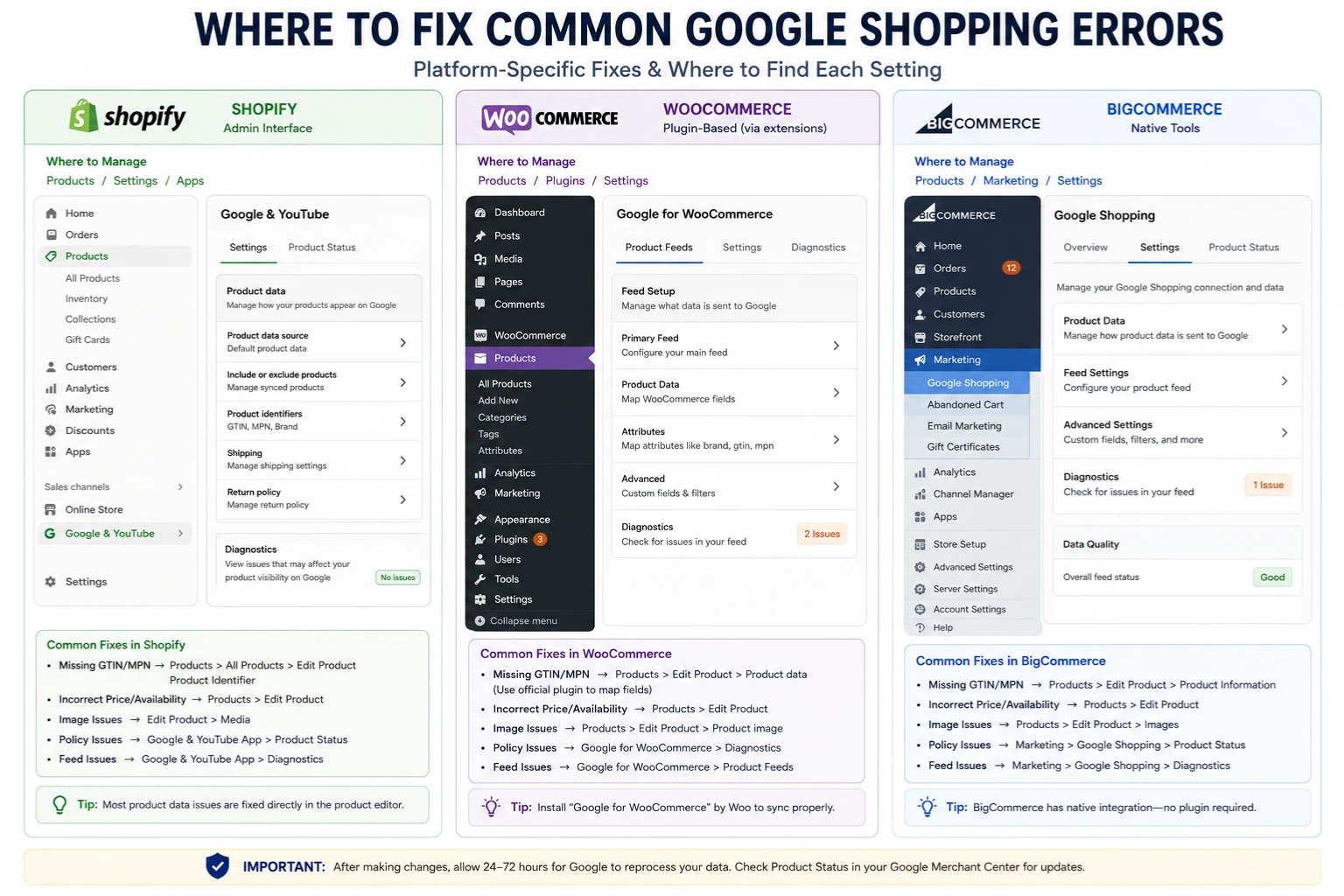
Generic GMC guides treat all merchants the same. The reality is that where you make a fix depends entirely on your CMS. Here's exactly what to do on the three most common platforms.
Shopify
Price/availability mismatch:
Go to Shopify Admin → Sales Channels → Google → Feed settings → enable "Auto-sync product data"
For more control, install a dedicated feed app (FeedOn, DataFeedWatch, etc.) and set refresh to every 4 hours
For structured data, use an SEO app like TinyIMG or JSON-LD for SEO to add product schema to all product pages
Missing GTIN:
Shopify Admin → Products → [Product] → scroll to "Shipping" → enter Barcode (ISBN, UPC, GTIN)
For bulk import, use Products → Import CSV and populate the Variant Barcode column
Image issues:
Shopify automatically serves images via its CDN (cdn.shopify.com) which is fully accessible to Googlebot
Images should be uploaded at 2048×2048px minimum to satisfy all category requirements
Remove promotional text from your main product photo; use additional_image_link for lifestyle shots
Wrong product category:
Shopify's Google channel uses your product type as a proxy for category update Products → Product Type to match Google's taxonomy language, or use Feed Rules in GMC to remap them
WooCommerce
Price/availability mismatch:
Install a feed plugin (FeedOn, WooCommerce Google Feed Manager, or ATUM Inventory) and configure scheduled feed regeneration
Ensure your WordPress cron job is running a broken cron means your feed never updates. Test with WP Crontrol plugin
Missing GTIN:
Standard WooCommerce doesn't have a GTIN field you need a plugin
Recommended: WooCommerce Product GTIN (EAN, UPC, ISBN) plugin, which adds a dedicated field on each product and variation edit screen
For bulk entry, export your products via WooCommerce → Products → Export, populate the GTIN column in the CSV, then re-import
Image issues:
Regenerate thumbnails after changing image sizes: use the "Regenerate Thumbnails" plugin
If using a caching plugin (WP Rocket, W3 Total Cache), ensure images aren't blocked in your robots.txt or CDN settings
Structured data:
Use Rank Math or Yoast SEO with WooCommerce extension both automatically generate product schema with correct price and availability data
BigCommerce
Price/availability mismatch:
BigCommerce natively supports Google Shopping channel go to Channel Manager → Google Shopping → Feed Settings → set update frequency
Enable "Real-time inventory sync" to push stock updates within minutes of a sale
Missing GTIN:
Products → [Product] → Details tab → scroll to "GTIN" field available natively on all BigCommerce plans
For bulk updates: Products → Export → select "Products" template → add GTIN column → re-import
Category mapping:
BigCommerce uses its own category tree. Go to Channel Manager → Google Shopping → Category Mapping to manually map each BigCommerce category to the correct Google taxonomy node
How Long Does Re-Approval Take?
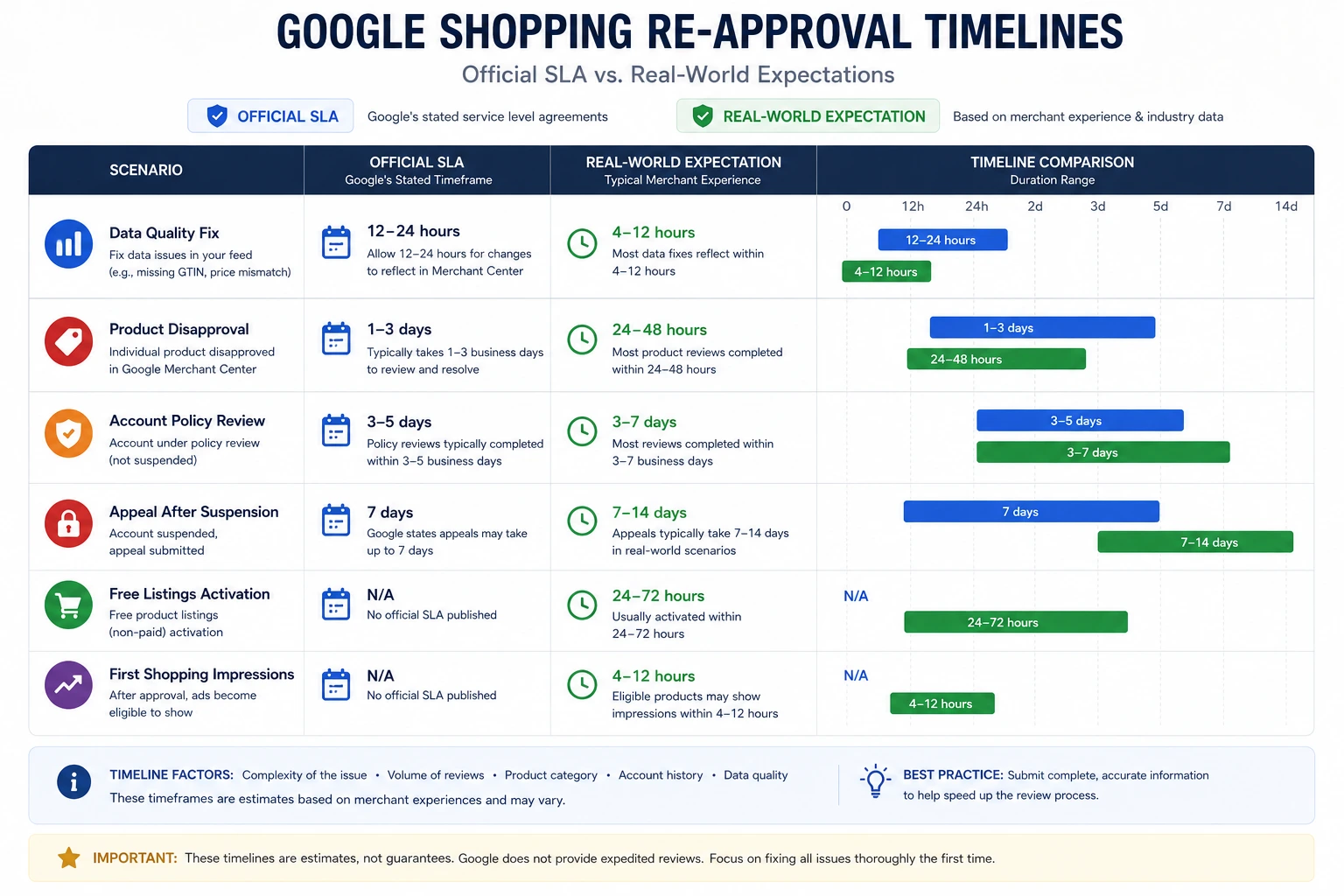
This is the most asked question in every GMC forum thread and the most underanswered. The timeline varies considerably depending on what type of error you fixed and how you resubmit. Here's the realistic picture:
Scenario                                             Official SLA         Real-world expectation
Data quality fix (price, availability, attribute)    Up to 12–24 hours    Usually 4–12 hours after feed resubmit
Product-level disapproval (image, GTIN, URL)         1–3 business days    24–48 hours
Account-level policy review                          3–5 business days    3–7 business days
Appeal after account suspension                      7 business days      7–14 days for misrepresentation
Free listings activation after approval              N/A                  24–72 hours
First Shopping ad impressions after approval         N/A                  4–12 hours after approval
Key things that speed up re-approval:
Trigger a manual resubmit: don't wait for the next scheduled feed fetch. In GMC → Feeds → click your feed → Fetch now. This tells Google to re-crawl immediately rather than waiting up to 24 hours for the scheduled crawl
Use "Request review": for item-level disapprovals, go to the product in GMC → click "Request review" after fixing. This pushes it to the front of the review queue
Fix everything at once: if a product has three errors, fix all three before resubmitting. Re-approval resets when a new error is found
What you can't speed up: account-level policy reviews and suspension appeals are reviewed by humans and take their own time. Submitting multiple appeals in quick succession does not speed up the process and may delay it.
Warnings vs. Disapprovals: Does It Actually Matter?
Short answer: yes, significantly.
Disapprovals completely remove a product from Shopping results zero impressions, zero clicks.
Warnings are more nuanced. A warned product continues to show in Shopping, but Google's algorithm reduces its impression share. The reduction isn't published, but industry practitioners consistently report that warned products receive 20–40% fewer impressions than clean products in the same auction. For high-competition categories, this gap is effectively the difference between page 1 and page 2.
The warning period: when a warning is issued, you typically have a 7-day or 28-day grace period to fix the issue before Google escalates it to a disapproval. The Diagnostics tab shows the warning type and the deadline.

Practical priority: disapprovals should be fixed immediately. Warnings should be fixed within the grace period, with priority given to warnings on your highest-traffic or highest-margin products.
Feed Rules vs. Supplemental Feeds: The Native Fix Paths
Most merchants edit their source data or CMS every time there's a feed error. But GMC has two built-in tools that let you fix many errors without touching your source system at all Feed Rules and Supplemental Feeds.

Feed Rules
Feed Rules are transformations you define inside GMC that are applied to your feed data before Google processes it. They run automatically on every feed fetch.
Best for:
Fixing formatting errors at scale (e.g., converting "in stock" → in_stock)
Adding missing attributes using logic (e.g., "if brand is empty, set brand to 'FeedOn'")
Remapping your internal category values to Google's taxonomy
Prepending or appending text to titles (e.g., adding brand name to all titles)
Where to find them: GMC → Feeds → [Your feed] → Feed rules
Supplemental Feeds
A supplemental feed is a secondary feed you upload to GMC that overrides or adds data to specific products in your primary feed, matched by product ID.
Best for:
Adding GTINs or MPNs you don't have in your main feed system
Overriding titles, descriptions, or custom labels for specific products (e.g., for seasonal promotions)
Adding product data that your CMS doesn't support natively
Fixing errors for a subset of products without changing your main feed pipeline
Where to set it up: GMC → Feeds → Add supplemental feed → upload a CSV with id and the attributes you want to override
Decision guide: use Feed Rules for systematic transformations that apply to many products with consistent logic. Use a Supplemental Feed when you need to manually specify different values for specific products.
How to Fix Errors at Scale (1,000+ SKUs)
When you have thousands of products, manual fixes aren't an option. Here are the workflows that actually work at scale.

Step 1: Download and analyse the Diagnostics CSV
GMC → Products → Needs Attention → Download report. This gives you a CSV with every disapproved product, its error type, and the specific attribute flagged. Open it in a spreadsheet tool and:
Add a pivot table by error type to see which errors affect the most products
Sort by error type to batch identical fixes together
Cross-reference with your revenue data to identify high-priority products
Step 2: Batch fix in your feed CSV
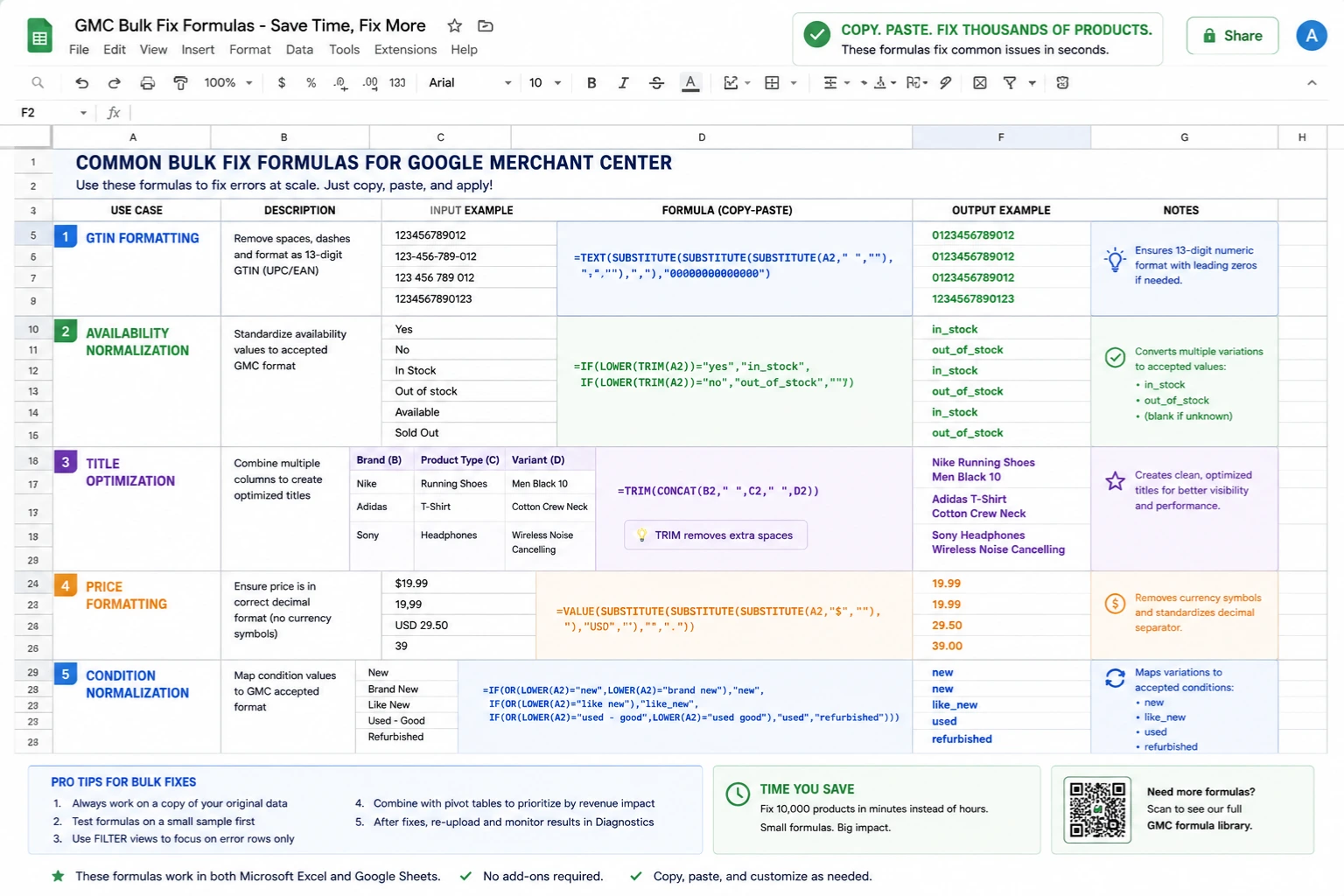
For data-quality errors affecting many products (missing GTINs, wrong formats):
Export your product feed as a CSV from your CMS or feed tool
In a spreadsheet, use formulas to fix the issue in bulk:
For GTIN formatting: =TEXT(A2,"0000000000000") to zero-pad to 13 digits
For availability normalization: =IF(A2="Yes","in_stock",IF(A2="No","out_of_stock",""))
For title optimization: =CONCAT(B2," ",C2," ",D2) to build Brand + Type + Attributes format
Upload the corrected CSV back to GMC as a feed replacement
Step 3: Use Feed Rules for systematic fixes
For errors caused by formatting mismatches (not missing data), Feed Rules are faster than editing your source file you define the rule once and it applies to every future feed fetch automatically.
Step 4: Use the Content API for large catalogs
If you have 10,000+ products or need near-real-time updates, the Content API is the right tool. The API lets you:
PATCH individual products to update specific attributes without re-uploading the entire feed
Submit product updates in batches of up to 1,000 products per request
Get product status programmatically to build your own monitoring dashboards
Basic Python example for patching availability in bulk:
python
from googleapiclient.discovery import build
service = build('content', 'v2.1', credentials=credentials)
batch_request = {
'entries': [
{
'batchId': i,
'merchantId': MERCHANT_ID,
'method': 'update',
'productId': row['product_id'],
'product': {'availability': row['new_availability']},
'updateMask': 'availability'
}
for i, row in enumerate(products_to_update)
]
}
response = service.products().custombatch(body=batch_request).execute()
Step 5: Use AI feed management for ongoing scale
FeedOn's AI feed management platform was built specifically for catalogs at scale. It audits your entire feed, flags issues with estimated revenue impact, and can automatically fix titles, descriptions, attributes, and categories across thousands of products without requiring manual edits to your CMS. For merchants with large catalogs or frequent inventory changes, this replaces the entire manual workflow above.
Multi-Country Feed Errors: International Sellers
If you're selling in multiple countries, you'll encounter an entirely different category of errors that affect only multi-country feeds.

Country-specific tax settings
Each target country has its own tax requirements. For US sellers, you need to configure sales tax by state. For EU sellers, you need VAT rates by country. Missing tax configuration is a common cause of feed errors for international accounts.
Fix: GMC → Settings → Tax (for US) or use the tax attribute in your feed to specify rates per country.
Currency and price formatting by country
Each country feed must use that country's correct currency code. A feed targeting Germany must price products in EUR; a feed targeting India must use INR. If you serve multiple currencies, create separate feeds per target country or use multi-currency feed specifications.
Locale-specific shipping
Shipping rate requirements differ by country. Shipping templates configured for one country do not automatically apply to others. Set up a separate shipping template in GMC for each target country you're selling into.
Regional policy restrictions
Some products that are fully legal in one country may be restricted or prohibited in another. Always review Google's Shopping policies for each specific target country before expanding. For example, certain health supplements approved for sale in the US may require additional documentation in Australia or Germany.
Language and encoding requirements
Product titles and descriptions must be in the local language for each country feed. Google does not accept a single English feed for all countries. Either maintain separate localized feeds or use GMC's feed translation feature (under Beta for select markets).
If you manage Meta Shopping alongside Google, keep in mind that Meta has its own set of locale and catalog requirements see our Meta Catalog Requirements guide for a complete breakdown.
How to Write a GMC Appeal That Actually Works

When Google disapproves a product or suspends your account and you believe the decision was wrong or you've fixed the underlying issue you can submit a review request. Here's how to do it in a way that actually gets results.
Which situations are appeal-able?
Product-level disapprovals where you've fixed the flagged issue
Account suspensions where you've addressed the policy violation
Incorrect policy classifications (e.g., a legitimate supplement flagged as prohibited)
You cannot appeal a disapproval for a product that genuinely violates Google's policies only fix or remove the product.
How to request a review after fixing an error
For product-level issues:
GMC → Products → select the disapproved product
Click "Fix" next to the issue
After making your fix, click "I fixed the issue" → "Request review"
Allow up to 7 business days for review
For account-level issues:
GMC → Diagnostics → Account tab
Expand the relevant issue
Click "Request review" after confirming all fixes are in place
What makes an appeal succeed
Google's reviewers look for:
Evidence that the specific flagged issue has been resolved
Consistency between your feed data, website, and business information
A compliant website: visible refund policy, privacy policy, contact details, and terms of service
Product pages that load correctly, return 200 status codes, and don't redirect to unrelated content
What to do if your appeal is rejected
If your first appeal is rejected, don't resubmit immediately. Instead:
Re-read the specific policy Google cited
Check if there are any remaining inconsistencies you missed
Run your website through GMC's website checker
Make additional fixes, wait 48 hours, then resubmit
Persistent rejections for misrepresentation often come down to business information inconsistencies (address, phone number, business name) that don't match across your website, Google Business Profile, and GMC account. Check every touchpoint.
Build an Error Early-Warning System
Most merchants only discover feed errors when their campaigns stop spending which could be days or weeks after the problem started. Here's how to build a monitoring system so you know within hours.
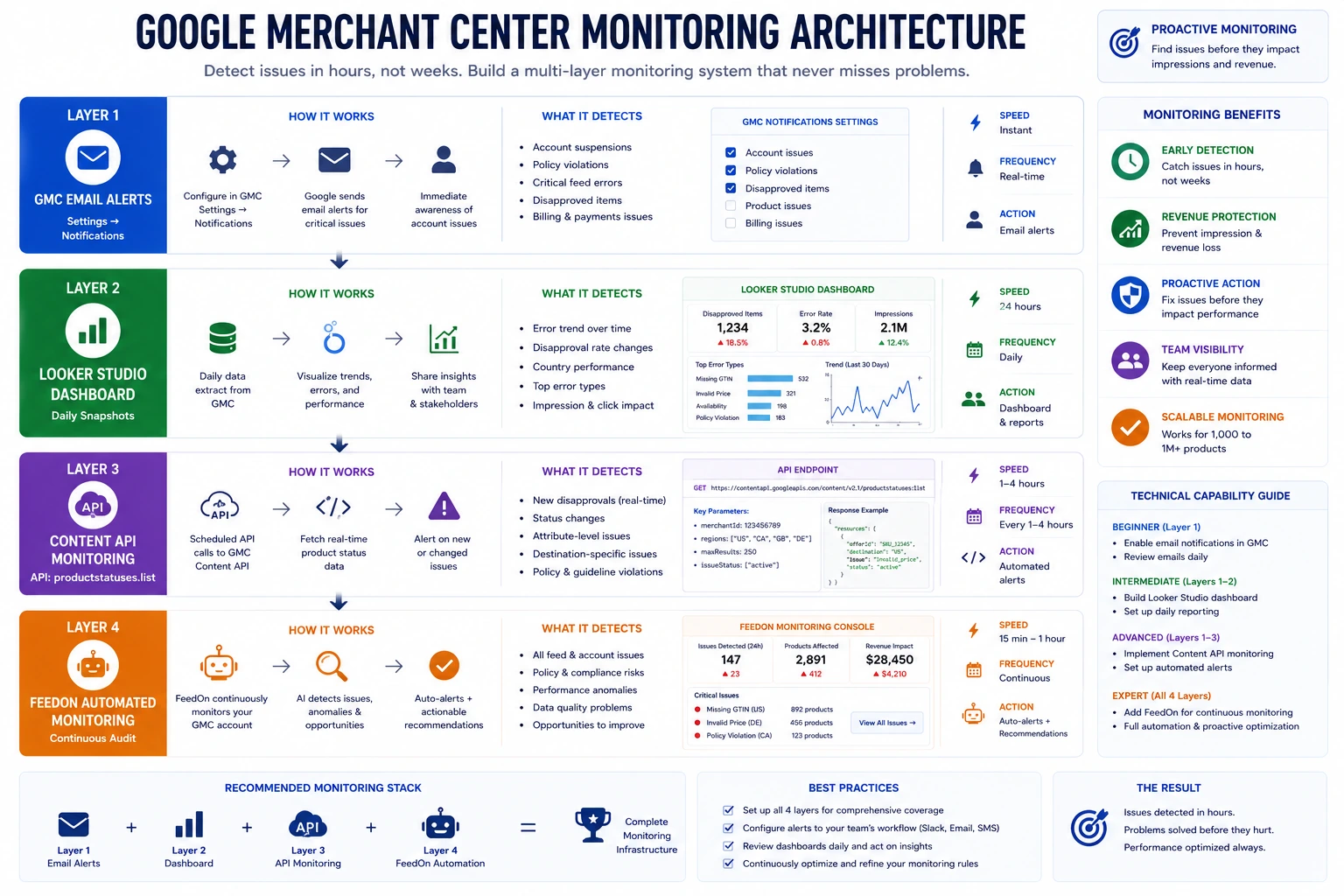
Set up GMC email alerts
GMC → Settings → Notifications → enable alerts for:
Product disapprovals
Account warnings and policy issues
Feed processing errors
These email notifications are free and require no setup beyond enabling them yet the majority of merchants never turn them on.
Export Diagnostics to Looker Studio
For ongoing visibility:
Use the GMC → Reports → Download to export a daily snapshot of product status
Connect GMC as a data source in Looker Studio (formerly Google Data Studio) using the Google Merchant Center connector
Build a dashboard showing: total approved products, total disapproved, disapproval rate by error type, trend over time
Set up a daily Looker Studio email report to land in your inbox every morning.
Monitor via the Content API
For technical teams, the Content API's productstatuses.list endpoint lets you programmatically pull product status data. You can build a daily cron job that:
Fetches all products with non-approved status
Calculates the disapproval rate compared to yesterday
Sends a Slack or email alert if disapprovals exceed a threshold (e.g., more than 2% of catalog)
Use FeedOn's automated feed monitoring
FeedOn continuously monitors your product feed for errors, mismatches, and compliance issues and surfaces them in a prioritized audit dashboard — without requiring you to build or maintain custom scripts. For merchants who don't want to manage monitoring infrastructure, this is the fastest path to reliable visibility.
After the Fix: The 7-Day Recovery Playbook
Most guides end at "fix the error." But there's a critical piece nobody talks about: a period of disapproval doesn't just cost you impressions it resets your auction history, and your campaigns may underperform for days after re-approval if you don't actively manage the recovery.
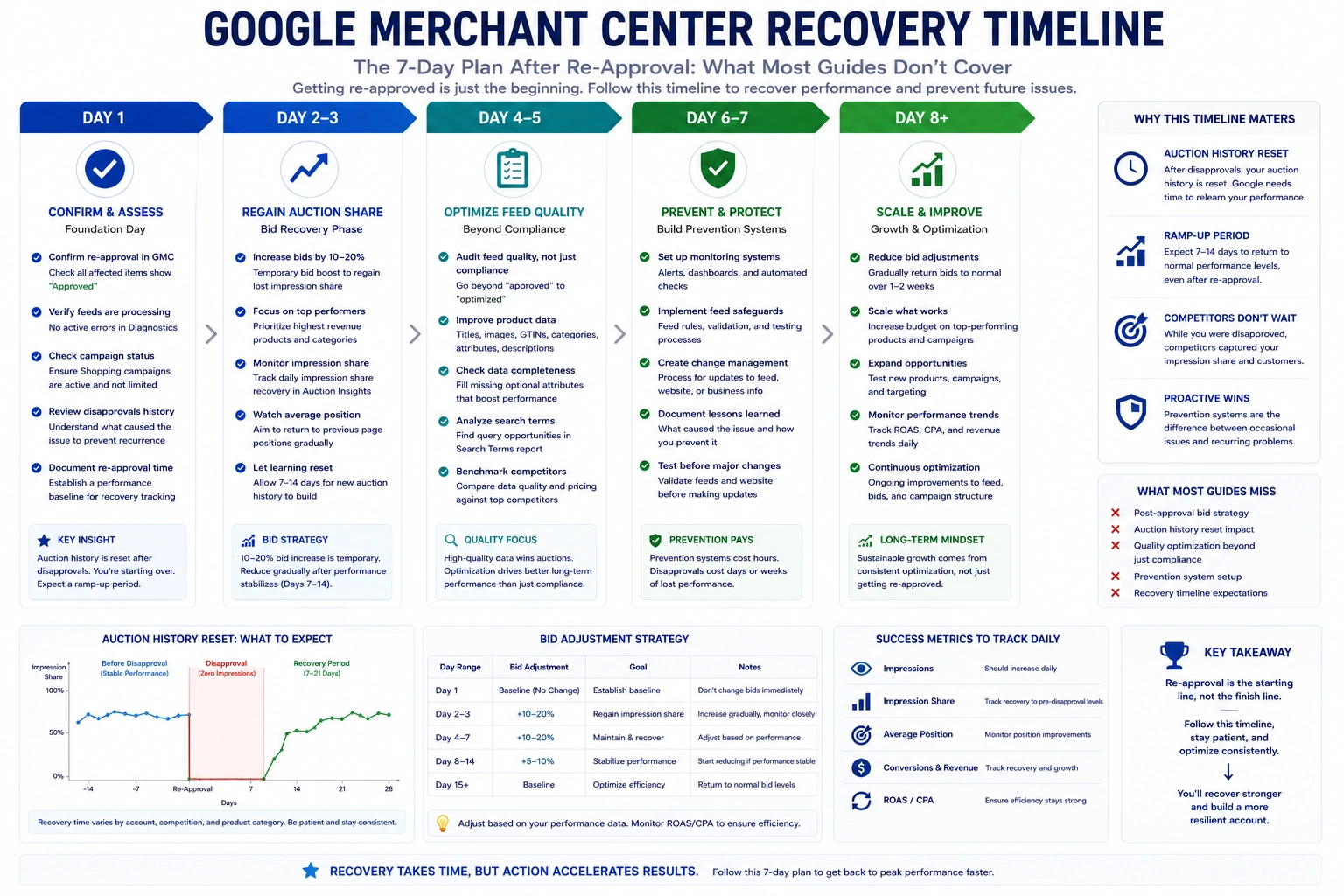
Here's what to do in the 7 days after your products are re-approved.
Day 1: Confirm re-approval and campaign status
Check GMC Products → All products and confirm your previously disapproved items show "Active"
Check Google Ads → Asset groups (for PMax) or product groups (for Shopping campaigns) and confirm the products are eligible to serve
If you use Performance Max, check if any asset groups were paused automatically during the disapproval period — re-enable them
Day 2–3: Adjust bids to recover lost impression share
A product that was disapproved for two weeks has lost its auction position history. Google's smart bidding algorithms reset and start from a lower baseline. Expect lower impression share and higher CPCs for the first 3–5 days.
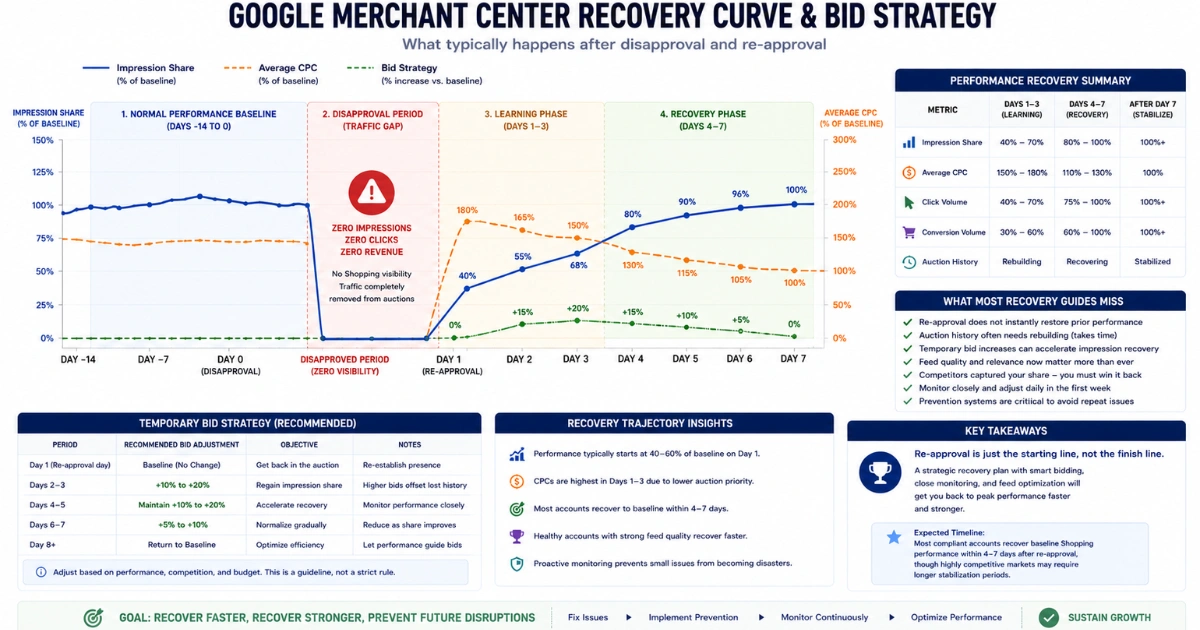
Temporary bid adjustments to accelerate recovery:
For manual CPC campaigns: increase bids by 10–20% on affected product groups for 5 days
For Smart Bidding (Target ROAS): lower your ROAS target temporarily to give the algorithm more room to bid aggressively during the learning phase
Monitor impression share daily and restore bids once you're back to pre-disapproval levels
Day 4–5: Audit your feed quality, not just compliance
Re-approval means your product meets the minimum bar it doesn't mean it's optimized. Once your products are back in the auction, compare your CTR and conversion rate to your pre-disapproval benchmarks. If performance is lower:
Revisit your product titles are your most important keywords in the first 70 characters?
Check your product images are you using the highest-resolution images available?
Review your product descriptions for completeness
Our guide to optimizing product feeds for Google Shopping covers the full optimization playbook for titles, images, categories, and attributes that move the needle after you've cleared the compliance hurdle.
Day 6–7: Set up prevention systems
The best time to build error prevention systems is immediately after experiencing a disapproval, the pain is fresh and the motivation is high.
Enable Automatic Item Updates in GMC to catch price/availability mismatches before they become disapprovals
Set up the email alerts described in the monitoring section above
Establish a weekly GMC audit routine: 15 minutes every Monday checking the Diagnostics tab
If you're running a large catalog, consider FeedOn's ongoing feed monitoring to automate this entirely
Summary: Your GMC Error Fix Checklist
Use this checklist the next time you encounter feed errors.
Immediate actions (Day 1):
Log into GMC → Products → Needs Attention
Download the Diagnostics CSV
Identify error types and count of affected products
Cross-reference with revenue data to prioritize
Fix account-level issues first, then feed-level, then item-level
For data quality errors:
Fix price/availability mismatches, update your feed or enable Automatic Item Updates
Add missing attributes (GTIN, brand, color, size, etc.)
Correct image issues — resolution, watermarks, broken URLs
Fix formatting errors using Feed Rules if they affect many products
After fixing:
Trigger a manual feed fetch in GMC → Feeds → Fetch now
Click "Request review" on individual disapproved products
Confirm re-approval within 24–48 hours (data errors) or 3–7 business days (policy issues)
Monitor campaigns for the first 7 days post-re-approval
Set up email alerts and a weekly Diagnostics check routine
Managing feed errors manually takes time and expertise that most e-commerce teams don't have to spare. FeedOn automates the entire cycle - auditing your feed, detecting issues before they cause disapprovals, fixing titles and attributes with AI, and monitoring your catalog continuously so errors don't quietly kill your campaigns. Try a free feed audit and see exactly what's holding your Google Shopping performance back.