
Product Feed Management for Small Business: The Complete 2026 Guide
1. What is product feed management and why does it matter for small businesses?
A product feed is a structured file usually a CSV or XML that contains all your product data: titles, descriptions, prices, images, availability, GTINs, and category labels. You submit this file to shopping channels like Google Shopping, Meta Ads, TikTok Shop, or Amazon, and they use it to display and advertise your products.
Product feed management is the ongoing process of keeping that data accurate, complete, and optimized across every channel you sell on.
For a large retailer, feed management is obvious infrastructure. For a small business, it tends to fall into one of two traps:
Trap 1 - Neglect: You set up a feed once, never touch it again, and quietly wonder why your Google Shopping campaigns barely convert.
Trap 2 - Overwhelm: You read about enterprise feed management tools, feel intimidated by the pricing and complexity, and decide to sort it out later.

Neither works. But the good news is that small business feed management doesn't have to be complicated or expensive. The rest of this guide shows you exactly how to approach it based on where you are right now.
2. At what catalog size does a paid feed tool actually pay for itself?
Every guide recommends feed management software. None of them show you the math. Here it is.
The breakeven calculation depends on three things:
Your ad spend: how much you're spending on Google Shopping or Meta each month
Your current error rate: what percentage of your products are disapproved or have incomplete data
The revenue impact of those errors: how many sales you're missing as a result
A concrete example
Say you spend $1,000/month on Google Shopping and have a catalog of 80 products.
A typical small store with an unmanaged feed has around 15–25% of products disapproved or underperforming due to missing attributes, price mismatches, or stale inventory signals. That means 12–20 of your 80 products are either invisible or costing you more per click than they should.
If those 12–20 products account for even 10% of potential revenue, and your store does $8,000/month in revenue, that's $800/month in missed sales.
A starter feed management plan (like FeedOn's Starter plan at $39/month) that fixes those issues pays for itself almost immediately.
The practical breakeven rule
Store size            Monthly ad spend            Recommended approach
Under 50 SKUs         Under $300/mo               Use free tools (see Section 3)
50–200 SKUs           $300–$1,000/mo              Starter paid plan ($39–$79/mo) worth it
200–1,000 SKUs        $1,000–$5,000/mo            Growth plan; ROI is very clear
1,000+ SKUs           $5,000+/mo                  Full feed management is non-negotiable
The key insight: it's not your SKU count that drives the breakeven - it's your ad spend multiplied by your error rate. Run a free feed audit to find your actual error rate before spending anything on tools.
3. The $0 playbook: managing feeds with fewer than 50 SKUs and no tool budget
Nobody writes this section. Here it is.
If you have fewer than 50 products and aren't yet spending heavily on paid ads, you don't need a paid feed management tool yet. You do need a system.

Option A: Google Merchant Center's native tools
Google Merchant Center has a free built-in feed editor. You can:
Upload a CSV or Google Sheet directly
Use the Merchant Center interface to manually fix disapproved products
Connect a Shopify or WooCommerce store using their native Google Shopping app (free)
For a small catalog, this works fine. The Diagnostics tab will show you exactly which products have issues and why.
Option B: Shopify's free Google & YouTube app
If you're on Shopify, the free Google & YouTube channel app syncs your products automatically to Google Merchant Center. It handles basic feed requirements without any manual CSV work. It won't do advanced optimization - but for a first feed, it's the right starting point.
Option C: A free Google Sheet feed
You can manually build a Google Shopping feed in a Google Sheet using Google's product data specification. The sheet becomes a live URL that Google fetches on a schedule. It's manual work upfront, but once built it updates automatically as you edit the sheet.
The limit of free tools: they won't tell you why your products are underperforming (only why they're disapproved). They won't optimize titles, fill missing attributes, or detect image quality issues. That's where tools like FeedOn's AI-powered attribute extraction come in - but those are upgrades for when your ad spend justifies them.
4. Feed disapproval survival guide: how to recover in under 24 hours
Your products just got disapproved in Google Merchant Center. You're losing sales right now. Here's what to do.
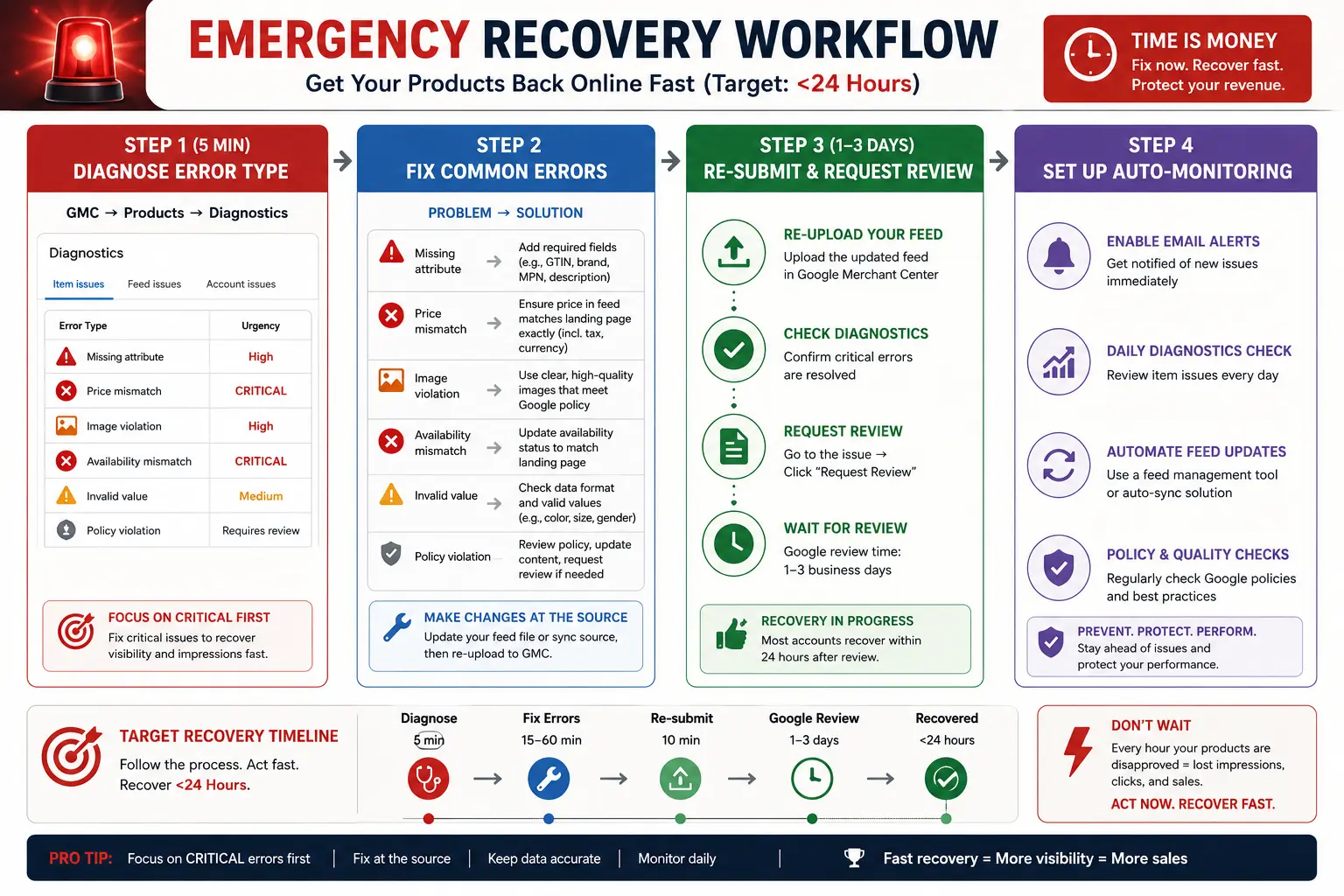
Step 1: Diagnose the exact error (5 minutes)
Go to Google Merchant Center → Products → Diagnostics. The issue type will fall into one of these categories:
Error type                      What it means                                         Urgency
Missing required attribute      A field like GTIN, brand, or color is absent          High — fix immediately
Price mismatch                  Your feed price differs from your website price       Critical — Google hates this
Image policy violation          Image has text overlay, watermark, or is too small    High
Availability mismatch           Feed says "in stock" but page shows out of stock      Critical
Invalid value                   A field has a value Google doesn't recognise          Medium
Policy violation                Prohibited product or content issue                   Requires review
Step 2: Fix the most common errors
Missing GTINs: If you make your own products and have no GTIN, set identifier_exists to false in your feed. This tells Google your product is custom-made and exempt from GTIN requirements. See our guide to Google Shopping required attributes for the full list of what's mandatory.
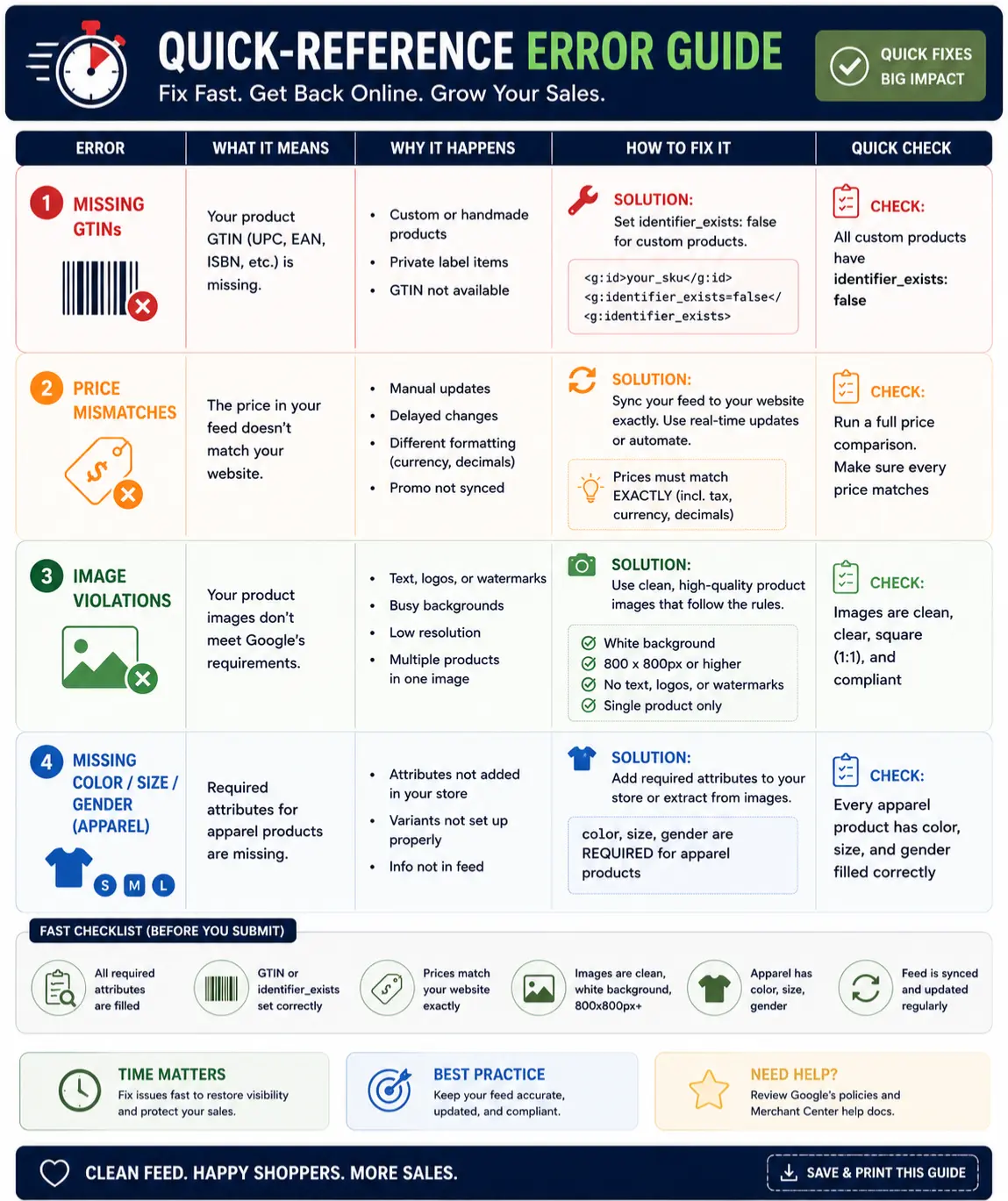
Price mismatches: Check that your website's price (including any sale pricing) exactly matches your feed. If you run sales, your feed must update in near-real-time. This is one of the biggest arguments for automated feed syncing.
Image violations: Your main image must be a clean product shot on a white or neutral background, with no text overlays, watermarks, or borders. Minimum 100×100px (recommended 800×800px+).
Missing color/size/gender for apparel: These are required for clothing and accessories. If your product data doesn't include them, you need to either add them to your store or use a tool to extract them from product images.
Step 3: Re-submit and request review
After fixing errors, go to Merchant Center → Products → All Products, select the fixed items, and click Request Review. Google typically reviews within 1–3 business days for standard issues, longer for policy violations.
Step 4: Set up automatic monitoring
Manual monitoring is how you end up losing days of sales before noticing a problem. Use Google Merchant Center's email notifications (Settings → Notifications) to alert you immediately when products are disapproved. For ongoing automated audits, FeedOn's feed audit tool runs 60+ checks and flags issues before they become disapprovals.
5. How to handle seasonal inventory swings without overpaying
This is a real small business problem. You might have 40 products in January and 200 in November. A tool priced for your peak catalog size is wasteful the rest of the year.
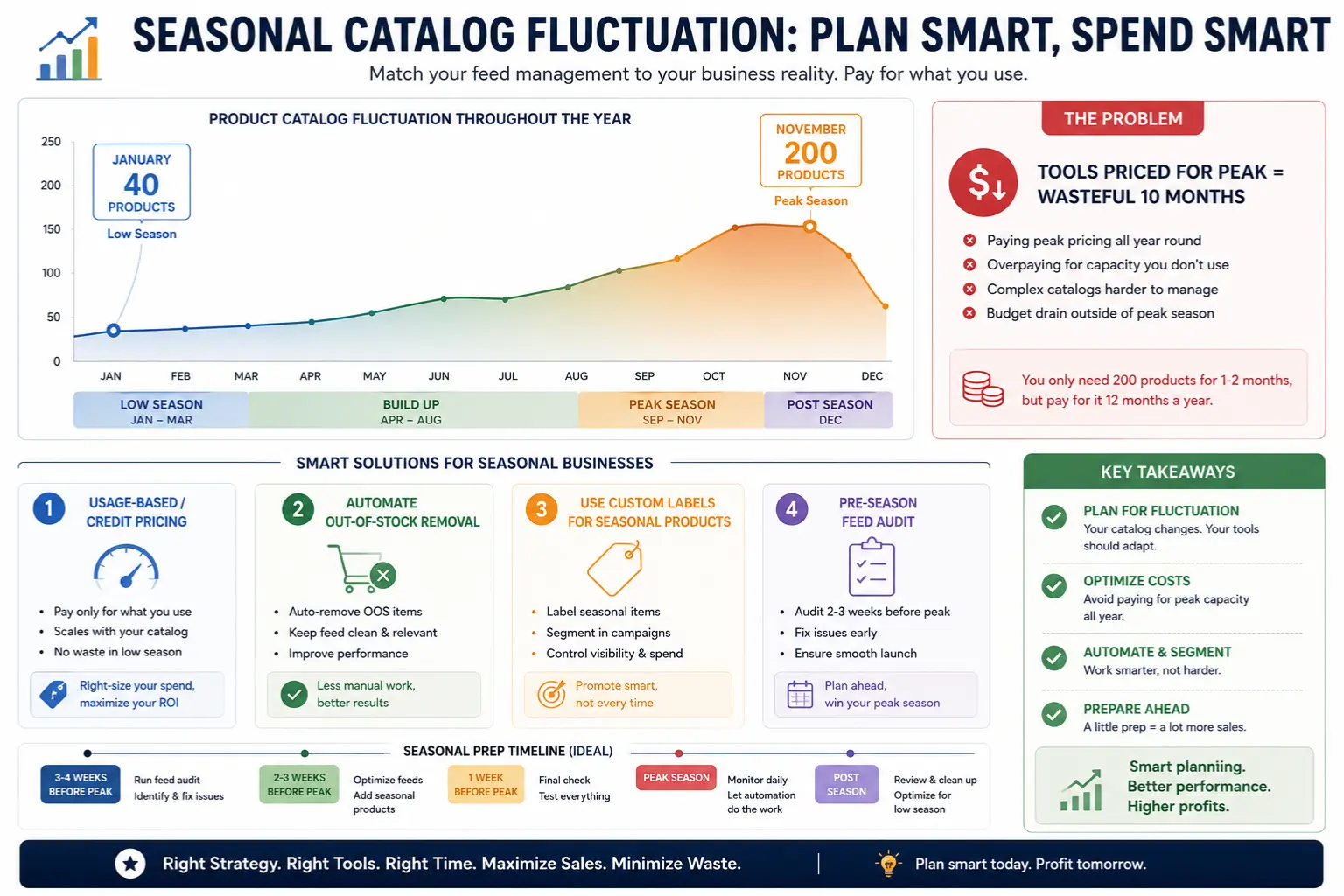
Practical strategies
Use a usage-based or credit-based tool during peaks. Rather than paying for a plan sized to your November catalog year-round, look for tools with credits-based pricing. FeedOn's model lets you add AI credits as needed - you're not locked into a SKU-count tier that you'll outgrow seasonally.
Automate out-of-stock removal. One of the most damaging things during off-season is leaving out-of-stock products in your feed with in_stock status. Google will disapprove them and it trains their algorithm to trust your feed less. Ensure your feed syncs availability in real time or at minimum daily.
Use custom labels to manage seasonal products. Google Shopping lets you add five custom label fields (custom_label_0 through custom_label_4). Use one to tag products as "seasonal," "clearance," or "evergreen." Then in Google Ads, you can exclude or reduce bids on clearance items automatically. This is especially useful for managing spend across a fluctuating catalog.
Run a feed audit before your peak season starts. Don't wait until Black Friday to discover that 30 of your new products are missing attributes. Run a pre-season feed audit at least 2–3 weeks before your peak period so you have time to fix issues and get products re-approved.
6. Which channels should you add first and in what order?
Every guide says "sell everywhere." Nobody tells you the order. Here's the prioritised roadmap based on ROI per hour invested.
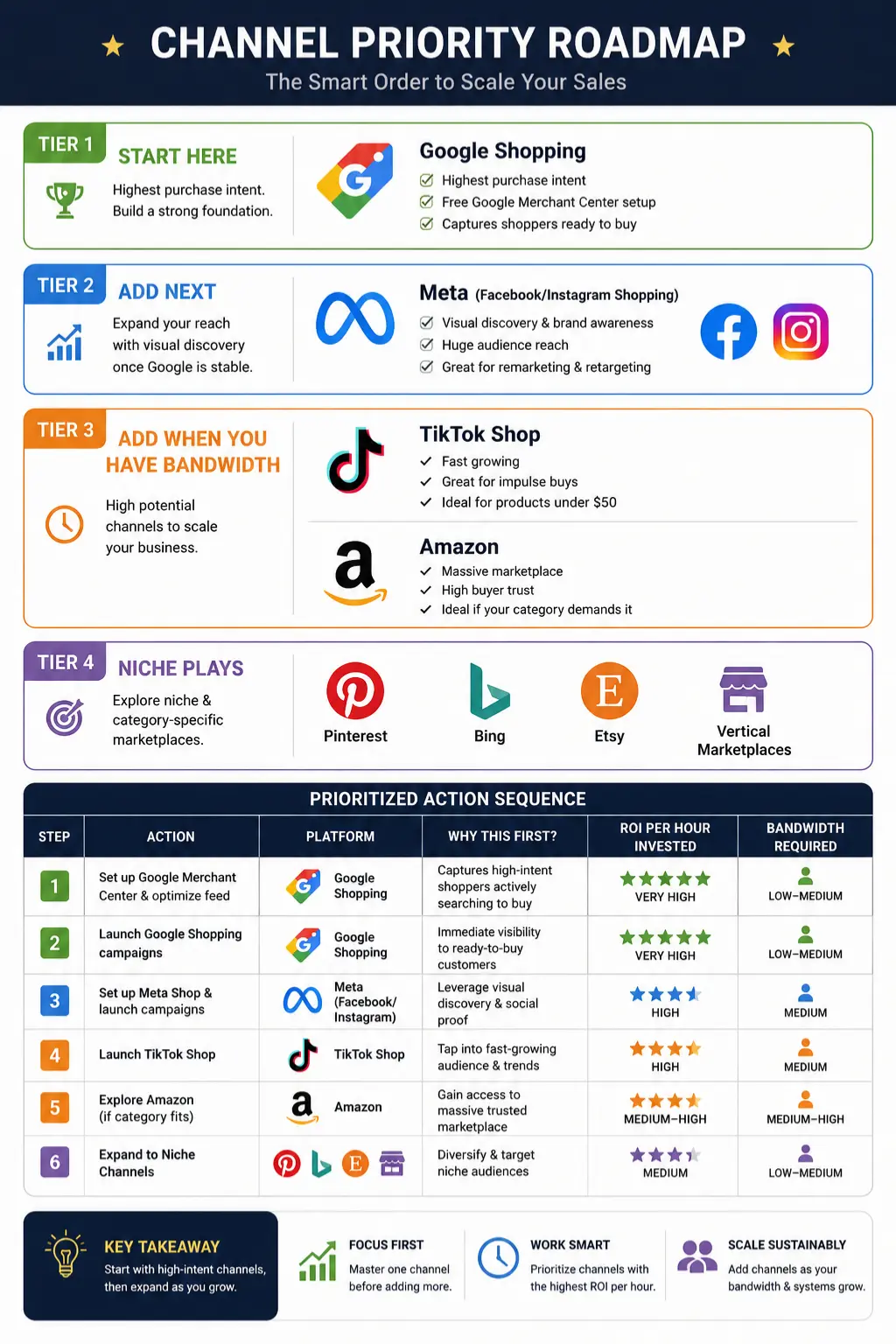
Channel priority for small businesses
Tier 1 - Start here
Google Shopping is the foundation. It has the highest purchase intent of any channel (people are actively searching for what you sell), and Google Merchant Center is free to set up. This is almost always the highest-ROI first channel for product-based businesses.
Tier 2 - Add next (once Google is stable)
Meta (Facebook & Instagram Shopping) is the second channel to add. The Meta catalog requirements overlap significantly with Google's, so if your Google feed is clean, Meta setup is largely a matter of reformatting what you already have. Meta's strength is visual discovery it's ideal for fashion, home goods, beauty, and lifestyle products.
Tier 3 - Add when you have bandwidth
TikTok Shop is growing fastest for products under $50 in fashion, beauty, and home categories. Setup is straightforward and the competition is still lower than Google or Meta for most niches. Feed requirements are simpler than Google's.
Amazon is worth considering if you're in a category where Amazon dominates (electronics, books, tools). But it has the highest complexity, most competitive fees, and strictest content requirements. Don't start here unless your category demands it.
Tier 4 - Niche plays
Pinterest Shopping, Bing Shopping, and vertical marketplaces (Etsy, Faire, Houzz) should only be added after Tiers 1–3 are optimised. They have smaller audiences but lower cost-per-click and less competition. (More on these in Section 7.)
Why order matters
Each channel has its own feed format, attribute requirements, and approval processes. Adding them too quickly before your Google feed is stable means you're multiplying problems rather than multiplying sales. Get one channel to 90%+ product approval rate before adding the next.
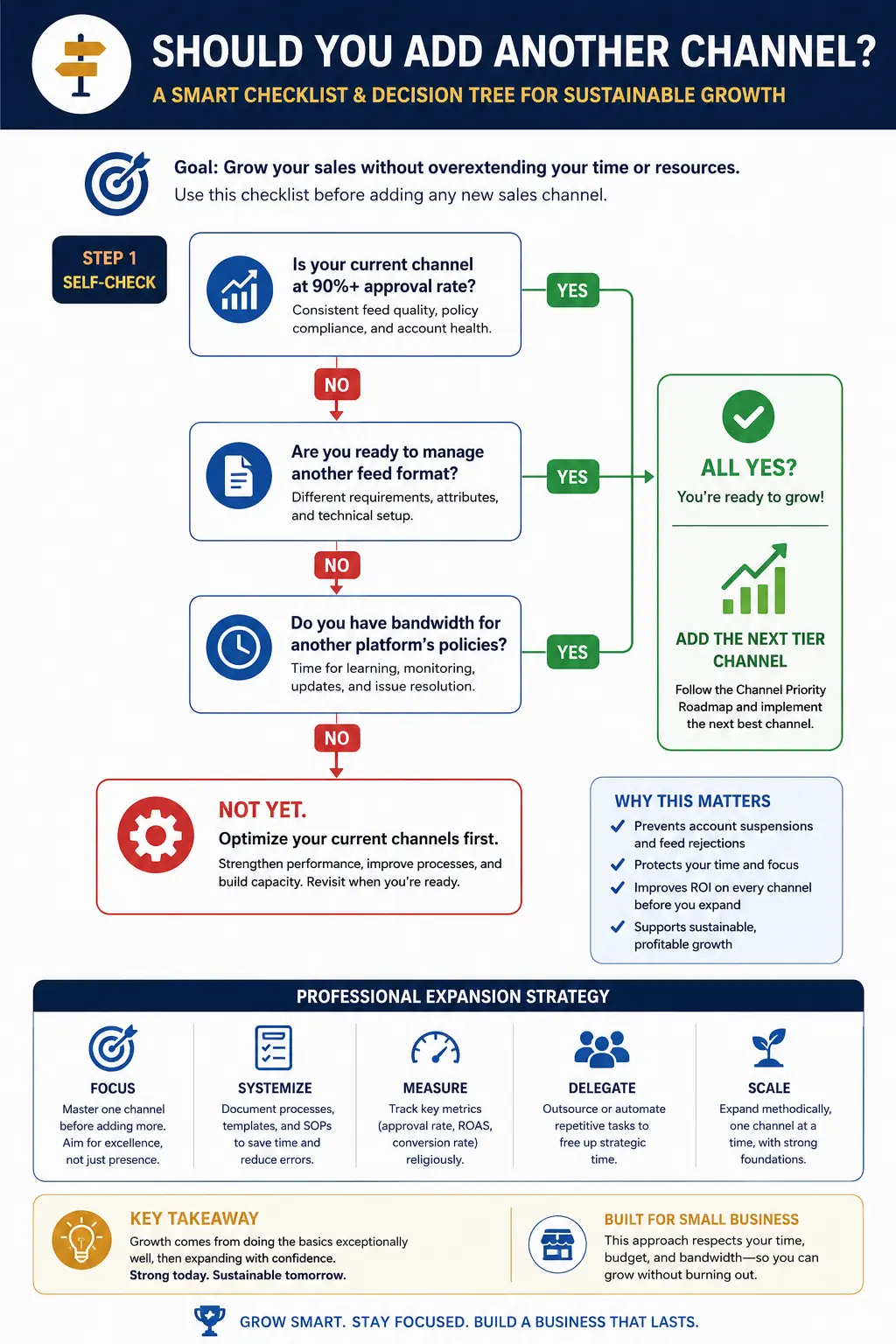
You can export optimised feeds to Google, Meta, TikTok, and more in one click once your feed is clean which is the right time to scale to multiple channels.
7. How Etsy, TikTok Shop, and niche channel feed requirements differ
The top-ranking guides barely acknowledge channels beyond Google, Amazon, and Meta. Here's what you actually need to know about the channels where small businesses often find their best ROI.
TikTok Shop
TikTok Shop uses a product catalog system similar to Meta's. Required fields are: product title, description, price, images, stock quantity, and a product category from TikTok's taxonomy. Unlike Google, TikTok doesn't require GTINs for most categories. What matters most on TikTok is image and video quality visually compelling product images dramatically outperform standard white-background shots.
Feed format: CSV upload or API. TikTok's Seller Center accepts Google Shopping-formatted feeds with some field mapping.
Etsy
Etsy doesn't use a traditional product feed in the same way as Google or Meta listings are created through their platform directly. However, if you sell on Etsy and want to run Etsy Ads or improve discoverability, the same feed optimisation principles apply: keyword-rich titles (Etsy's search is heavily title-dependent), detailed descriptions with material and dimensions, and high-quality images with lifestyle context.
There are third-party tools that sync your store to Etsy listings, but if your catalog is on Shopify or WooCommerce, a direct feed sync isn't available the way it is with Google or Meta.
Pinterest Shopping
Pinterest's product catalog uses the same format as Google Shopping (Google's product data specification). If your Google feed is clean, you can often submit the same file to Pinterest with minimal changes. Pinterest requires availability, price, link, and image_link as minimum fields. It does not require GTINs. Pinterest Shopping tends to perform well for home décor, fashion, food, and craft supplies.
Bing Shopping (Microsoft Advertising)
Bing Shopping accepts Google Merchant Center feeds directly via import, meaning if your Google feed is healthy, you can be live on Bing Shopping in under 30 minutes with zero additional work. For most categories, Bing Shopping has 20–40% lower CPCs than Google with a smaller but meaningful audience. It's the easiest incremental channel to add.
Key takeaway
Niche channels generally have simpler feed requirements than Google. If your Google feed is optimised and clean, expanding to Pinterest, TikTok Shop, and Bing Shopping is low-effort, high-return work.
8. How to use free AI tools to write and optimize product attributes in bulk
Here's a question the enterprise-focused guides never answer: can a bootstrapped seller use free AI to get the same feed quality as a business using expensive feed software?

Partially, yes. Here's how.
What free AI can do well
Bulk title rewriting: You can paste 20–30 product titles into ChatGPT or Gemini with a prompt like: "Rewrite these Google Shopping product titles following this structure: [Brand] + [Product Type] + [Key Attribute] + [Secondary Attribute]. Titles must be under 150 characters and start with the most important keyword."
This takes a few minutes and meaningfully improves title quality for a small catalog.
Description writing: Free AI is excellent at writing product descriptions from bullet points or specs. Paste your product specs and ask for a 200-word description optimised for both Google Shopping and on-page conversion.
Category classification: You can paste your product titles into an AI tool and ask it to classify them against Google's product taxonomy. Not perfectly reliable, but useful for a first pass on a small catalog.
Custom label ideas: Ask AI to suggest custom label values for campaign segmentation — for example, grouping products by margin tier, season, or audience.
What free AI can't do
Free AI tools can't connect to your store, sync changes automatically, process images to extract attributes, validate against Google's live requirements, or monitor your feed health on an ongoing basis.
That's where purpose-built tools earn their subscription. FeedOn uses Vision AI to scan product images and extract missing attributes like colour, material, and pattern automatically something no manual prompt engineering replicates at scale.
The hybrid approach
For stores under 100 SKUs with limited budget: use free AI for initial title and description optimisation, set up a manual feed, and use a free audit tool to check compliance. Upgrade to automated tooling when your ad spend makes the ROI clear.
9. The hidden costs of product feed management no one talks about

When people say "product feed management is free if you do it yourself," they're ignoring the real costs.
Time cost
Manual feed management for a 100-product store typically takes 3–5 hours per month — checking for disapprovals, updating prices and availability, fixing errors, optimising titles. At even a modest $50/hour opportunity cost, that's $150–$250/month in real value. A $39/month tool that automates most of this is actually cheaper.
Revenue leakage from errors
The average small ecommerce store has 15–25% of its products disapproved or underperforming at any given time due to feed issues. For a store generating $10,000/month in Shopping revenue, that's $1,500–$2,500/month in invisible losses. Most business owners don't notice because they have no baseline to compare against. Running a feed audit gives you that baseline.
Re-submission delays
Every time you fix a disapproved product and request a review, you wait 1–3 business days for Google to re-approve it. If you let errors accumulate, you're compounding the delay. Fixing issues before they become disapprovals proactively rather than reactively eliminates this lag entirely.
Agency markup
If you're paying a marketing agency to manage your Google Shopping campaigns, there's a good chance you're paying them to manage your feed too. Agency rates for feed management typically run $500–$2,000/month for services that a $79/month tool could automate. It's worth understanding exactly what your agency is doing versus what could be done by software.
The true TCO calculation
Total cost of ownership for DIY feed management = (hours × hourly rate) + revenue leakage + re-submission delays + error penalties.
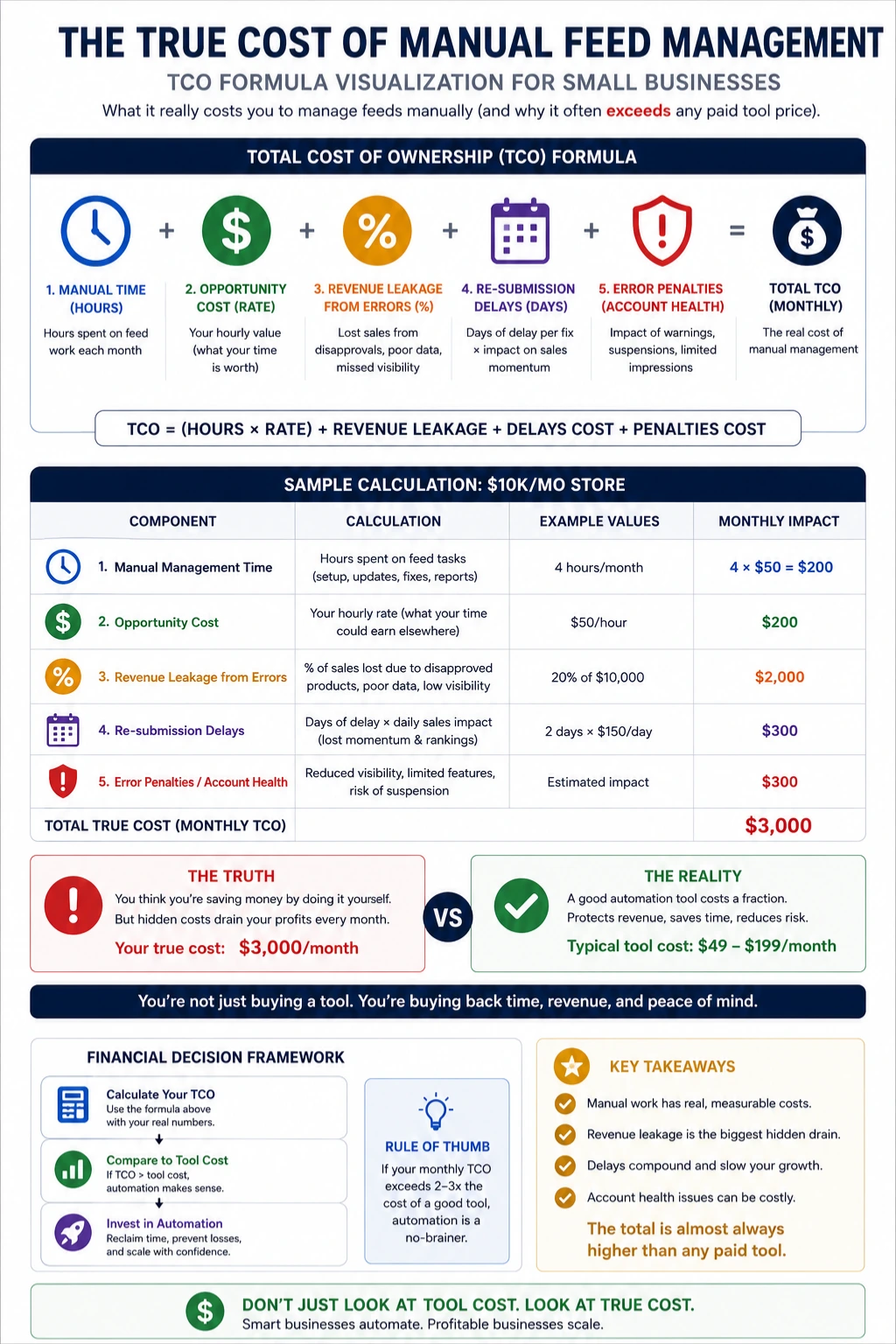
For most small businesses spending $1,000+/month on Shopping ads, the TCO of manual feed management is higher than any paid tool on the market.
10. How to manage feeds when your supplier sends you inconsistent data
If you're a reseller or dropshipper, your product data starts life in someone else's system and it's rarely clean. This is one of the most common and least-discussed problems in small business feed management.
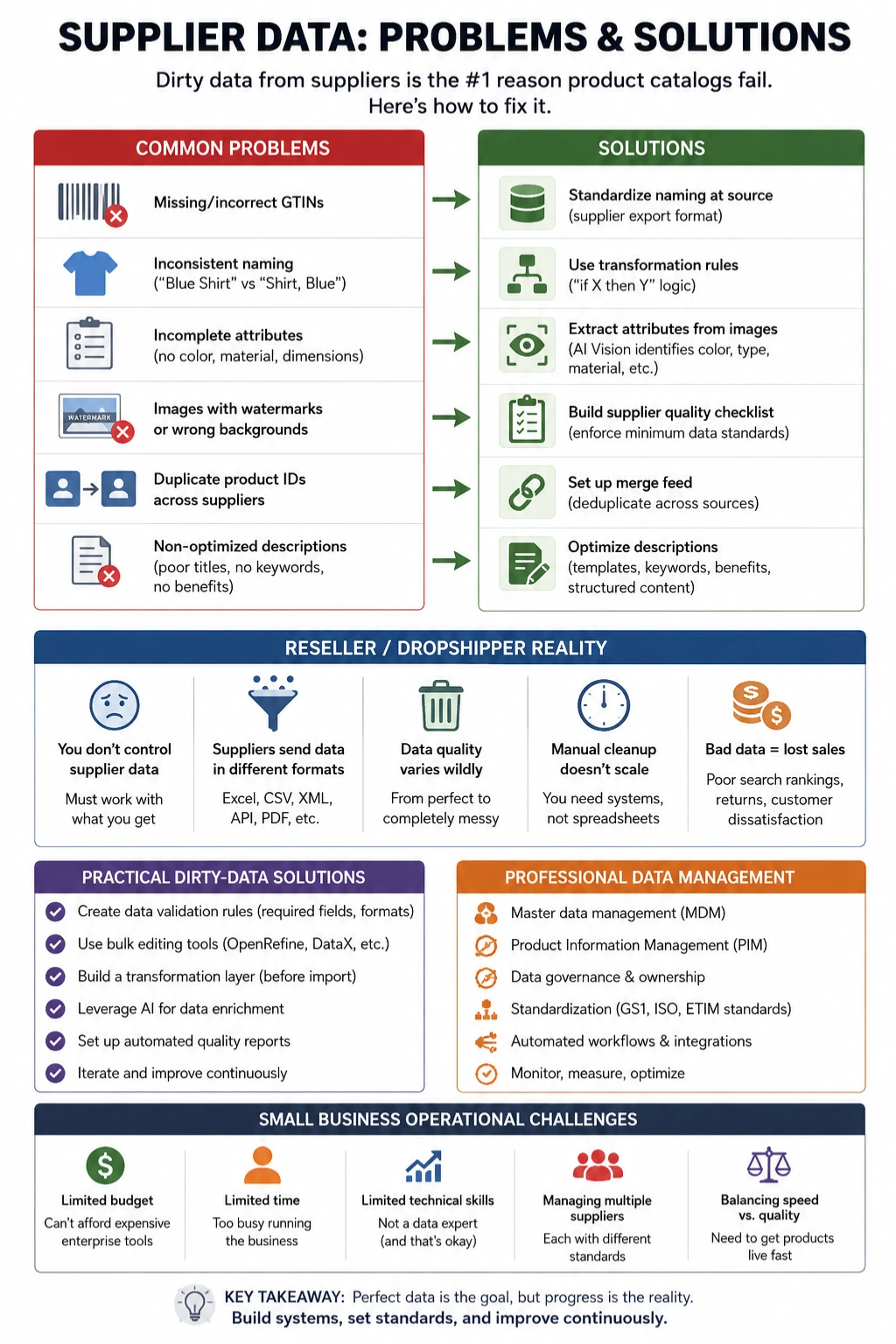
Common supplier data problems
Missing GTINs or incorrect GTINs
Inconsistent naming conventions ("Blue Shirt" vs "Shirt, Blue" vs "Azure Cotton Shirt")
Incomplete attribute sets (no colour, no material, no dimensions)
Images with watermarks or on coloured backgrounds
Duplicate product IDs across multiple suppliers
Descriptions written for print catalogues, not search-optimised web listings
How to fix dirty supplier data
Standardise naming at the source. If you work directly with your supplier, ask for a standardised data export in a consistent format (Google Shopping-compatible CSV is a good ask). Many suppliers will accommodate this request if you explain the business reason.
Use transformation rules. Most feed management tools let you write rules like "if title contains 'Shirt, Blue' then rewrite as 'Blue Shirt'". These field transformation rules let you clean up supplier data systematically without touching the original source. FeedOn's rule-based feed transformations let you normalise supplier data before it goes anywhere near a shopping channel.
Extract attributes from images. If your supplier provides good product images but poor text data, AI tools can extract colour, material, and category from images directly. This bridges the gap between what your supplier gives you and what Google demands.
Build a supplier quality checklist. Before onboarding a new supplier's catalog, run it through a feed audit. This tells you upfront how much cleanup work the catalog requires and whether it's worth the effort.
Set up a merge feed. If you work with multiple suppliers, your feed tool needs to deduplicate products across sources, normalize conflicting data, and handle the case where two suppliers sell the same product at different prices.
11. The 90-day feed management roadmap for non-technical founders
Most guides describe what a product feed is. Nobody tells you what to actually do, in what order, as a non-technical founder. Here's your week-by-week action plan.
Month 1 - Foundation
Week 1: Audit your current situation
Log into Google Merchant Center and go to Diagnostics
Note how many products are approved, disapproved, or limited
Screenshot your current state as a baseline
If you don't have a GMC account yet, create one and submit your first feed using your platform's native integration (Shopify, WooCommerce, BigCommerce all have free Google Shopping apps)
Week 2: Fix critical disapprovals
Address price and availability mismatches first (these hurt fastest)
Fix missing required attributes (see our complete 2026 Google Shopping required attributes guide)
Submit for re-review
Week 3: Improve your product titles
Rewrite your top 20 best-selling products' titles using the structure: Brand + Product Type + Key Attribute + Secondary Attribute
Keep titles under 150 characters with the most important keyword first
Use the Google Shopping title optimizer in FeedOn for bulk rewriting, or use free AI as described in Section 8
Week 4: Fill in missing attributes
Go through your catalog and identify products missing colour, size, gender, material
For apparel, these are required — fix them before moving forward
For non-apparel, optional attributes that still improve performance include: colour, material, pattern, product type
Month 2 - Optimisation
Week 5–6: Google Shopping performance review
After a week of data from your improved feed, look at which products are getting impressions but low CTR
These products likely have weak titles or poor main images
Run them through another round of title and image improvement
Week 7: Set up Meta catalog
With a clean Google feed, exporting to Meta is straightforward
Review the Meta catalog requirements checklist to understand where Google and Meta requirements diverge
Pay particular attention to image specifications (Meta prefers 1024×1024px square images)
Submit your Meta catalog and check for rejections within 48 hours
Week 8: Add custom labels
Set up at minimum two custom labels:
One for margin tier (high/medium/low) so you can bid differently on high-margin products
One for season or product lifecycle (hero/evergreen/clearance)
Month 3 - Scale and monitor
Week 9–10: Add a third channel
If your Google and Meta feeds are healthy (90%+ approval rate), add Bing Shopping (import from Google, takes 30 minutes) or TikTok Shop
Don't add more channels until existing channels are stable
Week 11: Set up automated monitoring
Configure Google Merchant Center email alerts for disapprovals
Set a recurring calendar task to check feed health weekly (10 minutes)
If you're using a tool like FeedOn, set up scheduled audits
Week 12: Review and document
Measure where you started vs. where you are (approval rate, impression share, revenue from Shopping)
Document your feed structure and the rules/transformations you've set up so anyone can maintain it
Plan next quarter: which channels to add, whether to increase ad spend
12. When you're ready to automate: what FeedOn does for small businesses
Everything in this guide so far is doable manually. But there's a point where the time and error cost of manual feed management exceeds the cost of automation.

FeedOn is an AI-powered product feed optimisation tool built for exactly this inflection point. Here's what it does that manual processes can't:
Feed audit with revenue impact estimates. FeedOn's FeedPilot audit runs 60+ automated checks on your feed, identifies every issue, and estimates the revenue impact of each problem. It doesn't just tell you what's broken it tells you what fixing it is worth.
AI attribute extraction. FeedOn uses Vision AI to scan your product images and extract missing attributes colour, material, pattern - even when that data isn't in your store. It also classifies gender, age group, and product type from your title and description text. For resellers with incomplete supplier data (see Section 10), this is especially valuable.
Bulk title and description optimisation. Rewriting 500 product titles manually is a week of work. FeedOn does it in minutes, following Google Shopping best practices and matching your brand voice. You review changes before they go live.
Multi-channel export in one click. Once your feed is optimised, FeedOn publishes it to Google, Meta, TikTok, and more in the correct format for each channel. No manual reformatting between channels.
Works with any platform. Upload a CSV or XML no integrations or technical setup required. It works with Shopify, WooCommerce, Magento, BigCommerce, and custom platforms.
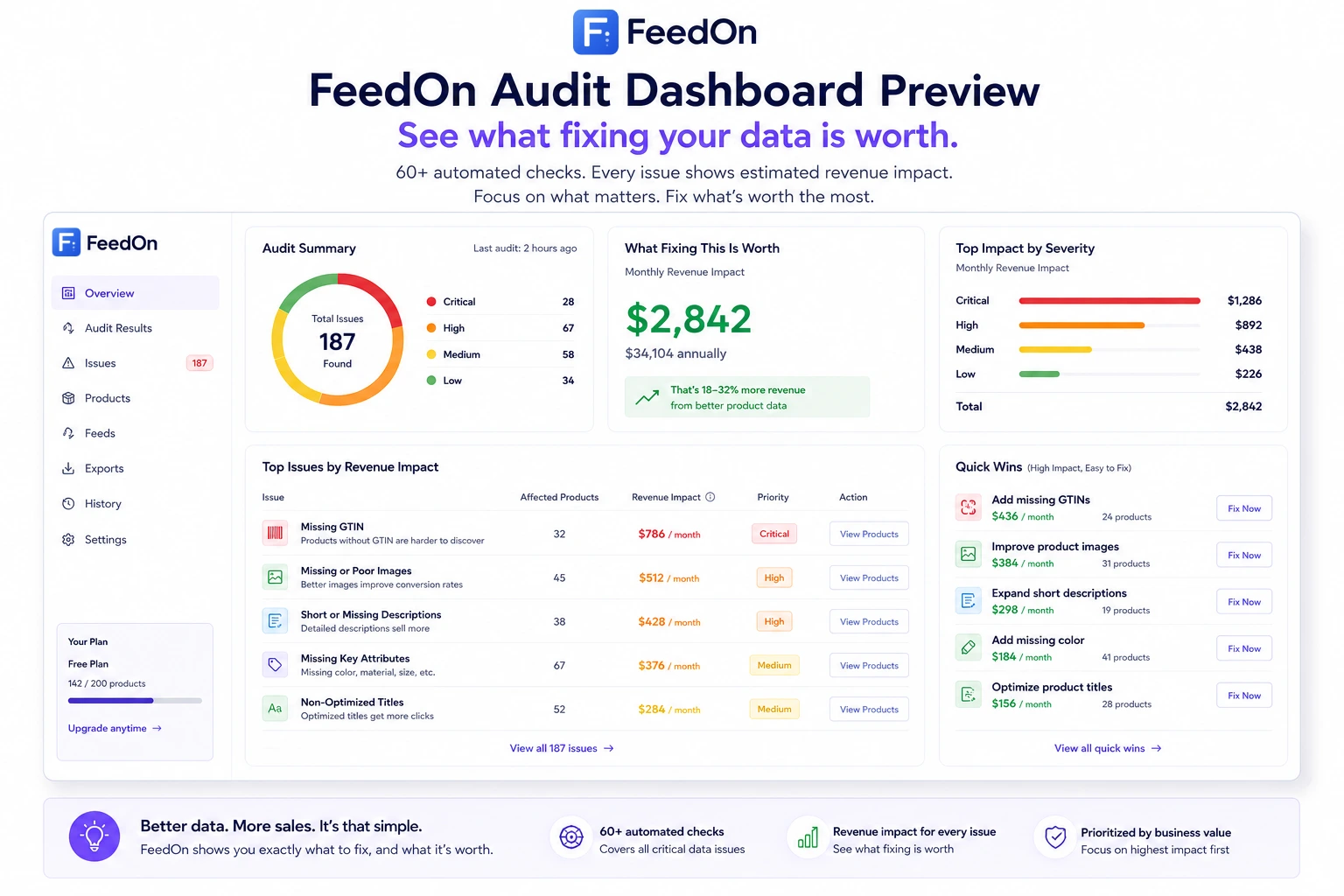
Pricing that works for small businesses. FeedOn offers a free plan for up to 200 products with a free 7-day trial so you can run a full audit and see exactly what's costing you sales before spending anything.
Summary: what to do next
Wherever you are in your product feed journey, here's the one next action to take:
Haven't set up a feed yet: Use your platform's native Google Shopping app to get a basic feed live. Come back and optimise from there.
Have a feed but aren't sure how it's performing: Run a free FeedOn audit. It takes 5 minutes and will show you your exact approval rate and estimated revenue impact of your current issues.
Have disapproved products right now: Go to Google Merchant Center Diagnostics and fix price mismatches and missing required attributes first. Then see our Google Shopping required attributes guide for the complete fix checklist.
Ready to expand to Meta: Start with our Meta catalog requirements guide.
Ready to fully optimise: How to optimize product feeds for Google Shopping covers the advanced title, image, and attribute tactics in detail.
Product feed management isn't glamorous. But it's one of the highest-leverage things a small ecommerc e business can do — because every product that's disapproved, miscategorised, or missing attributes is invisible money.
Ready to see what your feed is actually costing you? Start your free FeedOn audit →