
The Pinterest Product Feed Guide: Google Migration, Variant Architecture, Feed Failures, Flash Sales, Multi-Market & Everything
A field-by-field Google-to-Pinterest migration playbook. The exact cascading impact of a feed ingestion failure on live ads and organic pins. A real CSV architecture for 50+ variant products. Custom label strategy for campaign segmentation. The real approval timeline and what triggers manual review. Multi-market feed operations for 10+ countries. Specific image policies that cause silent rejections. A full attribution framework separating organic Pins from paid shopping ads. Flash sale and sale_price_effective_date formatting with timezone handling. And performance benchmarks you can actually use.
Why Pinterest Product Feeds Are Harder Than They Look And More Valuable Than You Think
Pinterest has 600 million monthly active users worldwide, and 85% of weekly Pinners have made a purchase based on a Pin from a brand. That's not a passive scrolling audience — those are buyers in the discovery phase, actively building wish lists before they open their wallets. Pinterest processes 5 billion monthly searches, making it one of the largest specialized search engines on the internet. Critically, 97% of top Pinterest searches are unbranded, meaning users arrive open-minded about which brand will appear.
For feed-driven commerce, this is a structural advantage: the auction is less saturated, the intent is high, and your feed quality—not your bid—determines whether you show up at all. Feeds with more than 2,500 products have seen over 3x higher ROAS because Pinterest's machine learning has more options to test and choose from, helping it identify the best item to serve for each impression to each user. According to Pinterest, brands that add shopping ads into their mix enjoy 15% higher ROAS and 2.6x higher conversion rates compared to brands that don't.
The opportunity is real. So is the complexity, and that's exactly what every other guide glosses over. Pinterest rejects millions of product listings daily due to catalog errors that sellers could easily avoid. Whether you're troubleshooting a disapproved feed, trying to optimize performance, or setting up a catalog for the first time, understanding how Pinterest uses your product data is critical to visibility and sales.
This guide answers all ten of the questions the top five-ranking articles don't with frameworks, real CSV logic, benchmarks, and actionable depth. Let's go
The Foundation: What Pinterest Requires Before Anything Else
Before we tackle the advanced questions, let's establish the foundation that other guides cover only partially. A Pinterest catalog is a structured product data feed that enables your products to appear as shoppable Pins across the Pinterest platform, including search results, the home feed, related Pins, and the Shopping tab. The catalog is managed through Pinterest Business Hub and requires a verified website and a claimed business account. Pinterest ingests your product data from a hosted feed file (CSV, TSV, or XML) at regular intervals and uses it to automatically generate product pins, which can then be promoted through Shopping ads and appear organically in Pinterest search and discovery surfaces.
Required Fields
Create a CSV or XML file with all required columns:
id,title,description,link,image_link,price,availability,condition,brand,google_product_category, andproduct_type.
Your retail catalog needs to include all required fields formatted exactly as specified. If they are missing or formatted incorrectly, your entire retail catalog will fail ingestion.
Formatting Rules That Sink Feeds
If you are using a CSV, wrap your values in double quotes to avoid parsing issues. Floating delimiters like commas and tabs can result in the item or file not processing properly. Check that you have the same number of delimiters in each row and column. The retail catalog data source must be encoded in UTF-8 format (with the exception of GOOGLE_TSV_EXCEL files, which must be encoded in ISO_8859_1 format).
These formatting rules alone cause the majority of first-time ingestion failures. Save yourself the headache: validate your CSV structure before submitting.
Recommended Image Dimensions
Recommended image dimensions are 1000 x 1500 pixels (2:3 ratio). Use high-resolution images: crisp, professional, no pixelation. Pinterest converts through visuals — unlike marketplaces where shoppers arrive with purchase intent. Your image is the first and often only thing a Pinner evaluates before deciding to click. This makes image compliance not a nice-to-have but a commercial necessity.
The Google Shopping → Pinterest Feed Migration Playbook
This is the #1 real-world scenario for merchants entering Pinterest Shopping — and no guide covers it properly.

Your catalog data must conform to Pinterest's Product Data Specification, which shares many attributes with the Google Product Data Specification, making it relatively straightforward to adapt existing Google Shopping feeds for Pinterest with minimal modifications. Pinterest uses the same attribute naming convention as Google Shopping for most fields.
Here's what that actually means in practice—the complete field-by-field migration map:
Field-by-Field Migration Map: Google Merchant Center → Pinterest Catalogs
Google Merchant Center Field                  Pinterest Field                           Status                   Action Required
id                                            id                                        Direct carry-over        None
title                                         title                                     Direct carry-over        Optimise for Pinterest search intent (see below)
description                                   description                               Direct carry-over        Rewrite for inspiration-led tone, not spec-led
link                                          link                                      Direct carry-over        Add ?utm_source=pinterest UTM parameters
image_link                                    image_link                                Direct carry-over        Recheck: 2:3 ratio preferred for Pinterest
additional_image_link                         additional_image_link                     Direct carry-over        Add lifestyle images — Pinterest surface rewards them
price                                         price                                     Direct carry-over        Verify ISO 4217 currency code forma
sale_price                                    sale_price                                Direct carry-over        Verify lower than price; no zero values
availability                                  availability                              Direct carry-over        Values: in stock, out of stock, preorder (note spaces)
condition                                     condition                                 Direct carry-over        None
brand                                         brand                                     Direct carry-over        None
gtin                                          gtin                                      Direct carry-over        None
mpn                                           mpn                                       Direct carry-over        None
google_product_category                       google_product_category                   Direct carry-over        Both text values and numeric codes accepted
product_type                                  product_type                              Direct carry-over        Sub-categories separated by > (spaces required)
item_group_id                                 item_group_id                             Direct carry-over        Critical for variant grouping — verify it's populated
color                                         color                                     Direct carry-over        None
size                                          size                                      Direct carry-over        None
gender                                        gender                                    Direct carry-over        Values: male, female, unisex
age_group                                     age_group                                 Direct carry-over        None
custom_label_0 through custom_label_4         custom_label_0 through custom_label_4     Direct carry-over        Repopulate with Pinterest-specific segmentation logic
shipping                                      shipping                                  Direct carry-over        Format: country:region:service:price (e.g., US:CA:Ground:0 USD)
tax                                           tax                                       Direct carry-over        Format: country:region:rate:tax_ship (e.g., US:1025433:6.00:y)
sale_price_effective_date                     sale_price_effective_date                 Direct carry-over        Formatting details in Gap 9 below
ads_redirect                                  ads_redirect                              Rename required          Pinterest uses ad_link for redirect tracking
mobile_link                                   mobile_link                               Use ad_link              Deep link for mobile app direct routing
promotions_id                                 promotions_id                             Pinterest-specific       Use Pinterest's Promotions tool separately
adult                                         adult                                     Direct carry-over        Set TRUE for adult content — will not be shown on Pinterest
The Five Pinterest-Unique Attributes Google Doesn't Use
These fields don't exist in Google Merchant Center. They're Pinterest-native and important for shopping discovery:
ad_link: An alternate landing URL for Shopping Ads specifically (vs. a link for organic Pins). Use this for deep links to your app or campaign-specific landing pages.
size_system: Indicates the sizing system of the country in which you're submitting your product, expressed as a country code (e.g., US).
adult flag: Set to TRUE if you are submitting items that are considered adult. These will not be shown on Pinterest.
additional_image_link (lifestyle variant): Additional image links for your product — separate each with a comma. Pinterest will create a new Pin for every additional image link sent. This is your opportunity to submit lifestyle imagery alongside white-background product shots.
free_shipping_label / free_shipping_limit: Pinterest-specific fields that flag free shipping eligibility in shopping surfaces.
Pinterest Title Optimisation vs. Google Title Optimisation
Your Google titles are front-loaded with brand + product type + key attributes to satisfy the first 70 characters of a Google Shopping SERP. Pinterest title optimization is different.
96% of top Pinterest searches are unbranded, making it a discovery goldmine. This means Pinterest users aren't searching "Nike Air Max 90 White Size 10" — they're searching "white sneakers summer outfit" or "minimalist running shoes." Your titles should reflect that:
Google title format: Nike Air Max 90 White Leather Men's Running Shoe Size 10
Pinterest title format: White Leather Running Sneakers | Minimalist Style | Nike Air Max 90
Use the ad_link field in your Pinterest-specific feed to point to an inspiration-led landing page rather than a category or PDP page. And use your Pinterest feed's description field to write SKU-BLK-S-COT: "Black aspirationally, not just technically."
FeedOn.ai generates channel-specific titles and descriptions from one master catalog — Pinterest-ready output in minutes
What Actually Happens When Your Pinterest Feed Fails Mid-Cycle?
Every guide warns that feed errors are bad. None explain the cascading mechanics, what remains live, what pauses, how long you have, and what the recovery path looks like.

Here is the complete error taxonomy and its downstream impact on your Shopping Ads and organic Pins:
Pinterest's Three-Tier Error System
Pinterest operates three error levels: File-level errors, where your entire data source may fail ingestion. Product-level errors, where a specific product will not be able to create product pins. And product-level alerts, where products will still create product pins, but you are recommended to adjust the product data to avoid warnings.
What Happens to Your Existing Pins During a File-Level Failure?
This is the critical question nobody answers. Here's the honest truth based on Pinterest's documentation:
Pinterest ingests your data source once every 24 hours. You should make your updated full data source available daily to keep your product details up to date. Scheduled data source updates are available, but on-demand ingestion is not supported at this time.
When a file-level ingestion failure occurs:
Your existing organic product pins: They remain live and continue circulating on Pinterest boards, search results, and home feeds. If people on Pinterest have already saved Pins from your data source, deleting your data source will not delete the Pins saved to their boards. However, those pins will display stale pricing and availability data until the feed successfully reingests.
Your active shopping ad campaigns: Data sources cannot be deleted if they are connected to a campaign that is active, paused, or about to start. Shopping ads pulling from a failed feed will continue to run against the last successfully ingested data snapshot. This means customers may see prices or availability information that no longer matches your live site, triggering price mismatch errors and potentially adding to your disapproval count.
The products in your retail catalog have to be updated every seven days. If your feed fails and goes unresolved for more than seven days, Pinterest begins to deactivate product pins from that catalog.
The grace period answer: You have approximately 24 hours before stale data starts creating price/availability mismatches. You have up to 7 days before product deactivation begins. Any feed failure resolved within 24 hours has minimal campaign impact. Failures lasting 3–7 days can materially damage account data quality scores.
Error Recovery Sequence
It's important to review and fix errors as quickly as possible to make sure your product info is accurate and up to date. An error can mean your whole feed does not update, some items on your feed do not update, or you need to make some formatting changes.
The recovery path after a file-level failure:
Identify the error: Check Catalog Diagnostics in Pinterest Business Hub. The Catalog Diagnostics dashboard helps you spot and resolve issues before they impact performance, understand the effect of different issues on ingestion and distribution, and take targeted action to fix errors in your feed.
Fix the file: Resolve the formatting or structural error in your feed source.
Trigger a manual re-ingestion: You can trigger an ingestion of your feed to update it for special and time-sensitive occasions, like holidays and flash sales. Use this to force an immediate re-check after fixing errors without waiting for the next 24-hour cycle.
Monitor for 48 hours: Check that disapproval counts are declining, that active product counts match your expected catalog size, and that shopping ad impressions have recovered.
The Feed Monitoring Protocol (Preventing Failures Before They Happen)
Pinterest's algorithm penalizes outdated feeds through decreased visibility, requiring systematic maintenance processes. Create server-side validation checks that verify each product's critical fields before submitting to Pinterest. Match your e-commerce platform's inventory API with scheduled feed generation tasks to maintain synchronization. catalog—Pinterest-ready
FeedOn.ai's automated feed health monitoring detects feed failures and data quality drops in real time—before Pinterest does
Advanced Variant Architecture — Managing 50+ SKU Products
Optional attributes like
color,size,gender,item_group_id,sale_price,gtin, andcustom_labelfields improve product discovery and campaign segmentation.
But how do you actually structure a feed when a single parent product has 50+ variants across size, color, and material? Here's the complete architecture nobody else documents.
The Parent-Child Feed Model for Pinterest
Pinterest uses item_group_id as the connector between variant rows. Each variant is its own product row. There is no parent row, only variant rows that share the same item_group_id.
Real CSV structure example; 3-dimension variant matrix (Color × Size × Material):

The rules that make this work:
Every variant row is fully independent: Each row must include all required fields. There's no inheritance from a parent row.
item_group_id is the only shared field: All 50+ variants of the same base product share one item_group_id. Keep it consistent across feed refreshes; changing it breaks Pinterest's grouping logic.
Variant image assignment: Each variant row should have its own image_link pointing to the color/variant-specific image. Do not use the same image across all variants of a colored product. Pinterest's visual recommendation engine uses image signals to match products to search intent, and showing the wrong color variant's image for a query about a specific color reduces click relevance.
Titles across 50+ variant rows: Maintain a consistent title formula: [Base Product Name] - [Primary Differentiator]. Do not stuff all variant attributes into every title. Black Cotton Tote Bag - Small outperforms Small Black Cotton Minimalist Tote Bag for Women - Black - Small - Cotton - New 2026 Collection in both readability and Pinterest search matching.
additional_image_link for lifestyle shots: Add links to additional images for your product, separating each with a comma. Pinterest will create a new Pin for every additional image link sent. Use this to add lifestyle images per variant, especially for color variants where the lifestyle shot matters as much as the product shot.
Handling Out-of-Stock Variants in Large Matrices
For a product with 50+ variants, some will inevitably go out of stock. Do not remove out-of-stock variant rows from your feed. Instead:
Set availability = out of stock
Pinterest will suppress these from Shopping Ad surfaces automatically
Organic Pins created from these variants remain accessible on boards
Removing a variant row causes Pinterest to delete any pins associated with that variant ID, including Pins saved to user boards. You lose the organic distribution history of that pin permanently.
FeedOn.ai's variant-aware feed processing handles complex size × colour × material matrices automatically
Custom Label Strategy for Pinterest Shopping Campaign Segmentation
Product groups can be created in Catalogs using custom labels. You can create custom labels based on best sellers, new arrivals, seasonality, trends, and much more. This allows you to be more granular with your custom label groupings and create highly specific labels based on multiple criteria.
For example, you could create product groups only for summer-themed plus-size skirts, best-selling waterproof work pants, or high-profit-margin LED table lamps.

Custom labels are the most strategically underdeveloped feature in Pinterest Shopping. Here's the complete framework for using all five label fields with deliberate intent:
The FeedOn.ai Custom Label Strategy Stack
custom_label_0 → Margin Tier
This is your most important label for campaign bidding. Populate with:
high-margin (gross margin ≥ 60%)
mid-margin (gross margin 30–59%)
low-margin (gross margin < 30%)
Why: Pinterest Shopping Ads use CPC or CPM bidding. If you're bidding the same amount on a $12 phone case (15% margin) and a $120 skincare set (72% margin), you're systematically overpaying on low-margin items and underbidding on high-margin ones. This label enables margin-aware bidding by splitting these into separate campaigns with different CPC targets.
custom_label_ 1 → Lifecycle Stage
Populate with:
new-arrival (launched within the last 30 days)
bestseller (top 10% of revenue in last 90 days)
slow-mover (bottom 20% of revenue, in stock >60 days)
clearance (below-cost or end-of-line)
Why: New arrivals need impression volume to establish Pinterest's algorithm signals. Bestsellers need a budget to capitalize on proven demand. Slow-movers need either reduced bids or exclusion. Clearance items need tightly controlled spend with price-led creative.
custom_label_2 → Seasonal Relevance
Populate with:
evergreen (relevant year-round)
summer / winter / spring / autumn
holiday-gifting (November–December)
Valentine's / Mother's Day / graduation (event-specific)
Why: Pinterest's trend cycle is unusually predictable. Pinterest's annual trend predictions have 88% accuracy over the past six years. Seasonally tagged products can be activated and deactivated in campaigns based on trend windows—without rebuilding campaign structure every season.
custom_label_3 → Advertising Performance Tier
After your first 30–60 days of Shopping Ads data:
top-performer (ROAS > your account average)
average-performer (ROAS within 20% of account average)
poor-performer (ROAS below account average)
no-data (no impressions or conversions yet)
Why: This label enables you to build a "performance-based" product group structure—increasing bids on proven converters, pulling spend from underperformers, and funneling budget toward untested products systematically.
custom_label_4 → Channel Priority
Populate with:
pinterest-priority (visual-first products ideal for Pinterest's discovery context)
multi-channel (standard cross-channel products)
exclude Pinterest (products that don't perform well on a visual discovery platform—e.g., commodity items, replacement parts, B2B products)
Why: Not every product in your catalog deserves a Pinterest budget. Products that underperform on Pinterest but drive great Google Shopping ROAS should be explicitly excluded from Pinterest campaigns while remaining in your master catalog.
Connecting Custom Labels to Pinterest Campaign Structure
Once custom labels are populated, create product groups in your Shopping campaigns by filtering on these labels:
Campaign 1 — High Margin Bestsellers: custom_label_0 = high-margin AND custom_label_ 1 = bestseller
Campaign 2 — New Arrivals Discovery: custom_label_1 = new-arrival
Campaign 3 — Seasonal Promotion: custom_label_2 = [current season]
Campaign 4 — Clearance: custom_label_1 = clearance (lower bids, different creative angle)
Campaign 5 — Retargeting (Top Performers): custom_label_3 = top-performer
Creating these kinds of groups becomes much more difficult if your products have inconsistent data across a large catalog. This is why catalog data quality and custom label population need to happen at the feed level — not manually in the campaign interface.
Build Pinterest-ready custom label rules automatically with FeedOn.ai's feed rules engine
The Real Pinterest Feed Approval Timeline (And What Triggers Manual Review)

Every guide states, "Allow up to 24 hours for Pinterest to process your feed." That's the only timeline data shared by any ranking article. Here is what the real process looks like:
Stage 1: Initial Feed Ingestion (0–4 hours)
After you submit your feed URL in Pinterest Business Hub and click "Test your data source," Pinterest runs a structural validation pass. This typically completes within 15–60 minutes. Testing your data source is optional, but Pinterest recommends it so you know it's functioning correctly.
If the structural test passes, Pinterest schedules your first full ingestion. This usually runs within 2–4 hours for standard catalog sizes under 10,000 SKUs.
Stage 2: Product-Level Review (4–24 hours)
After ingestion, each product goes through individual review:
Auto-approval pathway: Products that pass all field validation and image policy checks automatically become product pins, typically within 4–12 hours of first ingestion.
Algorithmic flag for manual review: Products are flagged for human review when they contain sensitive category signals (health claims, before/after imagery, weight loss language, or adult-adjacent content); when image policy signals suggest potential violations (heavy text overlay detected, watermarks identified, or before/after photo format detected); or when title/description contains terms that intersect with Pinterest's restricted categories.
If you edit targeting or your ad description after submitting for ad review, your ad will be resubmitted for review. This may take an additional 24 hours.
What Triggers Manual Review (The List Nobody Publishes)
Based on Pinterest's published policies and observed merchant experience:
Text overlay detected on primary image: Pinterest's visual-first review system analyses image quality, text overlay ratio, and creative authenticity before reviewing ad copy. Products with promotional text (SALE, 50% OFF, price callouts) baked into the product image are flagged for manual review.
Price point anomalies: Products priced significantly above or below category averages are flagged—Pinterest cross-checks pricing against category benchmarks to detect potential policy violations.
Health & wellness category products: Pinterest has the most restrictive health advertising policy among major platforms. Understanding these rules is critical for health, wellness, beauty, and fitness advertisers.
New merchant accounts: First catalog submissions from accounts with no performance history receive more thorough initial review, often taking 24–48 hours rather than the standard 4–12 hours.
Large catalog volumes (>50,000 SKUs): Processing time scales with catalog size. Initial approval for enterprise catalogs can take 48–72 hours.
The Re-Review Timeline After Fixing Errors
After fixing feed errors and triggering a new ingestion:
File-level errors resolved: Next full ingestion typically completes within 4–8 hours
Product-level errors resolved: Affected products re-enter the approval queue and typically resolve within 24 hours
Manual review items: After resubmission, manual review adds another 24–48 hours
Account history affects approval speed: Merchant accounts with established track records and clean approval histories process new products and catalog updates faster than new accounts. Maintaining a high ongoing approval rate (>95%) is therefore a compounding advantage — not just a one-time achievement.
Multi-Market Pinterest Feed Architecture
When adding a data source, you select the country/region where your items are sold, the language of the content in your data source, and the default currency of your products.
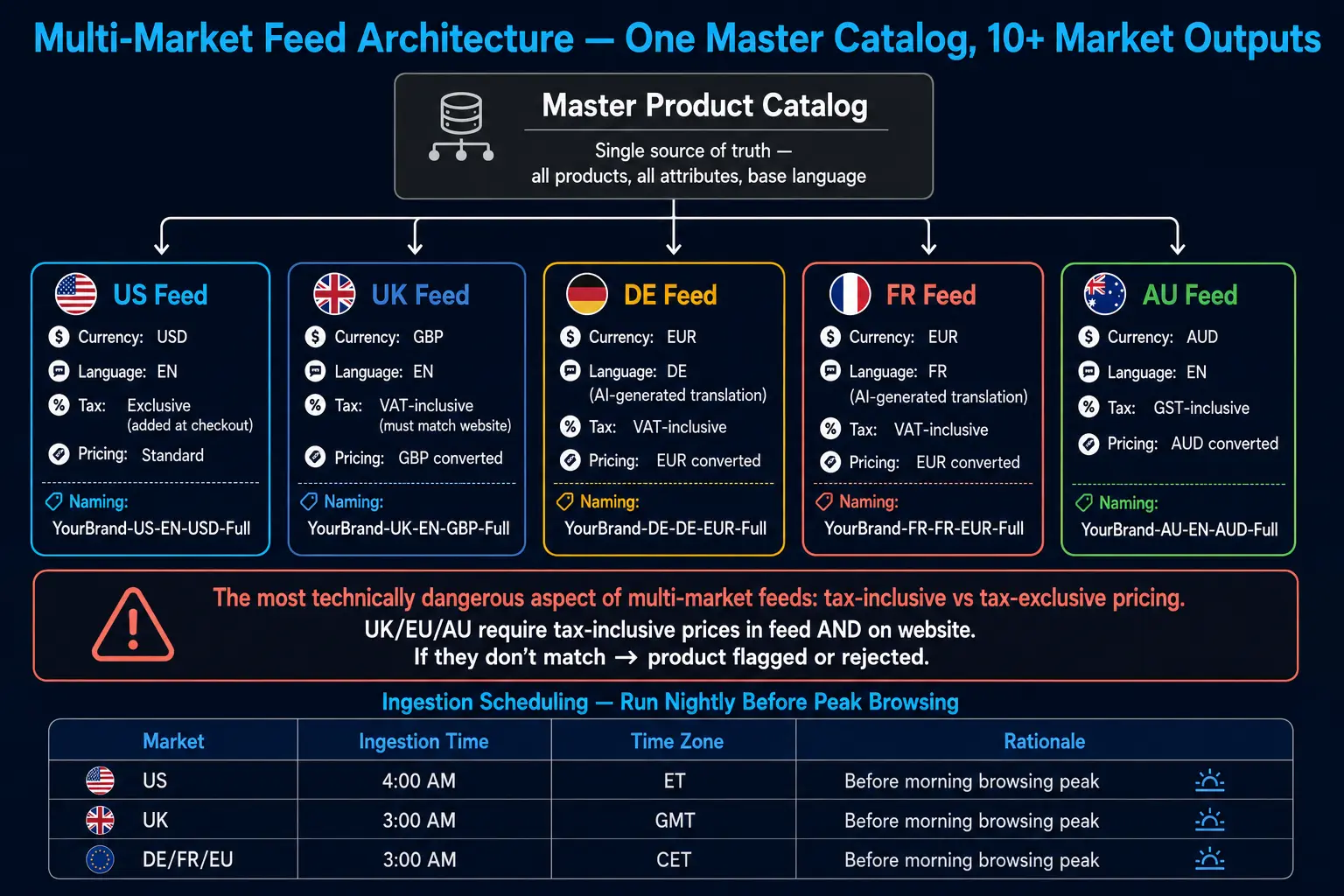
You can operate up to 50 data sources on your Pinterest Business account to promote products across different markets, languages, and currencies. But how you structure that operationally is a question no existing guide addresses.
The Multi-Market Feed Architecture Blueprint
Step 1: The Naming Convention System
Establish a consistent naming convention across all data sources before you create your first market feed. This saves enormous operational confusion at scale.
Recommended format: [Brand]-[Market]-[Language]-[Currency]-[CatalogType]
Examples:
YourBrand-US-EN-USD-Full
YourBrand-UK-EN-GBP-Full
YourBrand-DE-DE-EUR-Full
YourBrand-FR-FR-EUR-Full
YourBrand-AU-EN-AUD-Full
Step 2: Master Feed → Market-Specific Output Architecture
Do not maintain 10 separate hand-managed spreadsheet feeds. Maintain one master catalog and generate market-specific outputs using feed rules:
price → transformed to local currency with up-to-date exchange rates
title and description → localised for each market (AI-generated translations or market-specific copy)
availability → market-specific inventory (some SKUs may only be available in certain markets)
link → country-specific URL paths (e.g., yourstore.com/uk/products/ vs yourstore.com/us/products/)
shipping → market-specific shipping rules and pricing
FeedOn.ai generates product content in 23 languages, reaching international markets without hiring translators.
Step 3: Tax-Inclusive vs. Tax-Exclusive Pricing
This is the most technically dangerous aspect of multi-market feeds. If the price in your feed does not match the price displayed on your product page, products may be flagged or rejected. This is especially common for stores with dynamic pricing, regional pricing, or prices that exclude/include tax differently between the feed and the website. Ensure your feed is updated frequently and that the price format, including currency code, matches exactly.
Market-specific tax rules:
US: Prices are typically tax-exclusive in the feed. Tax is calculated at checkout.
UK/EU: Prices must be tax-inclusive (VAT included) in both the feed and on your site. If your Shopify store shows VAT-inclusive prices to UK visitors, your UK Pinterest feed must also show VAT-inclusive prices.
Australia: GST-inclusive pricing required on product pages; your feed must match.
Step 4: Managing Regional Product Exclusions
Some products simply cannot or should not be sold in all markets: different safety regulations, regional regulatory approval requirements, shipping weight restrictions, or strategic market prioritisation. Handle these with a feed rule: IF market = DE AND product_type = [restricted category] → exclude from DE feed.
Step 5: Ingestion Scheduling Across Time Zones
Schedule each market feed's ingestion to complete before peak browsing hours in that market:
US feeds: Ingest at 4:00 AM ET (before morning browsing peaks)
UK feeds: Ingest at 3:00 AM GMT
DE/FR/EU feeds: Ingest at 3:00 AM CET
Enable scheduled updates in your data source and select an ingestion frequency that works best for your business. More frequent updates help ensure your content stays relevant for shoppers, especially if your inventory or pricing changes regularly.
FeedOn.ai's multi-market feed architecture generates localised, channel-ready outputs for each country from a single master catalog
The Pinterest Image Policies That Cause Silent Rejections
Pinterest enforces strict image quality standards: no low-res, pixelated, or watermarked images. Prices on Pinterest must match prices on your site. Avoid showing products as "in stock" if they aren't. The product page must be live, shoppable, and match the product shown on Pinterest.

But beyond these headline rules, there is a set of specific image conditions that silently suppress or reject products, never mentioned in any guide:
The Silent Rejection Triggers
1. Text Overlay Exceeding Pinterest's Threshold
Pinterest's visual-first review system analyses image quality, text overlay ratio, and creative authenticity before reviewing ad copy. Products with promotional text banners (e.g., 50% OFF TODAY, "FREE SHIPPING, price callouts) baked into the image_link URL image are flagged and often rejected for shopping surfaces. This policy applies to the primary image_link field, not to additional_image_link.
Fix: Remove all text overlays from product images used in the image_link field. Use additional_image_link to add any lifestyle or promotional imagery.
2. Watermarks on Primary Images Images with visible watermarks
From stock photo libraries, agency watermarks, or photographer credits—are rejected. This is particularly common for stores using supplier-provided images or drop-shipper image feeds.
Fix: Ensure all images used in image_link are owned or properly licensed, watermark-free.
3. Before/After Collages
Side-by-side before/after images are specifically called out in Pinterest's health & wellness advertising restrictions. These are flagged algorithmically and require manual review, often resulting in rejection for any health-adjacent product category.
Fix: Show the product alone, in use, or in a lifestyle context. Avoid comparative imagery.
4. Placeholder or Default Images
"No image available" placeholders, grey boxes, or images that render an HTTP error cause product-level ingestion failure. Pinterest's crawler must be able to access the image URL directly.
Fix: Ensure all image_link URLs return a valid 200 status code with no redirects that require authentication.
5. Images Below Minimum Resolution
The image_link field should contain the direct URL to the main product image. Images must be at least 75×75 pixels and accessible by the user agent. However, images at the 75×75 minimum will be deprioritizedAnalytics, in discovery surfaces. Use 1000×1500 pixels minimum for competitive placement.
6. Collage-Style
Multi-Product Images Images showing multiple different products in a single frame (common in "lifestyle flat lay" photography) cause ambiguity in Pinterest's visual classification system. Pinterest cannot determine which product to pin when the image shows five different items. Submit single-product images in image_link and use multi-product lifestyle shots only in additional_image_link.
7. Logo-Only or Brand-Only Images
Images that show only your brand logo or a text-based design without a visible product are rejected for shopping surfaces. The product must be clearly visible and identifiable from the image.
The Image Policy Audit Checklist
Before submitting your feed, audit a sample of 50 images against this checklist:
Check                            Pass Criterion
Minimum dimensions               ≥ 1000×1500 px (1000×1000 minimum acceptable)
Aspect ratio                     2:3 preferred; 1:1 acceptable
Text overlay                     None on image_link; allowed on additional_image_link
Watermarks                       Zero visible watermarks
Before/after format              Not present
Multi-product collage            Not present in image_link
Product visibility               Product clearly visible and identifiable
URL accessibility                Returns 200 status, no auth required
File format                      JPEG or PNG (GIF not supported for Shopping)
The Full Attribution Framework — Organic Pins vs. Paid Shopping Ads
Rich Pins are organic product pins that display dynamic pricing and availability. Shopping ads are paid promotions of your catalog products. Both pull from your product catalog, but Shopping Ads allow targeting, bidding, and guaranteed placement in search results and feeds.

The attribution question is genuinely complex on Pinterest because organic and paid surfaces are fed by the same data. Here is how to separate and measure them properly:
Understanding Pinterest's Conversion Attribution Model
Conversion Insights shows the total checkouts influenced by both organic Pins and ads at the business level. Conversion Insights uses a last-touch model and gives insights based on the last pin a user engaged with before checking out, whether it was an organic pin or an ad. Conversion Insights data will not match third-party sources such as Google Analytics, as they cannot see people's activity on Pinterest, like what users are seeing and how they're engaging with your Pins and ads.
This means Pinterest's native attribution tool conflates organic and paid—deliberately, by design. To separate them, you need to build a dual-tracking architecture.
The Attribution Framework: Separating Organic from Paid
Layer 1: UTM Parameter Architecture
Configure your feed's link field (organic Pins) and ad_link field (paid Shopping Ads) with different UTM structures:
For organic product pins via link:
text
https://yourstore.com/products/your-product?utm_source=pinterest&utm_medium=organic&utm_campaign=product-pins&utm_content=[product-id]
For Shopping Ads via ad_link:
text
https://yourstore.com/products/your-product?utm_source=pinterest&utm_medium=paid&utm_campaign=shopping-ads&utm_content=[product-id]&utm_term=[custom_label]
This UTM separation means your Google Analytics / GA4 will show Pinterest organic and Pinterest paid as distinct traffic sources with distinct revenue attribution.
Layer 2: Pinterest Tag + Conversions API Set up both the Pinterest tag and Conversions API to capture every customer interaction with your content.
The Pinterest tag captures on-site behavior (page visits, add to cart, and checkout). The Conversions API sends the same signals server-side, resolving iOS attribution gaps where browser tracking is blocked. Together, they give Pinterest a complete picture of conversion paths — which then improves your Shopping Ad targeting automatically.
According to Pinterest, advertisers who have a well-designed tag have a 35% increase in ROAS.
Layer 3: Mobile Deep Links for Conversion Lift
Simplify the shopping journey by bringing people directly to a URL in your native app using mobile deep links. Advertisers using mobile deep links have seen a 235% lift in conversion rates and 34% lower CPAs.
Implement deep links in your ad_link field for mobile app users. This is particularly high-impact given that 85% of all Pinterest sessions take place on a mobile device.
Layer 4: Organic Pin Revenue Calculation
To calculate the true organic ROI of your catalog investment:
Identify organic Pinterest sessions in GA4 using utm_medium=organic + source=pinterest
Track revenue from those sessions using GA4's e-commerce tracking
Subtract the cost of feed management (tool subscription + team time)
Calculate organic catalog ROI: Organic Pinterest Revenue ÷ Feed Management Cost
A well-optimized Pinterest catalog regularly generates organic product Pin revenue equivalent to 20–40% of paid Shopping Ad revenue from the same catalog—essentially free incremental revenue from products you're already paying to advertise.
Layer 5: Conversion Insights as a Direction Signal
Use Pinterest's native Conversion Insights not for precise attribution but as a direction signal:
Conversion Insights gives you an idea of which top-converting organic Pins you can promote to increase your conversions. Products generating strong organic Pin saves and conversions are your best candidates for Shopping Ad promotion because they've already proven product-market fit on the platform.
Track feed performance, channel-level attribution, and catalog health in FeedOn.ai's dashboard
Flash Sales and sale_price_effective_date — The Complete Formatting Guide
The new sales indicators tool automatically highlights price changes in relevant shopping ads whenever a product in your catalog goes on sale. These promotions and sales are then auto-surfaced in a dedicated deal ads module on the Pinterest home feed.

This is a significant competitive advantage, Pinterest automatically promotes your discounted products in a dedicated deals surface. But only if your feed is formatted correctly.
The Exact sale_price_effective_date Formatting
Pinterest uses the same format as Google Shopping: ISO 8601 datetime format with timezone offset.
Correct format:
text
YYYY-MM-DDTHH:MM:SS±HH:MM/YYYY-MM-DDTHH:MM:SS±HH:MM
Real examples:
For a Black Friday sale running from November 28, 2026, midnight to midnight Eastern Time:
text
2026-11-28T00:00:00-05:00/2026-11-28T23:59:59-05:00
For a 48-hour flash sale in the UK timezone (GMT):
text
2026-07-04T10:00:00+00:00/2026-07-06T10:00:00+00:00
For a global sale where you want to use UTC:
text
2026-12-24T00:00:00Z/2026-12-26T23:59:59Z
Common formatting errors:
Error                         Incorrect                                                     Correct
Missing timezone offset       2026-11-28T00:00:00                                           2026-11-28T00:00:00-05:00
Space instead of T            2026-11-28 00:00:00-05:00                                     2026-11-28T00:00:00-05:00
Missing seconds               2026-11-28T00:00-05:00                                        2026-11-28T00:00:00-05:00
Wrong delimiter               2026-11-28T00:00:00-05:00 to 2026-11-28T23:59:59-05:00        2026-11-28T00:00:00-05:00/2026-11-28T23:59:59-05:00
How Quickly Does Pinterest Reflect Sale Price Changes?
Pinterest ingests your data source once every 24 hours. Make your updated full data source available daily to keep your product details up to date.
This means a sale price added to your feed today will typically appear in Pinterest's shopping surfaces within 24 hours of the next scheduled ingestion. For time-sensitive promotions, you need to coordinate your feed update schedule with your sale start time:
Flash Sale Timing Protocol:
If your sale starts at 12:00 PM ET on Friday:
By 12:00 PM ET Thursday: Add sale_price and sale_price_effective_date to your feed
Thursday afternoon: Trigger a manual ingestion via Pinterest Business Hub (Catalogs → Trigger Ingestion)
Friday 12:00 PM: Sale prices should already be live in your Product Pins and shopping ads.
At sale end: Update your feed to remove sale_price (or let the sale_price_effective_date expire)
Trigger another manual ingestion to clear sale pricing immediately after the sale ends
They sale_price must be lower than the regular price. Do not use zero values. Do not use currency symbols.
Multi-currency flash sales: Each market feed needs its own sale_price in local currency. You cannot submit a single sale_price and expect Pinterest to convert it across market feeds.
FeedOn.ai automates seasonal and promotional feed updates across all channels simultaneously — including Pinterest's sale_price fields
Pinterest Feed Performance Benchmarks — The Numbers You Should Be Targeting

The only benchmark most guides mention is that feeds with more than 2,500 products see over 3x higher ROAS. Here is the complete benchmark set for Pinterest catalog management:
Feed Health Benchmarks
Metric                                    Benchmark      Action Threshold
Catalog approval rate                     ≥ 95%          < 90% → investigate immediately
Feed ingestion success rate               100%           Any failure → 24-hour fix protocol
Products active vs total submitted        ≥ 95%          < 90% → check for systemic disapproval
Optional fields completion                ≥ 70%          Any gap → immediate fix
Image policy compliance                   ≥ 98%          < 50% → prioritise enrichment
Price match accuracy                      100%           < 95% → audit image library
Required fields completion                100%           Any mismatch → emergency fix
Campaign Performance Benchmarks for Pinterest Shopping Ads
Conversion-focused Pinterest ad campaigns achieve an average ROAS of 3.2x to 4.8x, significantly higher than the 2.1x to 2.9x average on Meta platforms. This performance advantage stems from Pinterest's ability to capture users at the exact moment of purchase intent. Brands using Shopping Ads report 35% higher conversion rates and 28% lower cost-per-acquisition compared to standard promoted Pins. Products with complete information — title, description, price, availability, and high-quality images — achieve 73% higher click-through rates than incomplete listings.
Metric                                Good Benchmark     Great Benchmark                  Source
Shopping Ads ROAS                     2.3x               3.2x–4.8x                        Pinterest Business / Industry data
Shopping Ads conversion rate          1.2%               1.52%+                           Poster.ly 2026
CTR on Shopping Ads                   0.4%+              0.7%+                            Industry benchmark
Save rate                             1.5%+              2.3%+                            Industry benchmark
Product Pin organic save rate         0.5%+              1.0%+                            Industry benchmark
CPC                                   $0.10–$1.50        < $0.80                          Pinterest / WebFX
Cost per acquisition                  $0–$2.00           < $1.00                          Pinterest Business
ROAS vs other digital channels        Baseline           +32% vs platform average         Statistics source
Pinterest ads deliver 32% higher ROAS compared to other digital platforms.
The Feed Quality → ROAS Connection (The Math)
Expand your catalog by uploading more products for stronger performance. Feeds with more than 2,500 products have seen over 3x higher ROAS because Pinterest's machine learning has more options to test and choose from, helping it identify the best item to serve for each impression to each user. Merchants with catalogs see 5x more impressions on Pinterest compared to those without catalogs. Every product you add, enrich, and maintain in your catalog expands Pinterest's ability to match your products to relevant discovery moments.
The compounding effect: A catalog with 5,000 well-structured, fully attributed SKUs doesn't perform 2x better than a catalog with 2,500 bare-minimum SKUs. It performs 3x–5x better because Pinterest's machine learning has exponentially more matching opportunities.
The Weekly Pinterest Feed Health Protocol (20 Minutes)
Every Monday morning, run this 20-minute check:
Pinterest Business Hub → Catalogs → Diagnostics (5 minutes): Check ingestion status from the weekend. Note any new product-level errors or file-level warnings. Categorise by severity.
Approval rate check (2 minutes): Total active products ÷ total submitted products. If below 95%, investigate.
Price mismatch spot-check (5 minutes): Spot-check 10 random SKUs. Compare the price in your feed against the live product page price. Zero tolerance for mismatches.
Shopping Ads impression share (3 minutes): If impression share dropped >10% week-over-week with no budget reduction, suspect a disapproval event or feed ingestion failure.
Save rate review (5 minutes): Check which product pins generated the most saves this week. These are your organic discovery champions — consider promoting them via Shopping Ads.
FeedOn.ai's real-time feed health dashboard gives you a live quality score and disapproval alerts across your entire Pinterest catalog
Pinterest API vs. Feed Ingestion — When to Graduate and How
Pinterest ingests your data source once every 24 hours. Scheduled data source updates are available, but on-demand ingestion is not supported at this time.

This 24-hour ceiling is the primary limitation of feed-based catalog management. The Pinterest API for Shopping solves it.
The Decision Matrix: Feed vs. API
Factor                          Feed Ingestion                                Pinterest API for Shopping
Update speed                    24-hour cycle                                 Near real-time (minutes)
Setup complexity                Low — URL or file upload                      High — developer work required
Required infrastructure         Hosted feed URL                               API authentication, endpoint management
Bulk management                 Native — entire catalog in one file           Possible but requires batching
Best for                        Stable catalogs, < 6 price changes/day        Dynamic pricing, flash sale businesses
Cost                            Included in most feed tools                   Developer time + API rate limits
Error visibility                Diagnostics dashboard                         API response codes + custom logging
Recommended catalog size        Up to ~500,000 SKUs                           Any size
When Feed Ingestion Is Right for You
Feed-based ingestion is sufficient for the vast majority of e-commerce merchants:
Your catalog pricing changes less than 4–6 times per day
Your inventory updates are not so rapid that a 24-hour stale snapshot would cause significant disapprovals
You don't have developer resources to maintain an API integration
You're running standard Shopping Ads without real-time bidding dependencies
When to Graduate to the Pinterest API
Migrate to the Pinterest API when:
You run algorithmically-repriced products that change multiple times per day (electronics, commodities, dynamic pricing)
You are experiencing consistent price mismatch disapprovals that your 24-hour feed refresh cannot resolve fast enough
Your catalog size exceeds 100,000 SKUs and you need faster indexing of new product additions
You run high-velocity flash sales where a 24-hour delay in price publication costs significant revenue
You have developer resources available for an ongoing API integration project
The honest migration warning: Switching from feed to API is not a trivial project. It requires API authentication setup, endpoint mapping, error handling logic, rate limit management, and ongoing developer maintenance. For most merchants, a well-managed feed with 6-hour refresh cycles handles 95% of use cases without the API complexity.
Contact FeedOn.ai's team to discuss whether API-based Pinterest integration is right for your catalog
The Pinterest Seasonal Feed Optimization Calendar
Pinterest's annual trend predictions have 88% accuracy over the past six years. This is an extraordinary signal for e-commerce brands: Pinterest publishes trend forecasts that let you front-run seasonal demand—if your feed is optimized ahead of each trend cycle.
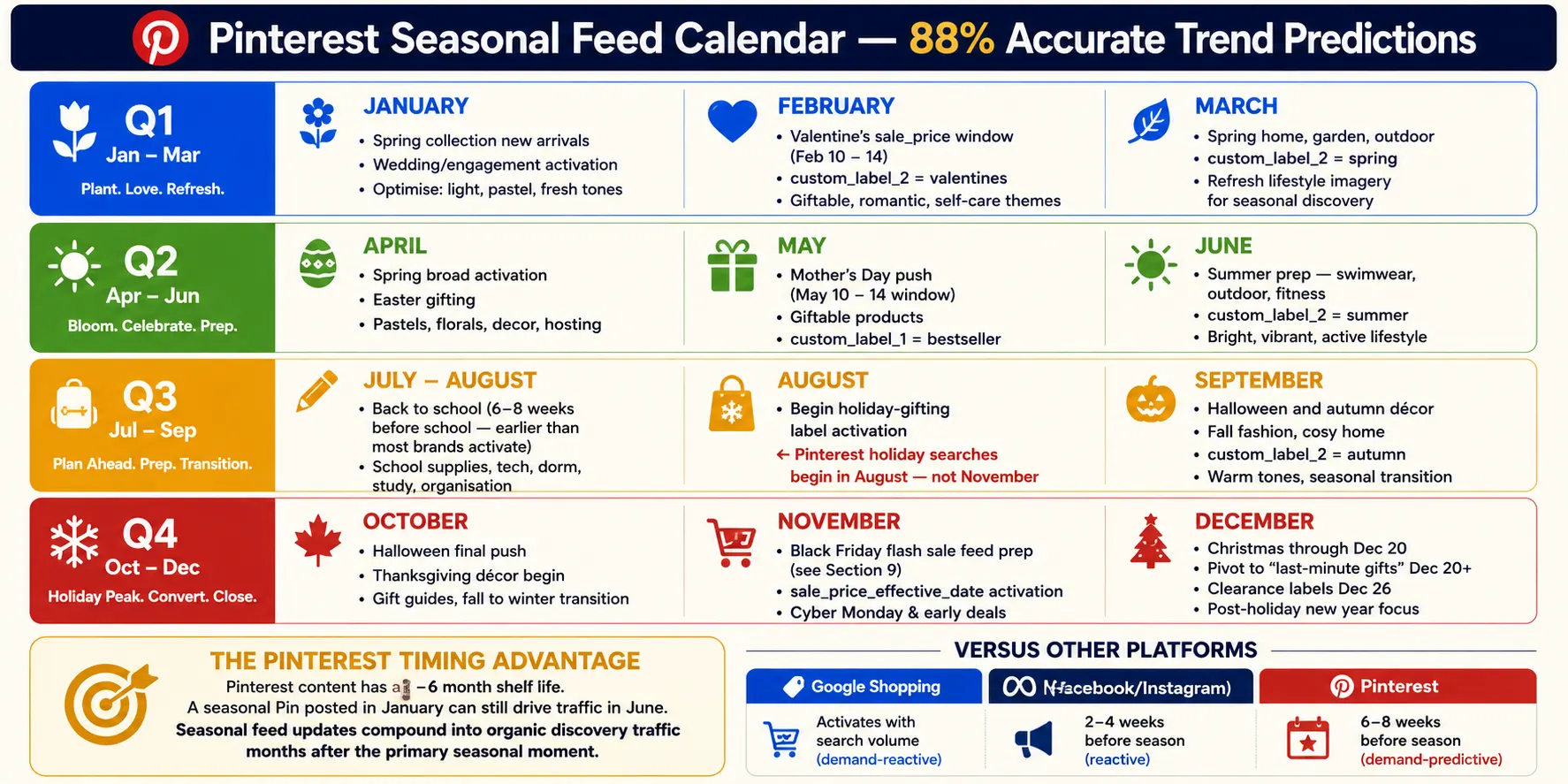
Here's the 12-month Pinterest feed optimization calendar for e-commerce brands:
Q1 (January–March): New Year + Valentine's + Spring Planning
January: Activate "new arrival" custom labels for spring collection. Update titles to include "spring" and "new season" keywords. Activate wedding/engagement-related product groups (Pinterest wedding planning peaks in January).
February: Valentine's Day feed push. Add sale_price and sale_price_effective_date for February 10–14 promotions. Activate custom_label_2 = Valentine's product groups.
March: Spring home decor, gardening, outdoor furniture — activate seasonal product groups. Update descriptions with "spring refresh" and "outdoor living" language.
Q2 (April–June): Spring Selling + Mother's Day + Summer Prep
April: Activate custom_label_2 = spring broadly. Easter gifting push for relevant categories.
May: Mother's Day is Pinterest's second-largest gift-driven search event. Add "Mother's Day gift" to the titles of giftable products. Activate sale pricing for the May 10–14 window.
June: Summer prep surge. Swimwear, outdoor, travel, fitness—activate custom_label_2 = summer.
Q3 (July–September): Back to School + Early Holiday Planning
July–August: Back to school. Activate school supplies, backpacks, and dorm furnishings product groups. Pinterest's back-to-school search peaks 6–8 weeks before school starts—earlier than most brands activate.
August: Begin activating custom_label_2 = holiday-gifting for your highest-velocity holiday SKUs. Pinterest holiday planning searches begin in August — not November.
September: Halloween and autumn décor activation. Update product titles with "autumn" and "fall" language.
Q4 (October–December): Peak Commerce Season
October: Halloween final push. Begin Thanksgiving table setting and home décor activation.
November: This is your most operationally intensive month. Black Friday/Cyber Monday supplemental feeds with sale_price_effective_date timings (see Gap 9 above). Update product copy for Black Friday, holidays, or seasonal campaigns across all channels.
December: Christmas gift push through December 20. After December 20, pivot to "last-minute gifts" language in titles and descriptions. December 26: Activate clearance labels and new year product groups.
The Pinterest advantage: Because Pinterest users plan further ahead than other platforms, your seasonal content has an unusually long runway. Pinterest content has a 3- to 6-month shelf life, meaning a pin posted in January can still be driving traffic in June. Seasonal feed updates made in advance compound into organic discovery traffic for months after the primary seasonal moment passes.
Pinterest Feed Troubleshooting Decision Tree
Pinterest rejects millions of product listings daily due to catalog errors that sellers could easily avoid.
Here's the complete error-to-resolution map for every major Pinterest feed failure type:
Problem: My entire feed failed ingestion
Step 1: Check for file-level errors in Catalog Diagnostics. Common causes:
CSV not encoded in UTF-8
Missing required column headers (exact name match required)
Delimiter inconsistency (commas inside unquoted values)
File too large (>20 million products)
Step 2: Validate your CSV structure using a local validator before re-submitting.
Step 3: Fix the file-level error. Trigger a manual ingestion. Wait 4–8 hours.
Problem: Some of my products aren't showing
Products may not appear in Pinterest Shopping if they are missing required attributes, have been flagged for policy violations, or have not completed the initial review process. Ensure all required fields are populated correctly, including google_product_category and product_type. Check the Catalogs section in Pinterest Business Hub for specific product-level issues.
Step 1: Filter your catalog diagnostics to "product-level errors." Sort by most common error type.
Step 2: For each error type, follow the resolution path:
Error                                    Fix
Missing required attribute               Add the missing field to your feed
Price mismatch                           Sync feed price to match website price exactly
Image inaccessible                       Check image URL returns 200; remove authentication
Duplicate id                             Ensure every product row has a unique id value
Invalid availability value               Use exact values: in stock, out of stock, preorder
Invalid google_product_category          Use Google's official taxonomy — numeric codes or full text path
Problem: My prices keep mismatching
Price mismatches are especially common for stores with dynamic pricing, regional pricing, or prices that exclude/include tax differently between the feed and the website. Ensure your feed is updated frequently and that the price format, including currency code, matches exactly. For stores using A/B testing or personalization that shows different prices to different users, ensure the Pinterest bot receives the same price as in your feed.
Fix for A/B pricing conflicts: Check if your pricing personalization system shows different prices based on user behavior signals. Pinterest's feed crawler is a bot — ensure it receives the baseline, non-discounted, non-personalized price. Block price personalization by user agent for Pinterest's crawler.
Problem: My images keep getting rejected
Run the image audit checklist from Gap 7 against your rejected images. The three most common silent image rejection causes:
Text overlay on image_link image
Watermarks from stock photo providers
The image URL returns a redirect that requires authentication
Problem: My feed worked, then stopped working
Most intermittent feed failures fall into three categories:
Your hosting server went down: Your feed file is hosted at an HTTP/HTTPS URL that became temporarily unavailable. Pinterest's crawler couldn't access it during the ingestion window. Fix: ensure feed hosting has a 99.9%+ uptime SLA.
Your feed file grew beyond the processing limit: Pinterest can process up to 20 million products per feed. If your data source has more than 20 million products, Pinterest will process the first 20 million rows. If your catalog grew past this threshold, contact your Pinterest account manager.
A rule in your feed generation script created an invalid value: Common after their platform updates or product database changes. Run a fresh validation after every catalog platform update.
FeedOn.ai's automated feed validation catches every error type before submission—ensuring your Pinterest catalog stays healthy without manual monitoring
Ready to Build Your Pinterest Feed the Right Way?
Treat your feed as a living, breathing asset that needs attention. For sellers managing large inventories or dealing with frequent product updates, manual feed management can become a bottleneck and a liability.
FeedOn.ai solves every layer of the Pinterest feed challenge: catalog audit, AI attribute enrichment, channel-specific title optimization, multi-market output generation, promotional feed updates, and real-time health monitoring.
Start your free FeedOn.ai plan 200 products and 3,000 AI credits. No credit card required. Your Pinterest catalog is optimized and live in hours.