
Custom Label Feed Optimization Strategy: The Complete 2026 Guide
Who this guide is for: Ecommerce advertisers and feed managers who already know what custom labels are and want to design a system that actually drives ROAS, not another article that stops at "use label 0 for margin".
Every custom label guide on the internet covers four things in the same order: margin segmentation, seasonality, bestsellers, and price tier. Then they stop.
They don't show you how all five labels work as an interconnected system. They don't tell you that the label strategy for Performance Max is structurally different from Standard Shopping. They don't address what happens when your labels go stale in two weeks. They don't give you a measurement framework to prove whether the labels are working. And they don't acknowledge the seven mistakes that silently drain the shopping budget month after month.
The 5-Label System Design Blueprint: How All Five Labels Work Together

Google allows exactly five custom labels per product: custom_label_0 through custom_label_4. Each label accepts up to 1,000 distinct values. Most advertisers use two or three labels for a single dimension (price range), run out of strategic thinking, and leave the remaining slots empty or duplicated.
The right approach treats all five labels as a coordinated architecture; each slot is assigned a distinct strategic purpose, designed so that combinations of label values enable multi-dimensional campaign segmentation that a single label can never achieve.
Here is the complete 5-label system blueprint.
The Blueprint: Each Label's Role
Label              Strategic Role                Example Values      Data Source
custom_label_0     Profitability tier            high-margin         COGS data or blended margin estimate
custom_label_1     Velocity                      fast-mover          Sales velocity from your commerce backend
custom_label_2     Seasonal relevance window     evergreen           Your seasonal calendar
custom_label_3     Campaign priority tier        support             Business strategy + performance history
custom_label_4     Feed health                   image-issue         Feed audit output
Why This Specific Architecture
Label 0 — Profitability controls where you invest. ROAS targets mean nothing if you're optimising for revenue on a 5% margin product at the same intensity as a 60% margin product. Your profitability label is the foundation of the entire system. Every bid strategy decision flows from it.
Label 1 — Velocity tells you which products the market wants right now. A high-margin product with dead-stock velocity is a pricing or positioning problem, not a bidding opportunity. A mid-margin product with fast-mover velocity might justify more aggressive bids because the unit economics work at volume. Velocity and margin together give you the two-axis view that neither gives you alone.
Label 2 — Seasonality controls the timing of investment. Bidding aggressively on off-season products wastes budget you can't get back. Bidding on peak-season products with a conservative ROAS target misses the window. The seasonal label is the only label that should change on a predictable schedule; it is also the one most often forgotten after it's set up.
Label 3 — Priority is the executive layer. This is where your business strategy overrides pure performance data. A new brand partnership product might get "hero" status regardless of its current ROAS because of strategic importance. A product with a known supply chain issue might get "excluded" even if it's a fast-mover. Priority label is the human override on the data.
Label 4 — Feed health is the operational layer. Products with incomplete data (missing GTIN, image quality issues, unapproved status) should be excluded from main bidding campaigns and isolated in a separate campaign with conservative settings or excluded entirely. Using a label to flag feed health issues means you can filter them at the campaign level without having to manually track which products have data problems. This connects directly to maintaining a clean feed; see the FeedOn FeedPilot audit which surfaces exactly these issues at catalog level.
How Combinations Create Precision Segmentation
The power of a 5-label system is in the intersections. With this architecture, you can build campaign rules like:
Rule 1: Hero campaign — maximum investment custom_label_0 = high-margin AND custom_label_1 = fast-mover AND custom_label_2 = peak-now AND custom_label_3 = hero
These products deserve your highest ROAS target flexibility, maximum impression share bidding, and Shopping ads + PMax + Display coverage simultaneously.
Rule 2: Support campaign — steady, profitable, not urgent. custom_label_0 = high-margin AND custom_label_1 = steady AND custom_label_2 = evergreen
These run well on a target ROAS campaign with moderate budgets and don't need constant attention.
Rule 3: Volume opportunity — low margin but high velocity custom_label_0 = low-margin AND custom_label_1 = fast-mover
These products might justify a budget for brand visibility or market share goals even at thin margins—but should never be in the same campaign as high-margin products because they'll pull the blended ROAS down.
Rule 4: Feed exclusion — don't spend here custom_label_4 = missing-gtin OR custom_label_4 = image-issue
Products with feed quality issues generate wasted impressions and lower your catalog's overall quality signal. Exclude them from main campaigns until fixed. Catching and fixing these is exactly what how to fix Google Merchant Center feed errors covers in detail.
Implementing the Blueprint in Your Feed
In a feed management tool, you apply this system through feed rules that map data from your product attributes and external data sources to each custom label field. In FeedOn, this is done through rule-based label assignment:
IF [margin_percentage] >= 40 THEN custom_label_0 = "high-margin"
IF [margin_percentage] >= 20 AND < 40 THEN custom_label_0 = "mid-margin"
IF [margin_percentage] < 20 THEN custom_label_0 = "low-margin"
IF [units_sold_30d] >= 50 THEN custom_label_1 = "fast-mover"
IF [units_sold_30d] >= 10 AND < 50 THEN custom_label_1 = "steady"
IF [units_sold_30d] < 10 THEN custom_label_1 = "slow-mover"
IF [inventory_quantity] = 0 THEN custom_label_1 = "dead-stock"
The labels update automatically when the underlying data changes — which is the entire point. Static label assignment defeats the architecture because the data it represents is constantly moving. Automation is covered in full in Section 3.
Custom Labels in Performance Max: The Complete 2026 Strategy

Every custom label guide in this SERP was written for Standard Shopping campaigns. Performance Max is now the dominant campaign type for most e-commerce advertisers in 2026. The label strategy is not the same.
Understanding the difference is not optional if you want your labels to do what you think they're doing.
How Standard Shopping Uses Custom Labels
In Standard Shopping, custom labels function as product group filters. You create product groups within a campaign by filtering on label values, then assign different bids to each group. The mechanics are straightforward: the label determines which product group the product lands in, and the product group determines the bid.
Labels in Standard Shopping control one thing: bid amount per product segment.
How Performance Max Uses Custom Labels Differently
In Performance Max, custom labels define listing groups, which serve a fundamentally different purpose. When you create a listing group in PMax filtered by a custom label, you're not just controlling bids. You're determining:
1. Which products share creative signals. Products in the same PMax asset group share the same creative assets (headlines, images, videos). If you put high-margin apparel and low-margin electronics in the same listing group, Google serves the same creative to both, which is almost always wrong.
2. Which products share audience signal pools? PMax uses audience signals to find new customers. Products in the same asset group contribute to, and benefit from, the same audience signal pool. Mixing product categories in one listing group dilutes the audience signals for all of them.
3. Which products compete for the same budget? Within a PMax campaign, budget flows toward the listing groups with the highest predicted conversion value. If your high-margin products share a budget pool with low-margin products, Google will allocate it toward whichever has the highest predicted short-term value, which may not align with your margin strategy.
The Minimum Viable Product Count Per Listing Group
This is the most practically important constraint no competitor article addresses: PMax listing groups need sufficient product volume for Google's algorithm to learn effectively.
Minimum recommended: 50+ products per listing group for PMax to gather meaningful signal within a 2-week learning window.
Practical implication: If your "high-margin" label segment contains only 12 products, putting them in a dedicated PMax listing group will result in the "limited learning" status, and the campaign will underperform not because the label strategy is wrong but because the segment is too small. In this case, either broaden the label definition (combine "high-margin" and "mid-margin" into a single listing group) or use Standard Shopping for small segments.
Recommended PMax Label Architecture (2026)
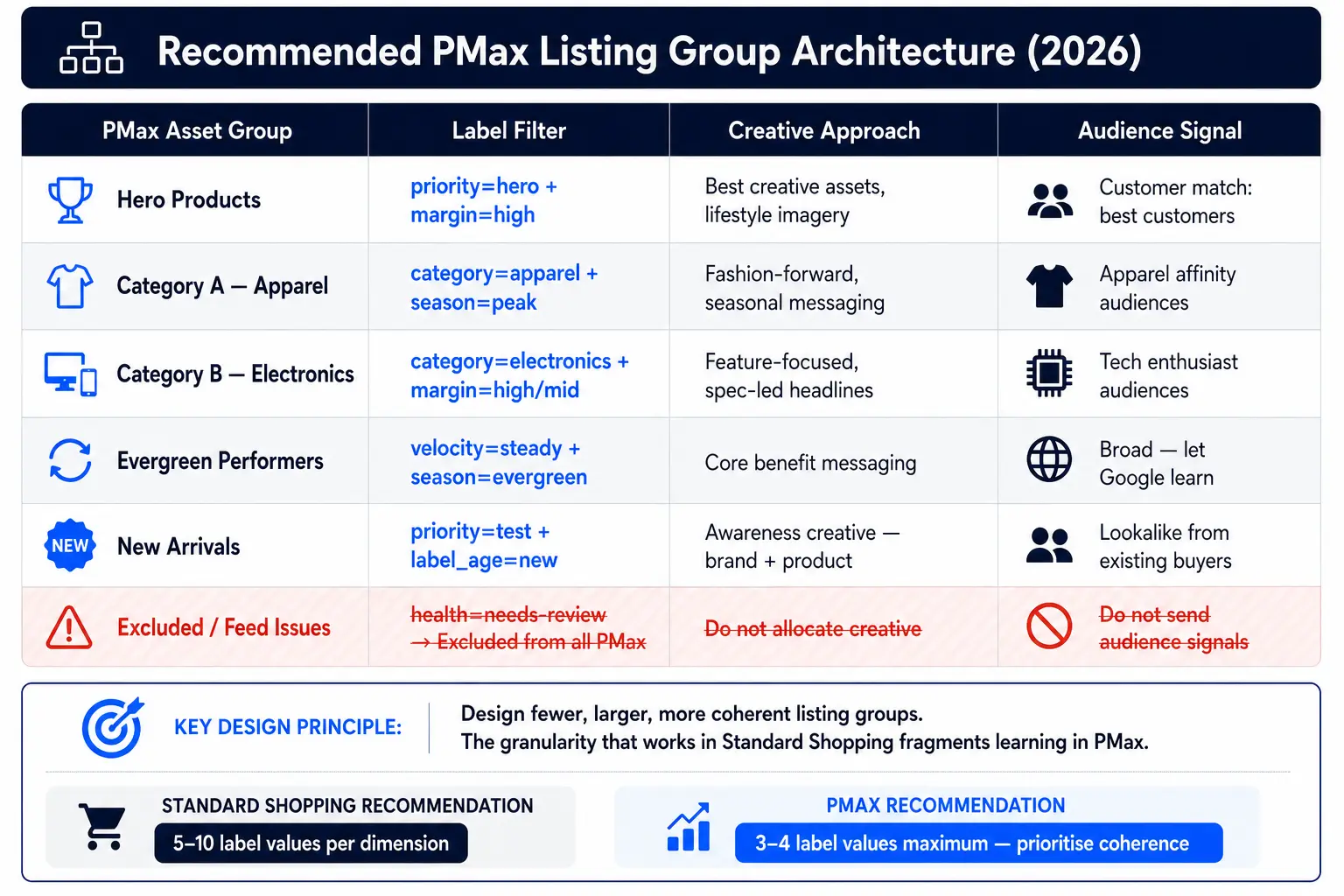
The label architecture for PMax should be designed around creative coherence and audience signal alignment — not just bid differentiation.
PMax Asset Group          Label Filter                                     Creative Approach                               Audience Signal
Hero Products             priority = hero + margin = high                  Best creative assets, lifestyle imagery         Customer match list of best customers
Apparel                   category = apparel + season = peak               Fashion-forward creative, seasonal messaging    Apparel affinity audiences
Electronics               category = electronics + margin = high OR mid    Feature-focused creative, spec-led headlines    Tech enthusiast audiences
Evergreen Performers      velocity = steady + season = evergreen           Core benefit messaging                          Broad, let Google find the audience
New Arrivals              priority = test + label_age = new                Awareness creative — brand + product            Lookalike from existing buyers
Excluded                  health = needs-review                            Excluded from all PMax                          N/A
Standard Shopping vs PMax Label Strategy: Side-by-Side
Dimension                        Standard Shopping                           Performance Max
What labels control              Bid per product group                       Listing group + creative + audience + budget
Primary design consideration     Bid differentiation by margin/velocity      Creative coherence + audience alignment
Minimum segment size             10+ products (functional)                   50+ products (for effective learning)
Label granularity                More granularity = more bid precision       Too much granularity = fragmented learning
Update frequency                 Labels can change frequently                Frequent label changes disrupt learning windows
Key takeaway for PMax: design fewer, larger, more coherent listing groups rather than the granular segmentation that works well in standard shopping. Your 5-label system from Section 1 still applies, but in PMax, you filter on one or two label combinations per listing group, not five.
For a full guide to feed optimization that supports both Standard Shopping and PMax simultaneously, see the ultimate Google Shopping feed optimization guide and 5 proven ways to optimize product feeds for Google Shopping.
Dynamic Custom Labels: Automating Label Assignment So Labels Never Go Stale
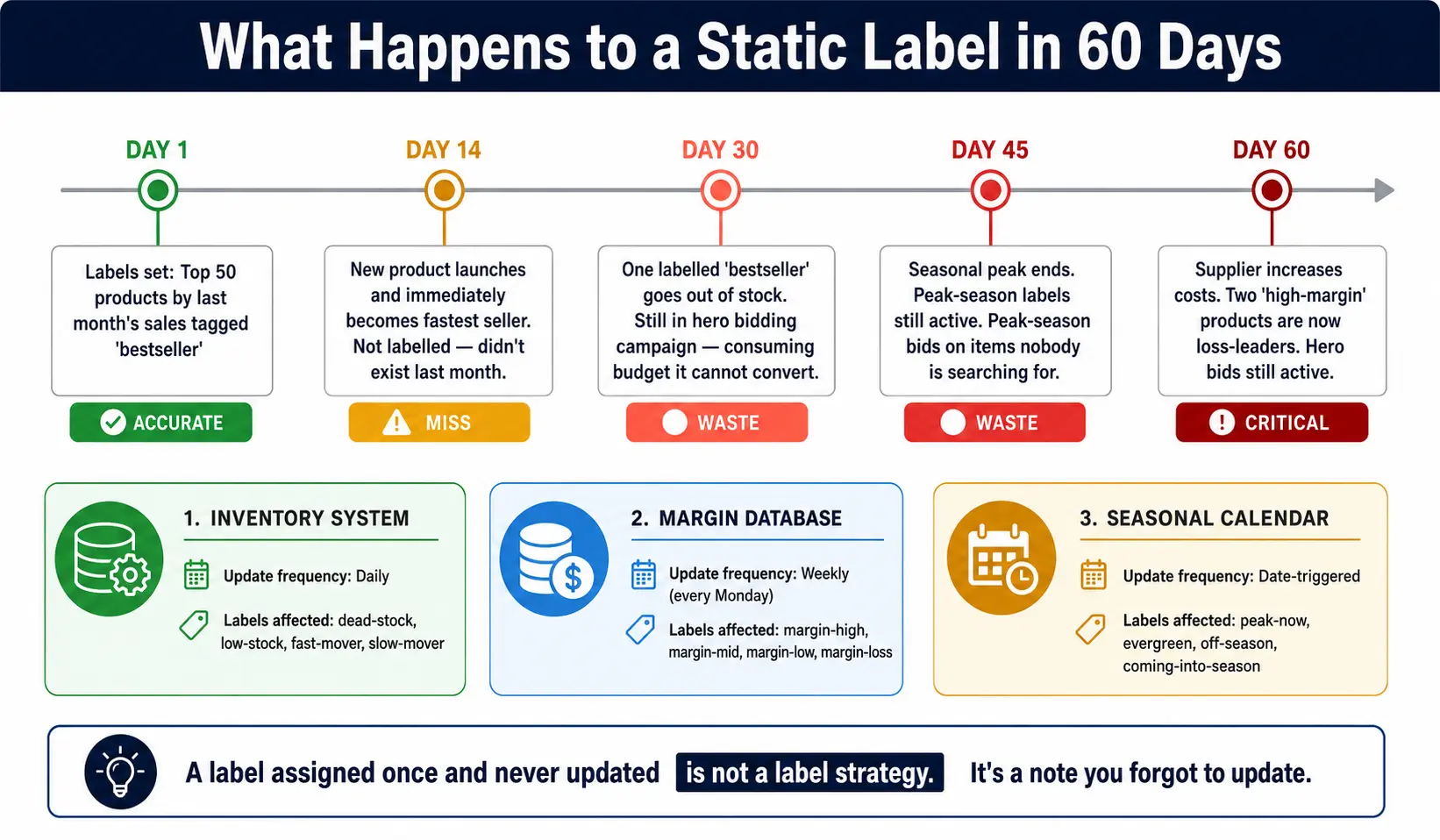
This is the gap that makes 80% of custom label strategies fail within 60 days of setup.
A label assigned once and never updated is not a label strategy. It's a note you wrote to yourself that you forgot to update.
The Label Decay Problem
Consider what happens to a static "bestseller" label over 60 days:
Day 1: You label your top 50 products by last month's sales as bestseller
Day 14: A new product launches and immediately becomes your fastest seller. It's not labelled bestseller because it didn't exist last month.
Day 30: One of the labelled "bestsellers" goes out of stock. It's still labelled bestseller and still in your hero bidding campaign – consuming budget it can't convert.
Day 45: Your seasonal peak ends. Products labelled peak-season are still in peak-season campaigns with peak-season bids on items no one is searching for.
Day 60: Your margin data changed because your supplier increased costs. Two "high-margin" products are now effectively loss-leaders.
None of this generates an error. The labels are all still valid strings. Your campaigns continue running. And you're wondering why performance has degraded.
The Three Data Sources That Should Drive Dynamic Labels
Source 1: Inventory system (real-time)
Your inventory data updates constantly. Labels that depend on stock status must sync from your inventory system on at least a daily schedule:
custom_label_1 logic (velocity / stock):
IF inventory_quantity = 0 → "dead-stock" (override all other velocity signals)
IF inventory_quantity <= 5 → "low-stock" (trigger separate label or urgency creative)
IF units_sold_7d >= 20 → "fast-mover"
IF units_sold_7d >= 5 AND < 20 → "steady"
IF units_sold_7d < 5 AND inventory_quantity > 0 → "slow-mover"
Source 2: Margin database (weekly)
If your COGS fluctuate (supplier pricing, fulfillment costs, shipping cost changes), your margin labels need to recalculate on a weekly schedule at minimum. A product that was a 45% margin item in January may be a 28% margin item by March after a supplier price increase.
custom_label_0 logic (profitability):
IF (price - cogs) / price >= 0.40 → "high-margin"
IF (price - cogs) / price >= 0.20 AND < 0.40 → "mid-margin"
IF (price - cogs) / price >= 0.05 AND < 0.20 → "low-margin"
IF (price - cogs) / price < 0.05 → "loss-leader"
Source 3: Seasonal calendar (rule-based with date triggers)
Seasonal labels should flip automatically based on your defined calendar — not require manual intervention:
custom_label_2 logic (seasonal):
IF TODAY() BETWEEN "2026-11-20" AND "2026-12-31" AND product_tag CONTAINS "christmas" → "peak-now"
IF TODAY() BETWEEN "2026-09-01" AND "2026-11-19" AND product_tag CONTAINS "christmas" → "coming-into-season"
IF TODAY() BETWEEN "2027-01-01" AND "2027-08-31" AND product_tag CONTAINS "christmas" → "off-season"
IF product_tag CONTAINS "evergreen" → "evergreen" (overrides date rules)
Setting Up Automated Label Refresh in FeedOn
FeedOn's feed rule engine supports scheduled label refresh – rules that re-evaluate on a defined cadence rather than running only on product update events:
Daily refresh: Stock status labels (dead-stock, low-stock, fast-mover) — these should recalculate from your Shopify or commerce backend inventory data every day.
Weekly refresh: Margin labels (high-margin, mid-margin, low-margin) — pull from your connected COGS data source and recalculate every Monday.
Scheduled calendar flip: Seasonal labels — define start and end dates for each seasonal window; FeedOn flips the label automatically on the defined date without manual intervention.
Event-triggered refresh: Priority labels – a new product published in Shopify triggers priority = test; after 30 days with sufficient conversion data, the rule graduates it to priority = support or priority = hero based on the performance threshold.
This is the operational difference between a feed management platform that handles multi-channel publishing and AI enrichment and one that simply moves data from A to B. See how FeedOn's product features implement rule-based feed logic and how AI is changing product feed management in 2026 to make dynamic label assignment possible at catalog scale.
Label Refresh Cadence Summary
Label Type                  Recommended Refresh         Data Source                        Failure Risk if Not Refreshed
Stock status / velocity     Daily                       Inventory system                   Dead-stock in live campaigns — wasted spend
Profitability tier          Weekly                      COGS / margin database             Loss-leaders in hero campaigns
Seasonal relevance          Date-triggered / monthly    Your seasonal calendar             Off-season bids at peak-season rates
Campaign priority           Monthly review              Business strategy + performance    Misaligned budget allocation
Feed health flag            On every feed audit         Feed QA system                     Poor-quality products in main campaigns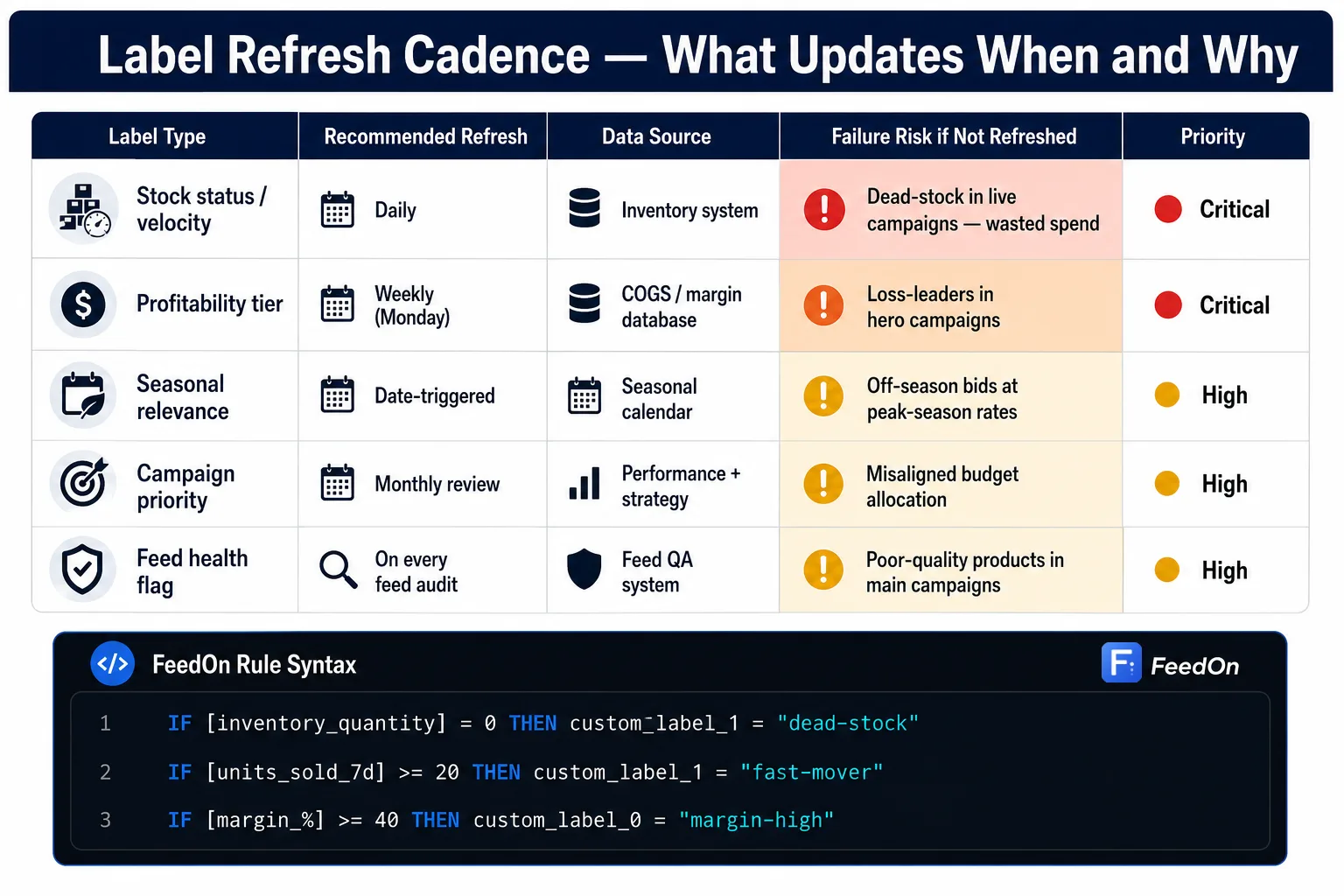
Seven Custom Label Mistakes Silently Wasting Your Shopping Budget

This is the section that every guide skips because acknowledging failure modes requires admitting that most advertiser setups are broken. Here are the seven most common mistakes, what they look like in the wild, and a realistic estimate of their revenue cost.
Mistake 1: Stale Labels That No Longer Reflect Current Reality
What it looks like: Your "bestseller" label was set up in January. It's now June. Three of the labelled bestsellers are out of stock. Two have been discontinued. One is now a slow-mover. All of them are still in your hero bidding campaign.
Why it happens: Labels were set manually once and never scheduled for refresh. Most advertisers treat label assignment as a setup task, not an ongoing process.
Revenue cost: If 30% of products in your "bestseller" campaign are dead-stock (zero inventory), approximately 30% of that campaign's budget generates zero conversions. For a campaign spending £5,000/month, that's £1,500/month on products that literally cannot convert.
Fix: Automate label refresh (Section 3). At minimum, set a calendar reminder to audit your labels every 30 days.
Mistake 2: Inconsistent Naming That Silently Breaks Campaign Filters
What it looks like: Your feed tool created high-margin in August. Your colleague added a new rule in October that created High-Margin. Your agency set up a campaign filter for high_margin (underscore). Three different values, one intended segment - your campaign filter matches none of them exactly, and 40% of your high-margin products are in no campaign at all.
Why it happens: No naming convention was defined before implementation began. Teams and agencies add to the label system without a governance reference.
Revenue cost: Products in no campaign receive zero impressions from your Shopping activity. If 40% of your highest-margin products are mislabelled and therefore excluded from campaigns, you're running shopping with one hand tied behind your back.
Fix: Define and document your naming convention before writing a single label value. See the governance framework in Section 8.
Mistake 3: Using All Five Labels for the Same Dimension
What it looks like:
custom_label_0 = "under-10"
custom_label_1 = "10-to-50"
custom_label_2 = "50-to-100"
custom_label_3 = "over-100"
custom_label_4 = "premium"
All five labels are used for price tiers. Every other dimension (margin, velocity, seasonality, feed health) is unrepresented.
Why it happens: Price segmentation is the first thing every guide recommends. Advertisers implement it across all available slots without planning.
Revenue cost: You have zero ability to differentiate your campaigns by any signal other than price. A £95 low-margin product and a £95 high-margin product are in the same campaign with the same bid. The low-margin product is silently eroding your blended ROAS.
Fix: Adopt the 5-label blueprint from Section 1. Each label serves a distinct strategic dimension.
Mistake 4: Over-Segmentation That Starves Smart Bidding of Data
What it looks like: You create 8 separate label values for profitability (high-margin-apparel, high-margin-electronics, high-margin-footwear, mid-margin-apparel, etc.) and build a separate campaign or ad group for each. Each campaign has 15–30 products and a £200/month budget.
Why it happens: The intuition is that more granularity = more control. This is true for manual bidding. It is the opposite of true for Smart Bidding.
Revenue cost: Smart Bidding needs at least 30–50 conversions per 30 days per bidding unit to learn effectively. Campaigns with 15 products and £200/month rarely hit this threshold. Each underfunded campaign stays in "limited learning" permanently and performs below what a consolidated campaign would.
Fix: When using Smart Bidding (Target ROAS, Target CPA), prioritise fewer, larger segments. Consolidate to 3–4 label values per dimension maximum, and ensure each resulting campaign has budget and product volume sufficient for the algorithm to learn.
Mistake 5: Never Refreshing Seasonal Labels After Peak Ends
What it looks like: You set up a "Christmas" label segment in November with aggressive ROAS targets and high budgets. It's now February. The label still says "peak-season-Christmas". The campaign is still live with December bids. You're spending £800/month on gift products in February with single-digit conversion rates.
Why it happens: Campaigns go live in November, perform brilliantly, and nobody thinks to check them again until Q4 planning in September.
Revenue cost: Off-season spend on peak-season products at peak-season bids is the most avoidable form of shopping budget waste. For a store that allocates £3,000/month to Christmas products, running those campaigns for 3 months past peak costs approximately £9,000 in misallocated budget.
Fix: Use date-triggered seasonal label flips (Section 3) so the label automatically updates on January 1 without requiring anyone to remember.
Mistake 6: Labelling Products as Bestsellers Based on Revenue Alone
What it looks like: You pull your top 20 products by revenue and label them "bestseller". But three of them have negative margins (deep discount to clear stock), two have 8% return rates that your revenue figure doesn't account for, and one is a product you're discontinuing next quarter.
Why it happens: Revenue is the easiest metric to pull. Contribution margin, return-adjusted revenue, and strategic status require more data and judgement.
Revenue cost: Bidding aggressively on products with negative contribution margins or high return rates converts revenue numbers into real losses. A product doing £10,000/month in shopping revenue with a 40% return rate and 5% margin is generating approximately £300/month in actual profit — not £10,000.
Fix: Use margin data as your primary custom_label_0 signal, not revenue. Cross-reference with return rate data before assigning "hero" campaign priority.
Mistake 7: Setting Up Labels and Never Verifying They're Working
What it looks like: You set up five custom labels in your feed tool in March. In June, you look at your campaigns. Products are running. ROAS looks okay. You never check whether the label values are actually reaching GMC correctly, whether your campaign filters are matching the right products, or whether the label distribution in your catalog matches your strategic intent.
Why it happens: Labels are invisible in campaign reporting unless you specifically build segmented reports. Most advertisers set them up and move on.
Revenue cost: If your "high-margin" campaign filter has a typo and is matching zero products, your highest-margin products are running in your catch-all "unassigned" campaign with default bids. They're not excluded — but they're getting the same treatment as your slowest, least profitable SKUs. The cost is measured in lost ROAS on your best products.
Fix: Use the measurement framework in Section 5. Verify labels monthly.
For a full audit of your current feed quality that catches the data issues underlying many of these mistakes, FeedOn's FeedPilot audit runs 60+ checks across your catalog. See also best Google Shopping feed optimization tools in 2026 for how a professional tool prevents these silent failures.
The Custom Label Performance Measurement Framework
Setting up labels without measuring them is like setting up a bidding strategy and never looking at the results. Most advertisers do exactly this, which is why most custom label strategies get quietly abandoned within 90 days.
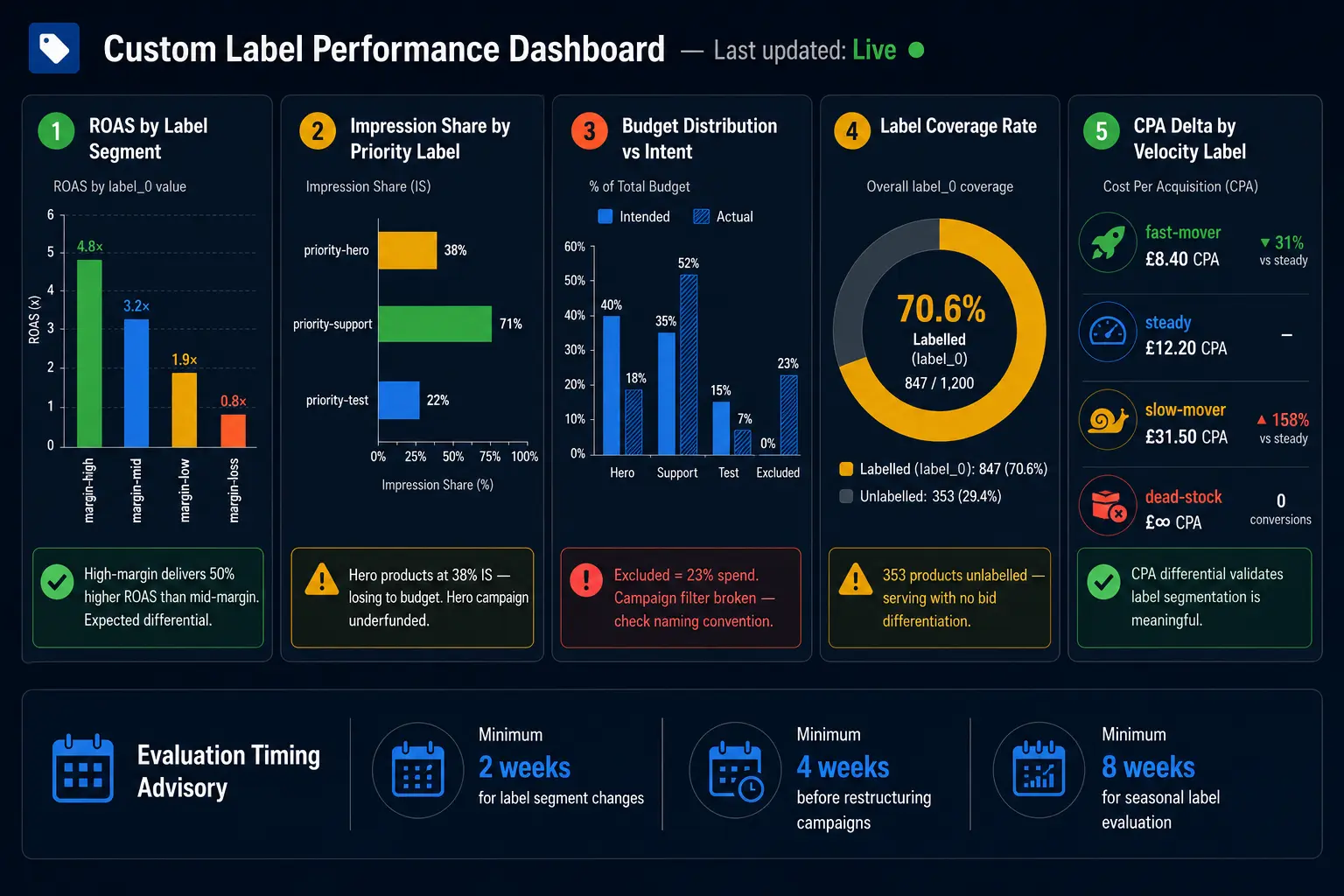
Here are the five metrics every custom label strategy must track and how to build the reports to track them.
Metric 1: ROAS by Label Segment
What it tells you: Whether your highest-labelled products (high-margin, hero, fast-mover) are actually delivering higher ROAS than lower-labelled products.
Where to build it: Google Ads → Reports → Custom → Dimension: Custom Label 0 (or whichever label you're auditing) → Metric columns: Cost, Revenue (conversion value), ROAS, Conversions.
What healthy looks like: Your "high-margin" label segment should deliver 20–40% higher ROAS than your "mid-margin" segment because you're bidding more on them, but they also have higher order values and conversion rates at higher prices. If high-margin ROAS is lower than mid-margin ROAS, your bid logic is wrong.
Metric 2: Impression Share by Label
What it tells you: Whether your priority products are winning the impressions they deserve or being outbid by competitors while your "hero" label collects in an underfunded campaign.
Where to build it: Google Ads → Reports → Custom → Dimension: Custom Label 3 (priority tier) → Metric columns: Impression Share, Lost IS (Rank), Lost IS (Budget).
What healthy looks like: Your "hero" products should have 70%+ impression share. If hero products have 35% impression share and you're losing to budget, your campaign budget allocation doesn't match your label strategy intent.
Metric 3: CPA Delta Between Label Segments
What it tells you: Whether your label-based segmentation is producing different cost-per-acquisition across segments — which validates that the segments are meaningful.
Where to build it: Same report as Metric 1, add CPA column.
What healthy looks like: CPA should be lower for "hero" and "fast-mover" products than for "slow-mover" products (because fast-movers convert better). If CPA is the same across all label segments, your labels aren't creating differentiated bidding behaviour – check whether your campaign filter logic is actually using the labels.
Label Segment     Intended Allocation     Actual Spend %     Verdict
Hero              40%                     18%                Underfunded
Support           35%                     52%                Overfunded
Test              15%                     7%                 Underfunded
Excluded          0%                      23%                Campaign filter broken
The "Excluded - 23% spend" row is a real failure mode: your excluded products are somehow in a live campaign. This happens when label values don't exactly match campaign filter values (the Mistake 2 naming convention problem).
Metric 5: Label Coverage Rate
What it tells you: What percentage of your active catalog has each label applied—and whether there's a significant "unlabelled" tail being served with no strategic direction.
Where to check: GMC → Products → All Products → filter by Custom Label value. Compare count to your total active products.
What healthy looks like: 90%+ of active products should have custom_label_0 (profitability) applied. If only 60% are labelled, 40% of your catalog is in a default catch-all campaign with no bid differentiation. For large catalogs, this can represent significant misallocated spend.
How Long to Wait Before Drawing Conclusions
Custom label performance changes should be evaluated on:
Minimum 2 weeks for any individual label segment change (allow Smart Bidding to adjust)
4 weeks before restructuring campaigns based on ROAS differential
8 weeks for seasonal label changes (one full before-and-after cycle)
Don't make consecutive label changes within a 2-week window. Each change resets the Smart Bidding learning period for affected campaigns, making attribution impossible.
Cross-Channel Label Strategy: One System for Google, Meta, and TikTok

Every custom label guide is exclusively Google Shopping-focused. The majority of merchants running a catalog feed management platform are publishing to multiple channels simultaneously. Your label thinking should extend across all of them.
How "Custom Labels" Translate Across Channels
Google Shopping                 Meta Catalog                      TikTok Shop                 Purpose
custom_label_0–4                Product Set filter attributes     Product Group conditions    Segmenting products for campaign targeting
Defined in feed                 Defined in Commerce Manager       Defined in Seller Center    Where you configure the segments
Used in Shopping campaigns      Used in Dynamic Product Ads       Used in Shopping Ads        How the segments activate in campaigns
The underlying concept is identical: you're grouping products by a shared characteristic so you can treat them differently in advertising. The implementation differs per channel.
What Translates Cleanly Across All Channels
Profitability tier (Label 0): Margin data is channel-agnostic. A high-margin product deserves prioritised spend on Google, Meta, and TikTok simultaneously. Build your profitability labels in your feed management tool and publish the same value to the custom label field in your Google feed and to equivalent filtering attributes in your Meta and TikTok feeds.
Velocity / stock status (Label 1): Dead-stock exclusion and fast-mover prioritisation apply on every channel. A product that's out of stock should be excluded from active advertising on every channel simultaneously — not just Google.
Feed health flag (Label 4): Quality issues that cause GMC disapprovals often indicate the same underlying data problems that affect Meta and TikTok catalog quality. A feed-health = missing-gtin flag is a signal to fix the data, period, not just to exclude it from Google.
What Needs Channel-Specific Adaptation
Seasonal labels: Peak seasons differ by channel. A product trending on TikTok because of a creator campaign has a different "seasonal" window than the same product's Google Shopping peak (which aligns with seasonal search volume). Your custom_label_2 value might say peak-now based on Google's seasonal calendar — but you might want to extend the "peak" window on TikTok if a creator campaign is driving sustained demand.
Priority labels: A product that's a "hero" on Google (proven ROAS, high margin) might be a "test" on TikTok (no performance history on that channel). The priority label should be channel-aware — either use a separate label field per channel or design your priority logic to account for channel-specific performance history.
Trend labels (TikTok-specific): TikTok's discovery algorithm rewards products that align with current trends. Consider adding a custom_label field specifically for TikTok that flags products with trending-creator-content, viral-potential, or current-trend-match. These don't translate to Google (where trend signals are handled differently) but matter significantly for TikTok's FYP algorithm.
Designing a Master Label Taxonomy in FeedOn
FeedOn's multi-channel publishing workflow allows you to define a master label set at the catalog level and publish different subsets to different channels. The architecture:
Master label fields — defined once at the product level in your FeedOn catalog (margin_tier, velocity_tier, season_tier, priority_tier, health_flag, tiktok_trend_flag)
Google feed export — maps margin_tier → custom_label_0, velocity_tier → custom_label_1, etc.
Meta feed export — maps margin_tier and velocity_tier to product set filter attributes (Meta's equivalent of custom labels)
TikTok feed export — maps priority_tier and tiktok_trend_flag to TikTok product group conditions
This means your label logic is maintained once, in one place, and published correctly to each channel — rather than managing three separate label implementations that inevitably drift out of sync.
For how FeedOn handles cross-channel feed publishing from a single catalog, see multi-channel product feed management and the product features overview. For channel-specific feed requirements by platform, see how to optimize product feeds for Google Shopping — which covers the Google-specific layer that forms the foundation of most cross-channel strategies.
New Product Launch Label Strategy: Ring-Fencing Budget for Products With No History
This is one of the most practically frustrating problems in shopping advertising. New products have no conversion history, so Smart Bidding ignores them in favor of proven performers. They get impressions only when your existing products aren't competing for the query, which means new products effectively receive your leftover inventory.

Custom labels solve this — but only if you design the launch strategy correctly.
Why New Products Are Systematically Disadvantaged
Smart Bidding's Target ROAS algorithm allocates budget toward products it predicts will convert at or above your ROAS target. Prediction requires historical conversion data. New products have none.
The result: in a mixed campaign (existing products + new arrivals), Smart Bidding bids competitively for existing products and conservatively — or not at all — for new ones. Your new products might appear in the Merchant Center, pass all quality checks, and still receive single-digit impression counts in the first month because the algorithm has no confidence signal on them.
The Launch Timeline
Phase              Duration     Label Value                Bidding Strategy      Success Metric
Launch             Day 0–7      new-arrival                Maximize Clicks       Impressions > 500
Data gathering     Day 8–30     new-arrival                Maximize Clicks       Clicks, CTR baseline
Evaluation         Day 30       Reviewed                   Transition            Conversion count
Graduation         Day 31+      hero / support / test      Target ROAS           ROAS vs. target
Exclusion          Day 45       excluded                   None                  N/A
Preventing New Arrivals from Cannibalising Existing Campaigns
The risk in a mixed-campaign approach (all products in one campaign) is that new products with Maximize Clicks bidding compete for budget with proven performers on Target ROAS bidding — different objectives in the same campaign cause algorithm conflict.
The ring-fence (separate campaign) eliminates this conflict by giving each bidding strategy its own budget pool and its own signal environment. Your proven performers continue optimizing for ROAS without interference. Your new arrivals build conversion history without being suppressed.
This is the label strategy that enables your catalog to compound over time — every product that graduates from "new-arrival" to "hero" adds to your high-performance segment without disrupting the campaigns that are already working. For managing this at scale across a large catalog, see product feed management for small business for accessible implementation approaches and the best feed management tools for Shopify for how Shopify-specific tooling handles new product feed timing.
Label Governance and Naming Conventions at Scale

When one person sets up labels, consistency is natural. When three people touch a feed management tool over 18 months with an agency handover in the middle — you end up with "high-margin," "High-Margin," "high_margin," and "HighMargin" all supposedly representing the same segment. Your campaign filter matches none of them. Your reports fragment across four label values for one intended concept.
This section gives you the governance framework that prevents it.
The Naming Convention Rules
Rule 1: Always lowercase, always hyphen-separated
high-margin not High-margin, not high-margin, not high_margin
Google's label values are case-sensitive in campaign filter matching. Establish one standard and document it in writing before anyone configures a rule.
Rule 2: Dimension-value structure
Every label value should be readable as [dimension]-[value]:
margin-high / margin-mid / margin-low
velocity-fast / velocity-steady / velocity-slow
season-peak / season-evergreen / season-off
priority-hero / priority-support / priority-test / priority-excluded
health-approved / health-needs-gtin / health-image-issue
This makes the label self-documenting — anyone reading a product's custom label values immediately understands what dimension it represents.
Rule 3: No free-form values
All label values must come from a predefined allowlist. No ad-hoc values. If a new business scenario requires a new value (e.g., you're launching a subscription product line), update the allowlist documentation first, then add the feed rule.
The Label Documentation Template
Every feed management account should have a living document (shared Google Sheet, Notion page, or Confluence page) with this structure:
CUSTOM LABEL MASTER REFERENCE — [Company Name] — Last updated: [Date] — Owner: [Name]
LABEL 0: Profitability Tier
Purpose: Controls bid intensity based on contribution margin
Data source: COGS data from [ERP/system name], updated weekly every Monday
Values:
margin-high = Products with contribution margin >= 40%
margin-mid = Products with contribution margin 20–39%
margin-low = Products with contribution margin 5–19%
margin-loss = Products with contribution margin < 5%
Current count: 847 / 1,204 / 389 / 62 products
Campaign using this label: [Campaign names]
Last rule audit: [Date] | Next scheduled audit: [Date]
LABEL 1: Velocity / Stock Status
[Same structure]
[Repeat for Labels 2, 3, 4]
NAMING CONVENTION RULES:
- All lowercase
- Hyphen-separated
- Dimension-value format
- Values only from this document's allowlists
CHANGE LOG:
2026-03-15: Added "margin-loss" value previously grouped in "margin-low"
2026-04-01: Updated velocity thresholds (fast-mover: was 30 units/7d, now 20)
This document is the handoff protocol for any agency transition or team change. It takes 30 minutes to write initially and saves hours of debugging after every account transition.
The 90-Day Label Audit Checklist
Every 90 days, run this audit:
Data accuracy check:
Pull ROAS by all label values — do values with no campaign match exist? (These are orphaned labels from naming convention breaks)
Check label coverage rate: % of active products with each label applied (target: >90%)
Verify label value distribution matches your catalog reality (if 80% of products are "margin-high," your threshold is wrong)
Campaign filter check:
For each campaign using a label filter, verify the filter value exactly matches the label value in your feed (case-sensitive spot check)
Confirm no active products have null/empty custom label values in your main campaigns
Freshness check:
Verify seasonal labels are current (check for "peak-now" labels on off-season products)
Verify velocity labels reflect last 30 days of sales (not 90-day-old data)
Verify any "new-arrival" labels older than 45 days have been graduated or excluded
Using GA4 and Conversion Data to Drive Label Logic

This is the most sophisticated angle in custom label strategy — and the one furthest from anything a competitor guide has addressed. Static business rules (if margin > 40%, label as high-margin) are a starting point. Performance-driven label logic is where the real efficiency gains live.
The Concept: Performance Signals as Label Inputs
Instead of (or in addition to) using product attributes to assign labels, you use actual advertising performance data:
Products with conversion rate above your catalog median → performance-tier = outperformer
Products with impression share below threshold despite good bids → performance-tier = underserved
Products with high CTR but low conversion rate → performance-tier = intent-mismatch
Products with zero impressions despite being approved and funded → performance-tier = suppressed
Each of these labels enables a different campaign intervention:
outperformer → scale budget, maximise impression share
underserved → investigate bid floor, check feed quality, try supplemental feed boost
intent-mismatch → audit title and description relevance, check landing page alignment
suppressed → feed audit, check for silent disapprovals, check category mapping
Pulling GA4 Data Into Label Logic
The workflow for GA4-informed labels:
Step 1: Export product-level conversion data from GA4 (Items report → by Item ID → conversion rate, revenue per impression)
Step 2: Match Item IDs to your product SKUs in a spreadsheet or via your feed management tool's data connector
Step 3: Apply label thresholds:
IF conversion_rate >= catalog_median * 1.5 → custom_label_3 = "priority-hero"
IF conversion_rate <= catalog_median * 0.5 → custom_label_3 = "priority-investigate"
IF impressions_30d < 100 AND product_approved = TRUE → custom_label_4 = "health-underserved"
Step 4: Feed these derived labels back into your feed management tool on a weekly refresh cycle
This creates a feedback loop: advertising performance data drives feed labels, which drive campaign structure, which drives advertising performance, continuously tightening the alignment between where you spend and what performs.
FeedOn's data connector framework supports external data source integration, so your GA4 export or Google Ads performance data can feed directly into label rule logic rather than requiring a manual spreadsheet step. This is part of how AI is changing product feed management in 2026: the feed is no longer a static export but a live performance-responsive system.
For B2B catalogs where performance data is more complex (account-specific pricing, customer segment performance), see B2B product feed management for how label logic adapts to non-consumer feed contexts.
Frequently Asked Questions
What are custom labels in Google Shopping, and what are they used for?
Custom labels are five optional fields (custom_label_0 through custom_label_4) in your Google Shopping product feed that you can populate with any values you define. They have no effect on which search queries your products appear for — they don't affect keyword matching or ranking. Their sole purpose is to let you segment your products within Google Ads campaigns so you can apply different bid strategies, budgets, and campaign structures to different groups of products. Common uses include segmenting by profit margin, sales velocity, seasonal relevance, and campaign priority.
How many custom label values can I have in Google Shopping?
Google officially supports up to 1,000 distinct values per custom label field. In practice, using more than 10–15 distinct values per label creates campaign management complexity that outweighs the segmentation benefit. Most effective custom label strategies use 3–5 values per label field.
Do custom labels affect which queries my products appear for?
No. Custom labels have zero effect on keyword matching, query relevance, or organic search placement. They are purely internal campaign management tools — they control how you bid and structure campaigns, not which searches trigger your ads.
Can I use custom labels in Performance Max campaigns?
Yes. In PMax, custom labels are used to define listing groups — the product segments within a PMax campaign. In PMax, labels control more than just bid differentiation: they affect which creative assets are shown with which products, which audience signals are shared across products, and how budget flows between product segments. The PMax label strategy is covered in full in Section 2 of this guide.
How do I add custom labels to my Shopify product feed?
The native Shopify Google & YouTube app supports custom labels through product tags and metafields with manual configuration. A third-party feed management tool (like FeedOn) supports rule-based custom label assignment, where labels are applied automatically based on product attributes, price ranges, inventory levels, or external data from your commerce backend.
How often should I update my custom labels?
It depends on the label type. Stock status and velocity labels should update daily. Profitability labels should update weekly (when COGS data refreshes). Seasonal labels should update on a calendar schedule (automatically at season start and end dates). Priority and feed health labels should be reviewed monthly. Labels that haven't been refreshed in 60+ days are almost certainly stale — see the full refresh cadence in Section 3.
What's the difference between custom labels and product categories in Google Shopping?
Product categories (google_product_category) are Google's predefined taxonomy for classifying what kind of product something is they affect where your products appear in Shopping browse surfaces and (for some categories) which attributes are required. Custom labels are entirely merchant-defined and control campaign segmentation only. You need both: correct category mapping for product classification and custom labels for campaign strategy.
The Bottom Line
Every competing guide treats custom labels as a list of tactical ideas: use one label for margin and use another for seasonality. That framing keeps custom labels as a minor optimization tweak rather than a strategic campaign architecture.
The advertisers achieving the highest ROAS from their Shopping and PMax investment are the ones who have designed all five labels as an interconnected system, automated the refresh so labels never go stale, aligned their label architecture with PMax's listing group requirements, built measurement frameworks to verify the strategy is working, and extended their label thinking across every channel they're publishing to.
That is what this guide has given you. The system design, the automation logic, the PMax-specific strategy, the seven failure modes to avoid, the measurement framework, and the cross-channel extension are in one place that no competitor has built.
The operational foundation that makes this system possible at scale is a feed management platform that handles rule-based label assignment, scheduled refresh, and multi-channel publishing from a single catalog. FeedOn's free trial lets you test rule-based custom label assignment on 200 products with full AI enrichment so you can see the complete system working on your actual catalog before committing.