
Shopify to Google Merchant Center Feed Not Working: The Complete Fix Guide (2026)
Your Shopify Google Shopping feed was syncing fine. Then one day it stopped. Your shopping campaigns are running on stale prices or disapproved products. Revenue is dropping every hour. Every official support article you've read tells you the same generic things: check your GTIN format and make sure your images are square, and none of them fix it.
This guide is different. It is written for the merchant who is mid-crisis, not for someone setting up a feed for the first time.
No fluff. No generic setup steps. Just the answers.
The "It Was Working, Now It Isn't" Diagnosis: 10-Minute Decision Tree

Question: My Shopify feed was syncing to Google Merchant Center for months. It suddenly stopped. Where do I start?
A feed that stops working after previously functioning correctly has a completely different set of root causes than a first-time setup failure. The standard troubleshooting advice does not apply. Work through this decision tree in order; most cases resolve at steps 1, 2, or 3.
Check the Google & YouTube App Connection Status (2 minutes)
In Shopify Admin, go to Sales Channels → Google & YouTube → Overview.
What you're looking for: A green "Connected" status next to your Google Merchant Center account. If it shows "Disconnected", "Reconnect required", or any warning badge, this is your problem.
Why this happens suddenly: Google OAuth tokens expire. The app does not always prompt you to re-authenticate when this happens, it silently fails to sync while displaying no error on the Shopify side. This is the single most common cause of a "was working, now stopped" scenario.
Fix: Click "Reconnect" or "Connect to Google" and complete the OAuth flow. After reconnecting, allow 24–48 hours for the full feed to resync.
If the connection looks healthy: Move to Step 2.
Check GMC for Account-Level Suspensions or Policy Holds (2 minutes)
Log into Google Merchant Center. Check for:
A red banner at the top of the dashboard (account suspended)
A yellow warning on the "Products" page (account under review)
Any unread notifications in the bell icon (policy violation warnings)
Why this causes sync failure: Google Merchant Center can place an account under review or suspend it following a policy trigger; even one new product that violates a policy rule can flag the entire account. During a review, approved products may drop; during a suspension, all products are disapproved, and the feed stops serving ads.
Fix for a suspension: Read the suspension notice carefully. Most account-level suspensions require you to submit an appeal through GMC's "Request Review" function after correcting the underlying issue. See the full suspension recovery guide in our article on how to fix Google Merchant Center feed errors.
If no account-level issues: Move to Step 3.
Check the 30-Day Product Expiration Clock (1 minute)
Google Merchant Center automatically expires product listings that have not been refreshed within 30 days. If your feed's last successful sync was more than 30 days ago, all products will show as "Expired" — not "Disapproved" — and ads will stop serving.
Where to check: GMC → Products → All Products → filter by status = "Expired".
Why this catches people off guard: The expiration happens silently. GMC doesn't send a prominent alert. Merchants who set up the native app and assumed it would keep syncing can hit this if the app's background sync stopped without notification.
Fix: A successful feed fetch resets the expiration clock. Force a resync using any method from Section 4, then verify that products return to "Active" status.
If there are no expired products: Move to Step 4.
Check if a New Product Triggered a Policy Review (2 minutes)
In GMC → Products → All Products, filter by Status = "Disapproved". Sort by "Date modified" descending.
What you're looking for: A cluster of products that were disapproved around the same time your feed appeared to stop working. If 200 products were fine last week and 180 are now disapproved, something changed — either a new product brought a category-level policy review, or an attribute update violated a rule.
Common triggers:
Adding a product in a restricted category (supplements, medical devices, financial products) without required disclaimers
Changing a description to include promotional language ("best", "guaranteed results")
Enabling a product with a 0.00 price (common when setting up sales that haven't started)
A GTIN format change (barcode updated in Shopify to an invalid format)
Fix: Identify the specific disapproval reason from the "Status" column. For bulk disapprovals, see the complete GMC feed error fix guide.
If no new disapprovals: Move to Step 5.
Check for a Shopify Theme Update That Broke Structured Data (2 minutes)
If you updated your Shopify theme recently or if your theme auto-updated, it may have changed the structured data markup that Google uses to validate product information against your feed.
How to check: Use Google's Rich Results Test on any product URL. It should return a "Product" rich result with name, price, availability, and (ideally) gtin populated. If it returns errors or incomplete data, your theme's structured data broke.
Why this matters for feed sync: GMC cross-validates feed data against landing page content. Significant mismatches between the feed price and the structured data price on the page cause product disapprovals under the "Mismatched value (page crawl): price" error.
Fix: Contact your theme developer or manually update the theme's product schema to match your feed values. This is one of the more technically involved fixes; see our guidance in the ultimate Google Shopping feed optimization guide for structured data requirements.
Check if It's a Known App Bug (1 minute)
If you've passed Steps 1–5 and cannot identify the cause, the problem may be a known bug in the Google & YouTube Shopify app itself – not your data or your account settings. These are documented in Section 3 of this guide with confirmation steps and workarounds.
Diagnosis Summary Table
Symptom                                       Most Likely Cause                            Time to Diagnose
All products disappeared from GMC             OAuth token expired                          2 min
Products show "Expired" status                30-day expiration, last sync >30 days ago    1 min
Sudden mass disapprovals                      New product triggered policy review          2 min
Intermittent sync / some products missing     App credential or quota issue                5 min
Feed syncing but data wrong                   Theme structured data mismatch               2 min
No errors, but the feed is not updating       Known app bug — see Section 3                5 min
Complete Shopify → GMC Field Mapping Reference
Question: Which Shopify product fields map to which Google Merchant Center attributes, and what data gets silently dropped?
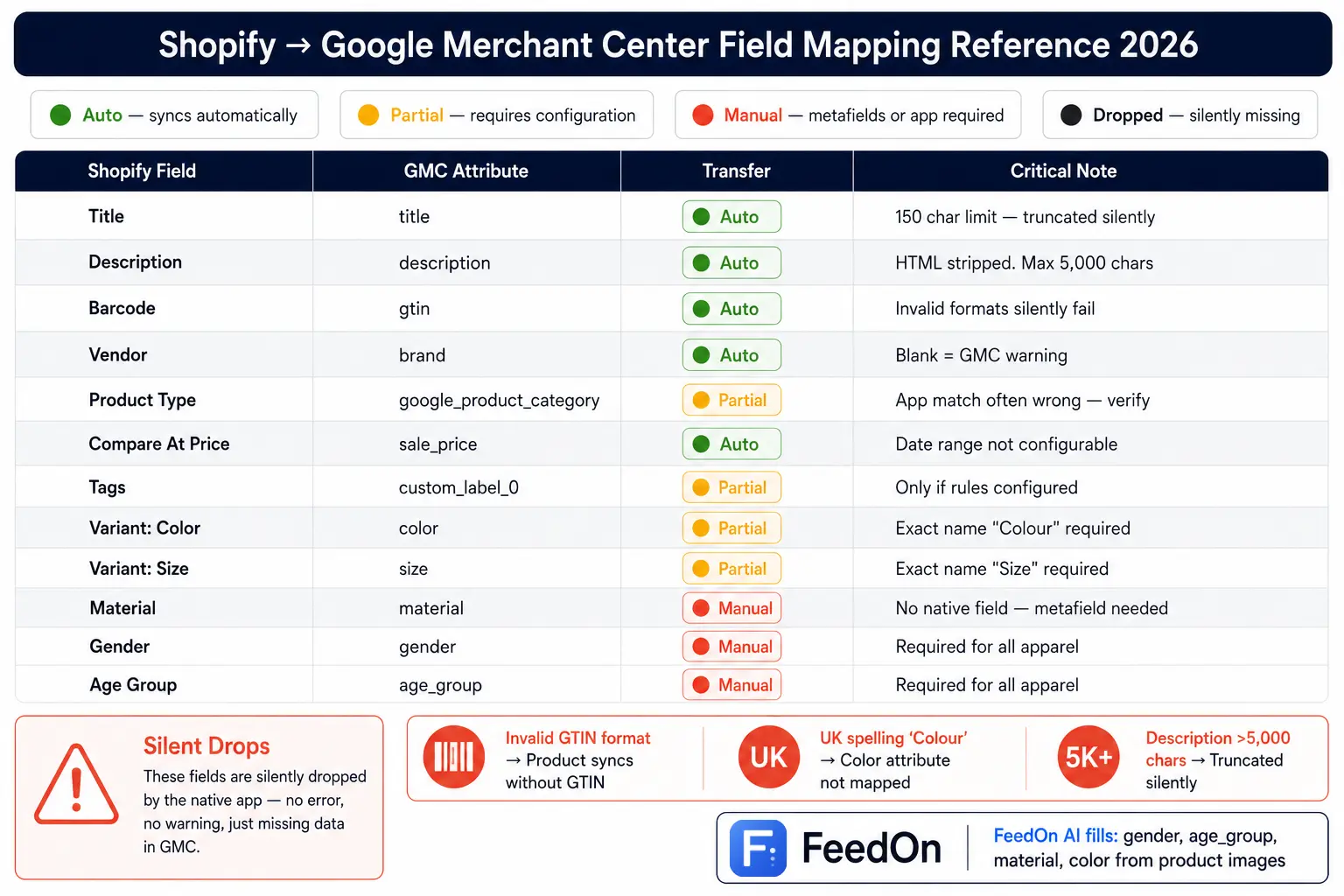
This is the reference table that every Shopify merchant needs and nobody has built. Every column matters: "Auto" means it syncs without any action from you; "Manual" means you must add it through metafields, tags, or a third-party app; and "Dropped" means Shopify has no equivalent and the GMC attribute goes unfilled.
Core Product Fields
Shopify Field           GMC Attribute                Transfer Method    Notes
Title                   title                        Auto               Sent as-is. GMC uses up to 150 chars; Shopify allows 255. Truncation at 150 is silent.
Description (HTML)      description                  Auto               HTML tags stripped automatically. Max 5,000 chars in GMC.
Barcode                 gtin                         Auto               Must be valid GTIN-8, GTIN-12, GTIN-13, or GTIN-14. Invalid formats silently fail product syncs without GTIN.
Vendor                  brand                        Auto               Direct map. If blank, GMC may warn "missing brand".
Product Type            google_product_category      Partial            Shopify's product type is NOT the same as Google's taxonomy ID. The app attempts a match – it is often wrong. Verify manually.
Tags                    custom_label_0               Partial            Only works if you've configured tag-to-label rules in the app. Default: tags are not sent.
Compare At Price        sale_price                   Auto               If Compare At Price > Price, GMC receives sale_price and sale_price_effective_date.
Price                   price                        Auto               Direct map. Currency inferred from store currency.
Inventory (tracked)     availability                 Auto               In stock / out of stock based on Shopify inventory. Quantity is NOT sent.
Images (first)          image_link                   Auto               First product image. Must be ≥100×100px, ≤64MP.
Images (2nd–10th)       additional_image_link        Auto               Up to 10 additional images sent automatically.
Handle                  link                         Auto               Constructs the product URL: yourstore.com/products/{handle}
SKU                     id                           Auto               Each variant gets its own feed entry using the SKU as an identifier. If SKU is blank, Shopify generates an ID.
Weight                  shipping_weight              Auto               Sent in the unit specified in Shopify settings (kg or lb).
Variant: Color          color                        Auto               Only if the variant option is named exactly "Colour" (case-sensitive).
Variant: Size           size                         Auto               Only if the variant option is named exactly "Size" (case-sensitive).
Variant: Material       material                     Manual             Shopify has no native Material field. Must be added via the product metafield custom.material or a feed app rule.
Condition               condition                    Manual/Default     Defaults to "new" unless explicitly set otherwise. Shopify has no native Condition field visible to the app.
Attributes That Require Manual Configuration
These GMC attributes have no direct Shopify field equivalent. The native Google & YouTube app cannot send them without manual setup. Third-party tools like FeedOn can extract or generate these automatically.
GMC Attribute                   Why It Matters                            How to Add in Native App                              Auto-fillable with FeedOn?
gender                          Required for all apparel                  Add product metafield: custom.gender                  Yes — AI vision extraction
age_group                       Required for all apparel                  Add product metafield: custom.age_group               Yes — AI vision extraction
material                        Required for some apparel                 Add product metafield: custom.material                Yes — AI vision extraction
pattern                         Required for some apparel                 Add product metafield: custom.material                Yes
item_group_id                   Groups variants in GMC                    Auto-set to parent product ID by native app           Auto
google_product_category         Required for accurate placement           Set via Google & YouTube app product settings         Auto-mapped via catalog
custom_label_0–4                Campaign segmentation in Google Ads       Configure tag-to-label rules in the app.              Rule-based
sale_price_effective_date       Required when using Compare At Price      Auto-set when Compare At Price's present              Rule-configurable
shipping                        Required in some markets                  Configured at account level in GMC                    Same
tax                             US-only requirement                       Configured at account level in GMC                    Same
multipack                       Required for multipacks                   Not available in native app                           Rule-based
is_bundle                       Required for bundles                      Not available in native app                           Rule-based
What Gets Silently Dropped (And Why It Hurts)
GTIN with invalid format: If your Shopify product barcode is a 6-digit internal code rather than a valid GTIN, the native app syncs the product without a GTIN – no error, no warning. GMC marks the product with a "Missing GTIN" warning, which reduces its visibility in shopping results. Google's algorithm preferentially surfaces products with valid GTINs.
Product Type → google_product_category mismatch: The app's automated category matching from Shopify's product type field is unreliable. "Athletic Shoes" might map to the correct Google taxonomy node (Apparel & Accessories > Shoes > Athletic Shoes) or it might map to a parent category with poor specificity. Always verify category assignments in GMC → Products and correct them manually or via feed rules.
Long descriptions: Shopify allows descriptions of any length. GMC silently truncates at 5,000 characters. If your conversion-critical product information lives below the 5,000-character mark, it never reaches GMC.
Apparel attributes without exact option names: If your Shopify store uses "Colour" (UK spelling) instead of "Colour" or "Taille" instead of "Size", the native app does not map them to GMC's color and size attributes. The option values are sent as unstructured variant titles, not as structured attributes. This affects your product's eligibility for size and colour filters in shopping results.
FeedOn's AI attribute extraction resolves the silent drop problem: it reads your product images and descriptions to fill gender, age_group, material, and color even when your Shopify variant options don't use the expected naming convention. See how it works in the FeedOn features overview and in the context of Shopify feed management tools compared.
The Honest Bug Guide: Known Google & YouTube App Failures
Question: I've checked everything. My setup is correct. The feed still isn't updating. Could the app itself be broken?

Yes. The Shopify Google & YouTube app has real, documented bugs that cause sync failures without generating error messages. This is the content no vendor will publish — but every Shopify agency knows these patterns.
Feed Stops Updating Despite Correct Setup (April 2026 - Active)
What happens: The feed synced correctly for weeks or months. Products are correctly configured. The Google & YouTube app shows "Connected". GMC shows the products as active. But product updates, title changes, price updates, and new products stop appearing in GMC. The feed appears frozen.
How to confirm it's this bug (not your data):
Make a small, obvious change to one product title (e.g., add "TEST" to the end)
Wait 48 hours
Check GMC → that product's title attribute in Products → All Products
If the title still shows the old value after 48 hours, the sync is genuinely broken at the app level
Current workaround:
Disconnect the Google & YouTube app from Shopify Admin → Settings → Connected apps
Wait 10 minutes
Reconnect the app and complete the OAuth flow
Allow 24–48 hours for a full catalog resync
If the freeze recurs within 2 weeks, the underlying issue is likely credential management in the app's backend. The app is not refreshing its OAuth token correctly, causing a silent authentication failure. At this point, moving to a third-party feed management tool (see Section 5) is the more durable solution than repeatedly reconnecting.
SEO Title Toggle Causes Feed to Use Wrong Title
What happens: Shopify's Online Store → Preferences → SEO section allows merchants to set a custom "SEO title" per product (separate from the product title). When the Google & YouTube app's "Use SEO title" setting is toggled on, some merchants report the feed sending the SEO title for some products and the product title for others inconsistently and without a clear pattern.
How to confirm:
Check 5–10 products in GMC → Products → All Products → click a product → view the title attribute
Cross-reference against the product's actual title and SEO title in Shopify
If GMC shows neither the product title nor the SEO title exactly, the toggle is in an indeterminate state
Fix: Go to the Google & YouTube app → Settings → Feed settings → and explicitly set the title source to one option (recommend: Product Title for most stores). Save, then trigger a manual resync. Do not leave the toggle in an ambiguous default state.
Credential Expiry With No Re-Authentication Prompt
What happens: The Google OAuth token that connects Shopify to your GMC account expires (typically every 60–90 days in some configurations). The native app is supposed to prompt re-authentication, but the prompt doesn't always appear. The app continues to show "Connected" while silently failing to sync because the token is invalid.
How to confirm:
In GMC → Settings → Linked accounts → check Shopify connection status
If it shows "Error" or "Re-authenticate required" but the Shopify app shows "Connected", this is the credential expiry bug
Fix: Re-authenticate from the GMC side (Settings → Linked accounts → disconnect → reconnect Shopify), not from the Shopify side. This regenerates the token from the authoritative end.
Attribute Rules Not Transferring After Shopify Markets Split
What happens: Merchants who expand from a single-country store to Shopify Markets (selling to multiple countries) and use the "split" feature in the Google & YouTube app, which creates separate data sources per market in GMC, find that all custom attribute rules they configured for their original feed are not carried over to the new market-specific feeds. The new feeds send raw Shopify data without any of the transformations.
How to confirm:
After a Markets split, check a product in GMC → Products under the new market's data source
Compare its attributes to the same product under the original data source
If custom attributes (google_product_category overrides, custom_label values, sale_price_effective_date) are missing from the new feed, the rules didn't transfer
Fix: Manually recreate all attribute rules in the Google & YouTube app for each new market data source. There is no bulk copy function in the native app. For stores with complex rule sets (10+ attribute rules), this is a significant manual effort, one of the strongest arguments for switching to a third-party feed tool that supports rule inheritance across market feeds.
New Products Not Appearing After Launch
What happens: Newly published Shopify products don't appear in GMC at all – not disapproved, not pending review, just absent. Existing products continue to sync normally.
Most common causes (in order of frequency):
The new product's Google channel visibility is set to "Don't show" (check in Shopify product page → Sales Channels → Google section → Online Store toggle)
The product is in a category with a longer initial review window (health, beauty, supplements allow 5–7 business days)
The app's background sync job has a delay for new products specifically (known behavior: new products sync on the next full catalog refresh, not the next incremental update which may take 24–72 hours)
Force a Resync Right Now: All Methods Ranked by Speed
Question: How do I force an immediate resync from Shopify to Google Merchant Center without waiting 24 hours?
When your feed is down and campaigns are running on stale data, every hour costs real money. Here are all available resync methods, ranked fastest to slowest.

Supplemental Feed Override - Fastest for Specific Fields (Updates in 2–6 hours)
When to use: You need to correct specific attributes (price, availability, title) for a subset of products immediately, without waiting for the full feed to resync.
How it works: A supplemental feed in GMC can override specific attributes from your primary feed on a faster fetch schedule. You create a Google Sheet with only the fields you need to correct, set it as a supplemental feed with a 4-hour fetch frequency, and GMC blends the override values with your primary feed data.
Step-by-step:
In GMC → Feeds → click "+" → Add supplemental feed → Google Sheets
Create a sheet with columns: id (your variant SKU), and only the attributes you need to override (e.g., price, availability)
Populate the sheet with the corrected values for affected products
Set the fetch frequency to "Every 4 hours"
In GMC → Feeds → select the supplemental feed → click "Fetch now"
The override takes effect on the next product processing cycle – typically within 2–6 hours of the fetch.
Limitation: Supplemental feeds override individual attributes; they don't add new products or remove existing ones from GMC.
GMC "Fetch Now" Button – Fast for Full Feed Refresh (4–8 hours to full processing)
When to use: You want Google to immediately re-crawl your entire Shopify feed rather than waiting for the next scheduled fetch.
Step-by-step:
In GMC → Feeds → click on your primary Shopify feed
Click the "Fetch now" button
GMC immediately queues a new fetch of your feed URL
The fetch itself completes in minutes; product processing takes 4–8 hours for large catalogs
Important: "Fetch now" re-crawls the feed as it currently exists. If the underlying sync problem is on the Shopify side (app not pushing updated data to the feed URL), fetching now just re-fetches the same stale data. Verify the feed URL returns current data before using Fetch Now: paste your feed URL into a browser and check that prices and titles reflect your current Shopify state.
Third-Party App Manual Sync Trigger - Immediate Data Push (1–4 hours to GMC processing)
When to use: You're using a third-party feed tool (Feedon or DataFeedWatch) that has a "Force sync" or "Regenerate feed" button.
Third-party tools regenerate the feed file from your live Shopify catalog immediately when you trigger a manual sync, not on a scheduled background job. The updated feed file is available within minutes, and GMC processes it on the next fetch cycle.

In FeedOn, the manual sync button is in Dashboard → Feed Sources → Sync Now. After triggering, you can monitor the processing status in real time and see field-level changes before they go live. This is also where you can verify that the corrected data will reach GMC correctly before committing the push.
Disconnect and Reconnect the Google & YouTube Apps – Nuclear Option (24–48 hours for a full resync)
When to use: Every other method has failed, or you've confirmed a Bug 1 (frozen sync) situation from Section 3.
What happens when you disconnect: All products remain in GMC, but their connection to Shopify is broken. They will not expire immediately (GMC retains the data for 30 days). When you reconnect, a full catalog resync begins from scratch.
Step-by-step:
Shopify Admin → Settings → Apps and sales channels → Google & YouTube → Disconnect
Wait 10 minutes
Shopify Admin → Sales Channels → Add Google & YouTube → reconnect with the same Google account
Complete the full OAuth and GMC linking flow
Allow 24–48 hours for the full catalog to resync
Risk: During the resync window, some products may briefly show as "Under review" or have reduced visibility. Plan this for a low-traffic period if possible (Sunday night, Monday morning).
Speed Comparison Summary
Method                          Time to GMC Update     Technical Level    Best For
Content API PATCH               Minutes                Advanced           Emergency price/availability fix
Supplemental feed override      2–6 hours              Intermediate       Field-specific corrections at scale
Third-party app manual sync     1–4 hours              Beginner           Full catalog refresh from feed tool
GMC Fetch Now                   4–8 hours              Beginner           Full feed refresh when data is correct
Disconnect/Reconnect app        24–48 hours            Beginner           Last resort / confirmed app bug
Native App vs. Third-Party Feed Tool: The Honest Comparison
Question: When does the Shopify Google & YouTube native app become the problem, and when should I switch to a third-party feed management tool?
The native app is free and works for simple setups. It has real capability limits that begin to cost you money as your catalog grows in complexity. Here is the honest comparison.
What the Native Google & YouTube Apps Does Well
Zero additional cost (included with Shopify)
Simple one-click connection to GMC
Automatic sync of core fields (title, price, availability, images)
Variant-level feed entries (each size/color combination as a separate product)
Handles the basic fields for most standard product types
What the Native App Cannot Do
Capability                                  Native App                  Third-Party Tool
Feed Rules                                  No                          Yes
Custom attribute mapping                    Manual metafields only      AI extraction + rule-based
Multi-channel publishing                    Google only                 All channels from one catalog
A/B title testing                           No                          Yes
Channel-specific title optimization         No                          Yes
Feed performance analytics                  No                          Yes
AI-powered attribute filling                No                          Yes
Real-time feed health monitoring            No                          Yes
Supplemental feed management                No                          Yes
Shopify Markets multi-feed management       Limited + buggy             Full control
Bulk attribute editing across catalog       No                          Yes
Force manual sync trigger                   No                          Yes
The Decision Matrix: When to Switch
Stay on the native app if:
Your catalog has fewer than 500 products
You sell on Google Shopping only (not Meta, TikTok, Amazon)
Your products don't require apparel attributes (gender, age_group)
You've never had a sync failure that lasted more than 24 hours
Feed management takes less than 30 minutes per week
Switch to a third-party tool if:
You've had repeated sync failures you couldn't diagnose
Your products require apparel attributes and the native app isn't sending them
You're losing products to GTIN disapprovals that the native app doesn't flag
You sell (or want to sell) on more than one channel
Your catalog exceeds 1,000 products with frequent updates
Campaign revenue loss from feed issues has exceeded the cost of a paid tool even once
For Shopify stores at this inflection point, FeedOn's free trial processes 200 products with full AI enrichment and a 60-point feed audit—so you can see exactly what the native app is missing before committing. The full comparison of Shopify-specific tools is in our best feed management tools for Shopify guide, and how FeedOn stacks up against alternatives is covered in the best product feed management software comparison.
How Much Your GMC Sync Failure Is Actually Costing You
Question: How do I calculate the revenue cost of a Shopify → GMC sync failure?

Every other troubleshooting guide treats a feed failure as a technical inconvenience. It is a revenue problem. Here is how to quantify it and how to use that number to prioritise your fix sequence.
The Revenue Loss Calculator
Step 1: Calculate your daily Shopping revenue
Monthly Google Shopping revenue ÷ 30 = Daily Shopping revenue
Example: £12,000/month ÷ 30 = £400/day
Step 2: Identify your outage duration
Use GMC → Products → Diagnostics → "Approved products over time" graph. Find when the approved product count dropped. Count the days.
Example: 200 products dropped from approved on June 14. Today is June 17, the third day of outage.
Step 3: Estimate total revenue impact
Daily Shopping revenue × Outage days = Direct revenue impact
£400 × 3 days = £1,200 direct loss
Step 4: Add the recovery lag (often ignored)
Even after your feed is restored, shopping campaigns take 3–7 days to return to pre-outage performance levels because Smart Bidding algorithms lose learning data during the outage. Add 30% to your direct loss estimate for the recovery period:
£1,200 × 1.3 = £1,560 estimated total impact
For a £12,000/month shopping store, a 3-day feed outage costs approximately £1,560 — enough to justify paying for a professional feed management tool for 3 years.
Revenue Impact by Error Type
Different sync failure causes have different time-to-restore-revenue – not just time-to-fix. Use this table to prioritise:
Error Type                       Fix Complexity     Time to Revenue Restore               Priority
Price/availability mismatch      Low                24–48 hours                           Fix immediately
30-day product expiration        Low                4–12 hours after fix                  Fix immediately
Missing required attributes      Low                24–48 hours after resync              Fix immediately
GTIN format errors               Medium             48–72 hours after fix                 Fix today
Policy violation                 Medium             48–72 hours                           Fix today
Account-level suspension         Medium             3–5 days after correction + review    Fix today
Known app bug                    High               7–21 days after appeal                Fix immediately + appeal
Known app bug                    High               Switch tools = 48 hours               Decision required
Shopify Markets and Multi-Country Feed Issues
Question: How does selling through Shopify Markets affect my GMC feed sync, and what breaks that that doesn't break for single-country stores?

Shopify Markets (selling to multiple countries simultaneously with local currency pricing) introduces a distinct set of GMC feed complications that the standard troubleshooting guides don't address at all.
The Quota Problem
Google's official documentation notes that "splitting products into new standalone country data sources increases your total offer count, which may require a quota increase". In practical terms: if you have 5,000 products and you expand to 3 markets, GMC sees 15,000 offers (5,000 per market data source). Standard GMC accounts have a default quota of 150,000 offers. Most stores won't hit this, but merchants with large catalogs expanding to 10+ markets can.
How to check your quota: GMC → Settings → General information → Products: shows your current offer count against your quota limit.
Fix if hitting quota: Submit a quota increase request through GMC's official support form. Include your merchant account ID and the number of markets you're targeting.
Attribute Rules Don't Transfer (Bug 4 from Section 3)
When you use the Google & YouTube app's "split" feature to create market-specific data sources, all the custom attribute configurations – google_product_category overrides, gender/age_group metafield mappings, and custom label rules – are not copied to the new data sources. You must recreate them manually.
Prevention: Before splitting, export full documentation of every rule you have configured in the app. After splitting, rebuild them in each new data source. If you have more than 5 custom rules, consider switching to a third-party tool that supports rule inheritance across market feeds before expanding to multiple markets.
Currency and Pricing Per Market
Shopify Markets sends market-specific prices to GMC based on your Shopify Markets configuration. This is largely automatic, but it only works correctly if:
Your Shopify Markets pricing is set to "Local currency" (not "Store currency converted by customer")
Each market in Shopify is linked to the corresponding country data source in GMC
Shipping rates are configured per country in GMC (not just at the product level)
If a UK customer sees USD prices on your Shopping ads, the link between Shopify Markets and GMC's country data sources is misconfigured. Resolve this in the Google & YouTube app → Markets → verify each market is mapped to the correct GMC data source.
Language-Specific Titles and Descriptions
GMC expects product data in the language of the target country. For markets where your store operates in English but the country's primary language is German (Austria) or French (Belgium), you need language-specific feed variants. The native app does not support translated feed content – it sends your Shopify product titles and descriptions in the store's primary language regardless of the target market.
Fix: Use Shopify's Translate & Adapt app to maintain translated product content, or use a third-party feed tool that generates language-specific feed variants from your translated Shopify content. This is covered in depth in FeedOn's multi-channel publishing documentation and in the context of multi-channel product feed management.
Sync Timelines: How Long Does Each Type of Update Actually Take?
Question: How long does Shopify take to sync changes to Google Merchant Center in 2026 – for initial setup, product edits, price changes, and inventory updates?
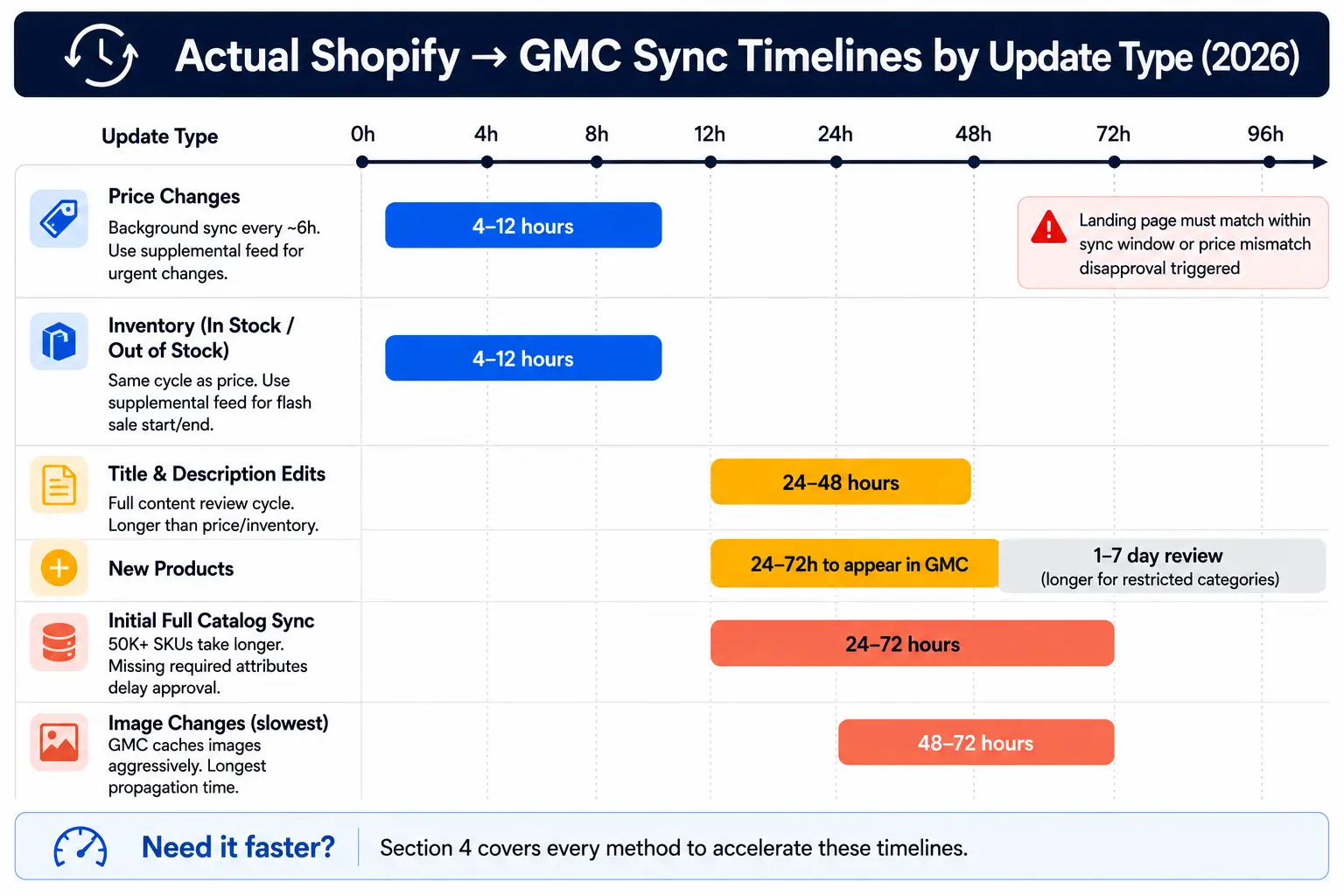
The generic answer ("24–72 hours") is unhelpful. Here are the actual timelines broken down by update type.
Initial Catalog Sync
Timeline: 24–72 hours for the first full sync to complete in GMC. Products appear in GMC as "Pending" during processing and move to "Active" or "Disapproved" after review.
Factors that extend this: Catalog size (50,000+ SKUs take longer than 500 SKUs) and product categories requiring manual review (supplements, medical, and financial) and missing required attributes (apparel without gender/age_group goes to "Needs update" status, delaying approval).
Price Changes
Timeline: 4–12 hours from the Shopify price update to the change appearing in GMC – assuming the app's background sync runs on schedule (typically every 6 hours). Use a supplemental feed override or Content API PATCH for immediate propagation.
Important: Google's price crawl also validates the feed price against the landing page price. If your landing page doesn't reflect the new price within the sync window, GMC may disapprove products for a price mismatch before the landing page catches up.
Inventory Updates (In Stock / Out of Stock)
Timeline: 4–12 hours via background sync. The same supplemental feed override approach applies for urgent changes (flash sale start/end where showing in-stock when sold out leads to ad spend waste).
Title and Description Edits
Timeline: 24–48 hours for editorial changes to appear in GMC. These go through a full content review cycle, which is longer than the price/inventory update cycle.
New Product Additions
Timeline: New products added to Shopify appear in GMC within 24–72 hours – often on the next full catalog fetch rather than an incremental sync. After appearing, they undergo a GMC review period (1–3 days for standard products, 3–7 days for restricted categories) before showing as "Active".
Image Changes
Timeline: Image updates are among the slowest to propagate, 48–72 hours. This is because GMC caches product images aggressively. Use Advalyze's image override workaround (temporarily add a query parameter to the image URL to bust the GMC cache) or wait for the full cycle.
Early-Warning Monitoring: Know When Your Feed Breaks Within Hours
Question: How do I set up monitoring so I know when my Shopify → GMC feed breaks before campaigns go dark for days?

All troubleshooting guides are reactive. This section is proactive. Set these up once and you'll catch the next outage within hours, not days.
Monitor 1: GMC Email Alerts (5 minutes to set up)
In Google Merchant Center → Settings → Email preferences → enable alerts for:
Products disapproved (threshold: set to alert when more than 5% of products are disapproved)
Account policy warnings
Feed processing errors
This is the minimum viable monitoring – it catches account-level issues before they escalate.
Monitor 2: Daily Approved Product Count in Looker Studio (30 minutes to set up)
Build a Looker Studio dashboard connected to GMC's data (via the Google Merchant Center data source connector) that shows:
Approved product count by day (line chart)
Disapproved product count by day
"Pending" product count by day
Set a Looker Studio alert: if the approved product count drops by more than 10% day-over-day, send an email alert. A sudden drop in approved product count is the most reliable early signal of a feed sync failure.
Monitor 3: Google Ads Shopping Impression Drop Alert (built-in)
In Google Ads → Tools → Alerts → Create a custom alert:
Metric: Impressions (Shopping campaigns only)
Condition: Decreases by more than 30% week-over-week
Check frequency: Daily
Alert method: Email
A 30% impression drop in shopping is almost always either a budget issue or a feed issue. When this alert fires at the same time as a GMC product count drop, it confirms a feed-related outage.
Monitor 4: Content API Programmatic Health Check (for technical teams)
If you have API access, schedule a daily health check that queries the Content API for your product status distribution:
python
# Daily health check — run via cron or Cloud Scheduler
from googleapiclient.discovery import build
def check_feed_health():
service = build('content', 'v2.1', credentials=credentials)
response = service.products().list(
merchantId='YOUR_MERCHANT_ID',
maxResults=250
).execute()
status_counts = {'active': 0, 'disapproved': 0, 'pending': 0, 'expired': 0}
for product in response.get('resources', []):
for status in product.get('destinations', []):
if status.get('status') == 'active':
status_counts['active'] += 1
elif status.get('status') == 'disapproved':
status_counts['disapproved'] += 1
# Alert if active count drops below yesterday's baseline
if status_counts['active'] < YESTERDAY_ACTIVE_COUNT * 0.9:
send_alert(f"FEED HEALTH WARNING: Active products dropped from {YESTERDAY_ACTIVE_COUNT} to {status_counts['active']}")
return status_counts
This catches a 10% product count drop within 24 hours – before the situation escalates into a days-long outage.
FeedOn's built-in feed health dashboard provides this monitoring without custom code, showing real-time approved/disapproved counts across all channels, with automatic alerts when product counts shift significantly. It's part of what separates a professional feed management tool from the native app. See how AI is changing the approach to proactive feed management in 2026 and how early-warning monitoring connects to the broader Google Shopping feed optimization workflow.
After the Fix: The 7-Day Shopping Campaign Recovery Plan
Question: My Shopify → GMC sync is restored. Why aren't my Shopping campaigns bouncing back, and what should I do?
Restoring the feed is not the end of the problem. Shopping campaigns that were disrupted by a sync outage do not automatically return to pre-outage performance. Here is the day-by-day recovery plan.
Why Campaigns Don't Auto-Recover
Smart Bidding algorithm disruption: Google's Smart Bidding (Target ROAS, Target CPA) relies on continuous conversion data to optimise bids. During a feed outage, impressions and clicks drop sharply. When the feed comes back, the algorithm treats the sudden traffic increase as an anomaly and bids conservatively while it relearns. This conservative phase lasts 5–7 days.
Impression history gap: Google's ad rank algorithm partially incorporates historical performance signals. Products with a gap in their impression history are treated as lower-confidence placements until the history rebuilds.
Products still "under review" post-fix: Even after your feed is healthy, some products may remain in "Under Review" status from the review cycle triggered during the outage. These products don't serve ads until the review is complete.
Day 1–2: Confirm Full Feed Restoration
Actions:
In GMC → Products → All Products: verify that approved product count has returned to pre-outage levels
Check for products still showing "Under Review" or "Pending" note which product categories they're in
Confirm that prices, availability, and titles in GMC match your current Shopify catalog (spot-check 10–20 products manually)
In Google Ads → Campaigns → check that impressions are returning. If there are zero impressions 48 hours after feed restoration, the ad campaign may be paused or have a budget issue – check campaign status independently
What to avoid: Don't make significant bid changes in the first 48 hours. The algorithm needs to re-learn on its own data; aggressive bid increases immediately after an outage don't accelerate recovery and may waste budget.
Day 3–4: Adjust Smart Bidding Targets Temporarily
Actions:
If you're on target ROAS: temporarily lower your ROAS target by 20–30% for 4–5 days. This allows the algorithm to bid more aggressively while re-learning, which rebuilds impression history faster.
If you're on Target CPA: temporarily increase your CPA target by 20–30% for the same reason.
Return targets to original values on Day 7–8 once impression volume has normalised.
For top-revenue product groups specifically:
Add a temporary bid adjustment: +15% for your top 20% of products by revenue (segment these using custom labels; this is where properly configured feed data becomes a campaign management lever)
Review search term reports for top products; outage periods sometimes allow competitor Shopping ads claim your usual query positions; you may need to re-establish presence on key terms
Day 5–6: Request Manual Review for Products Still "Under Review"
Actions:
In GMC → Products → All Products, filter by Status = "Under Review"
For your top 10 revenue-generating products still pending review: use GMC's "Request review" option (available for policy violations, not for routine quality checks)
For products under review due to missing attribute warnings (not policy violations): correct the attribute and trigger a feed update – the product re-enters the review queue with the corrected data
What not to do: Don't submit a manual review request for all products simultaneously. GMC's manual review queue is slower than the automated review cycle. Only request manual review for specific high-value products where the delay is having material revenue impact.
Day 7: Baseline Comparison and Feed Optimization
Actions:
Pull a Performance report in GMC → Reports → covering the 7 days post-restoration vs. the 7 days pre-outage
Compare impressions, CTR, conversion rate, and ROAS per product category
Identify any products that have not returned to pre-outage performance levels; these are candidates for feed optimization (title improvement, image update, attribute enrichment) rather than bid adjustment
The optimization opportunity: A feed outage forces you to look at your catalog holistically. Products that don't recover to pre-outage performance are often weaker performers that were being carried by bid volume rather than feed quality. This is the right moment to apply product title optimization and attribute enrichment before re-establishing full campaign spend.
FeedOn's AI Copy Boosters and FeedPilot audit can run during this recovery window – so you're not just restoring the feed to its previous state; you're restoring it to a better state than before the outage. See also how small business merchants specifically can approach feed recovery with limited technical resources and the best Google Shopping feed optimization tools for 2026 for the tooling that makes this recovery phase systematic.
Frequently Asked Questions
Why does my Shopify product feed say "Connected", but products aren't showing in Google Merchant Center?
The most common cause is an expired OAuth token — the app shows "Connected" in Shopify, but the authentication with Google has silently lapsed. Go to GMC → Settings → Linked accounts → check the Shopify connection status from the Google side, not the Shopify side. If it shows an error, disconnect and reconnect the integration from GMC.
How do I add gender and age_group to my Shopify feed for apparel products?
The native Google & YouTube app doesn't extract these from your Shopify products automatically. You need to either (a) add them as product metafields in Shopify (custom.gender, custom.age_group) and configure the app to send those metafields, or (b) use a third-party feed tool with AI attribute extraction that reads your product images and descriptions to populate these fields automatically.
Why do my Shopify product prices in Google Merchant Center not match my store?
The most likely cause is a price mismatch between your feed and your landing page — either the feed hasn't synced the latest price yet, or your Shopify theme's structured data markup is showing a different price than the one in your feed. Check GMC → Products → select the product → look for a "Mismatched value (page crawl): price" error. Also confirm that your feed was last fetched after the price change took effect.
How long after fixing a GTIN error will my products be re-approved in Google Merchant Center?
After correcting the GTIN format in Shopify and triggering a feed resync, the corrected products typically move through GMC's review queue within 48–72 hours. For bulk GTIN corrections affecting hundreds of products, the review queue processes them in batches, expect 72–96 hours for full reapproval at scale.
Can I sell in multiple countries on Shopify without my GMC feed breaking?
Yes, but Shopify Markets requires additional GMC configuration that the native app doesn't handle automatically. You need separate country data sources in GMC (or use the native app's "split" feature), with currency and shipping rates configured per market, and attribute rules recreated for each market data source. For stores selling in 3+ countries, a third-party feed tool that manages multi-market feed variants from a single source is significantly more reliable than the native app.
The Bottom Line
A Shopify → GMC feed failure is always a revenue problem, not just a technical problem. The stores that lose £1,500 on a 3-day outage are the ones who notice by looking at declining sales on a Tuesday afternoon. The stores that catch it in 4 hours are the ones with GMC alerts, Looker Studio dashboards, and a feed tool that monitors product count in real time.
The diagnosis tree in Section 1 resolves 80% of feed failures in under 10 minutes. The field mapping in Section 2 prevents the silent attribute drops that cause slow, invisible performance degradation. The force-resync methods in Section 4 cut recovery time from 24 hours to 2–6 hours for most situations.
And the 7-day recovery plan in Section 10 means you don't just get back to where you were—you get back to a feed that's stronger than the one that broke.
If recurring feed issues, missing apparel attributes, or multi-channel complexity has pushed you past what the native app can handle, FeedOn's free trial processes 200 products with AI enrichment and a 60-point feed audit at no cost, so you can see exactly what's being silently dropped before it costs you another outage.